
Run Bearcat as a Windows Service
The Windows service starts Bearcat with Windows and keeps it running when you are not logged in. New installations use SQLite, which needs no database server. To start and stop Bearcat yourself, use the Desktop app.
1. Install the archive tools and download Bearcat
Section titled “1. Install the archive tools and download Bearcat”Install WinRAR and 7-Zip.
Create a folder for your releases, for example C:\Bearcat\releases.
Download the Bearcat.Service-win-...zip package for your computer from
GitHub releases and extract it, for example to
C:\Program Files\Bearcat. Keep all files in the same folder.
2. Run setup
Section titled “2. Run setup”Open PowerShell as Administrator, change into the extracted folder, and run:
Use these answers for a new installation:
| Prompt | What to enter |
|---|---|
| Database | Keep SQLite (recommended). |
| SQLite database file | Keep the default, %ProgramData%\Bearcat\bearcat.db. |
| Path to 7z executable | Usually C:\Program Files\7-Zip\7z.exe. |
| Path to rar executable | Usually C:\Program Files\WinRAR\Rar.exe. |
| Working directory | Your release folder, for example C:\Bearcat\releases. |
| Additional working directory | Leave empty to continue. |
| Web port | Keep 17208. |
If you installed the archive tools elsewhere, enter their actual paths. Keep the SQLite database on a local drive. For releases on a network share, see Using a network share.
Setup saves the configuration, installs the service, and starts Bearcat.
3. Open Bearcat
Section titled “3. Open Bearcat”Open http://127.0.0.1:17208, or use the port you chose during setup.
Next: Set up Bearcat and upload your first release.
Updating
Section titled “Updating”- Download the new
Bearcat.Service-win-...zippackage for your computer from GitHub releases and extract it into a separate folder. - Open PowerShell as Administrator and stop the service:
Wait until sc.exe query Bearcat shows STOPPED before replacing any files.
- Replace all application files in the existing install folder, including DLLs and subfolders, with the files from the new package. Keep any database file you chose to store in this folder.
- Start the service again:
- Reload the web interface and check the version shown in the sidebar below the logo.
You do not need to run uninstall or setup. The service registration and account are kept.
Settings, bearcat.key, and the default SQLite database stay in %ProgramData%\Bearcat.
Bearcat updates the database automatically on startup.
Change the setup later
Section titled “Change the setup later”Run .\Bearcat.Cli.exe setup again to change paths, the port, or the database.
It preselects your current database and keeps the service registration and account.
To use PostgreSQL, set up a PostgreSQL server first. Select PostgreSQL during setup and enter its host, port, database name, username, and password. Setup tests the connection.
Switching databases does not transfer data; the new database starts empty.
Where the configuration is stored
Section titled “Where the configuration is stored”Setup saves this computer’s settings here:
The file contains database settings, archive tool paths, working directories, and the web port. Only the service account and Administrators can access the folder. PostgreSQL passwords are stored in plain text.
Bearcat stores the key for your encrypted credentials in the same folder:
Back up bearcat.key together with your database:
- SQLite: the database file, by default
%ProgramData%\Bearcat\bearcat.db. Stop the service before copying the file. While the service runs, usesqlite3 bearcat.db ".backup bearcat-backup.db"instead. - PostgreSQL: your PostgreSQL database.
Without bearcat.key, Bearcat cannot decrypt your saved credentials.
setup and set-db-password keep custom sections such as Logging or Bearcat.
To enable the REST API command endpoints, add Bearcat.ApiKey. See Control Bearcat from External Tools.
Managing the service
Section titled “Managing the service”Open Services (services.msc) and find Bearcat.
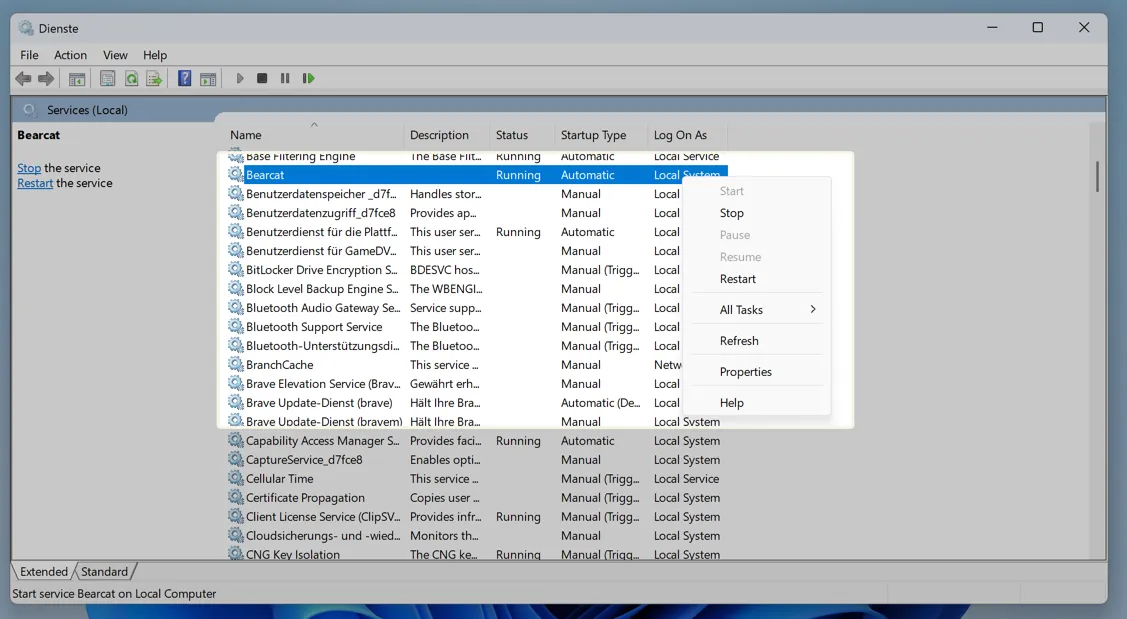
Or use an Administrator terminal:
The service restarts automatically after a crash.
Checking the logs
Section titled “Checking the logs”The service logs to the Windows Event Log. Open the Event Viewer, go to Windows Logs => Application, and filter by the source Bearcat.
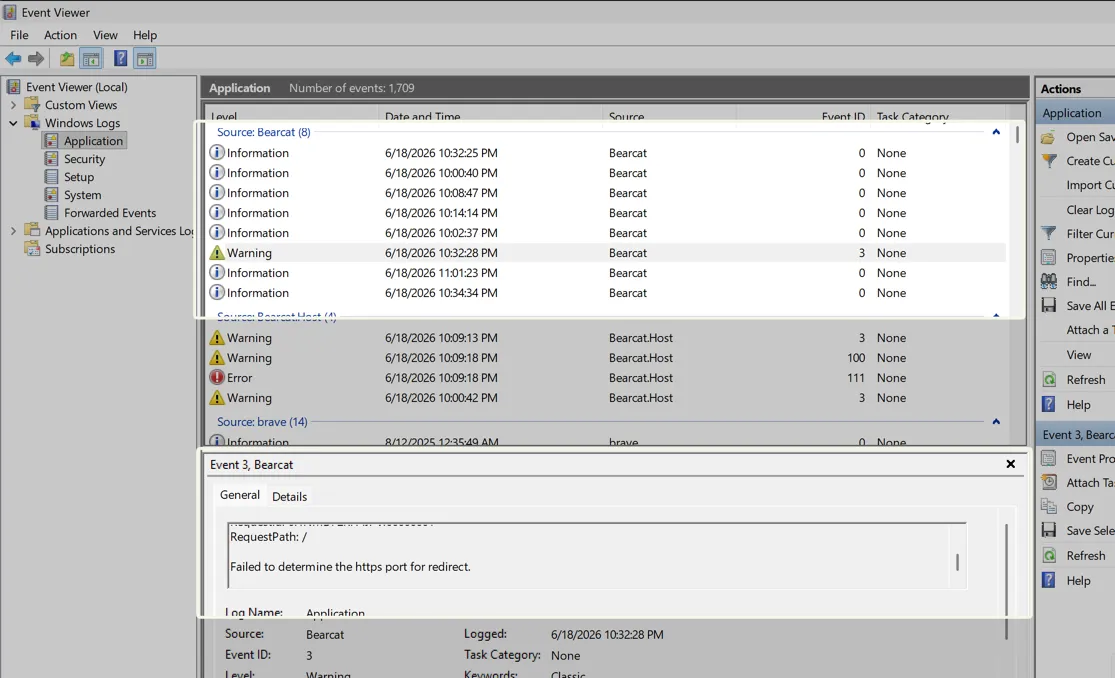
More detailed logs
Section titled “More detailed logs”Bearcat logs warnings and errors by default. For more detail, add the following Logging section to config.json. Keep your existing connection, paths, and port values:
Restart the service to apply the change:
Using a network share for releases
Section titled “Using a network share for releases”The service runs as LocalSystem by default. This account cannot access protected network shares.
Mapped drives such as Z: are not visible to services. If your release data lives on a network share:
-
Enter it as a UNC path (
\\server\share\releases) during setup, not a mapped drive letter. -
Open
services.msc=> Bearcat => Log On, and set an account that has access to the share.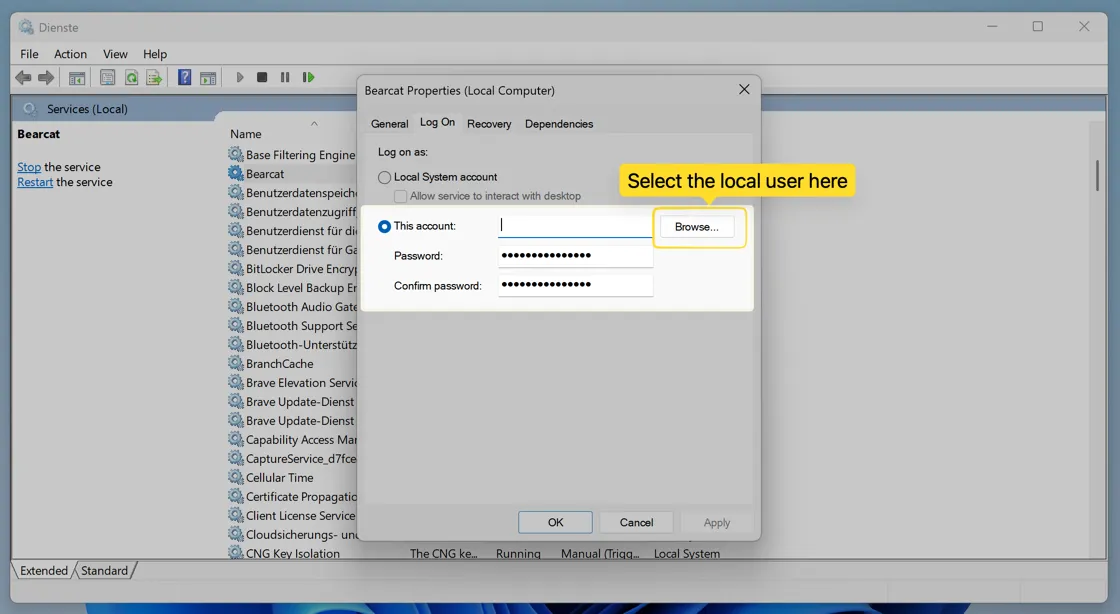
-
Restart the service.
The setup reminds you about this when it detects a UNC path. The account is kept when you run setup again.
Changing the database password
Section titled “Changing the database password”For PostgreSQL, update the database password with this command as Administrator:
It prompts for the new password, tests the connection, updates the configuration, and restarts the service. With SQLite, it exits with an error and leaves the configuration unchanged.
Uninstalling
Section titled “Uninstalling”To stop and remove the service, run (as Administrator):
The command removes the service and offers to delete config.json. The database is kept.