
Your First Upload
Have your hoster account and files ready. The files you upload together form a release.
Open Bearcat in your browser:
- Desktop app or Windows service: http://127.0.0.1:17208
- Docker: http://localhost:8080, or
http://<server-address>:8080on another computer
If you changed the web port during installation, use that port instead.
Open setup
Section titled “Open setup”After installation, Initial Setup opens automatically on your first visit to the start page. To return later, use System > Initial Setup or search with Ctrl+K or Cmd+K.
You can skip steps and change all settings later.
Welcome
Section titled “Welcome”Click Start setup. Use Skip setup to return to the start page. You can also set up Bearcat manually.
Working directories
Section titled “Working directories”Bearcat can only access folders inside its working directories. Setup shows each directory as OK, Missing, or Not writable. At least one must exist and be writable before you can click Next.
- Docker: the host folder
RELEASES_DIRfrom your.envfile appears as/mnt/data/releases. - Desktop app or Windows service: set working directories in the desktop app settings or in
appsettings.user.json, then restart Bearcat and click Check again.
You cannot change working directories in the wizard.
Hoster
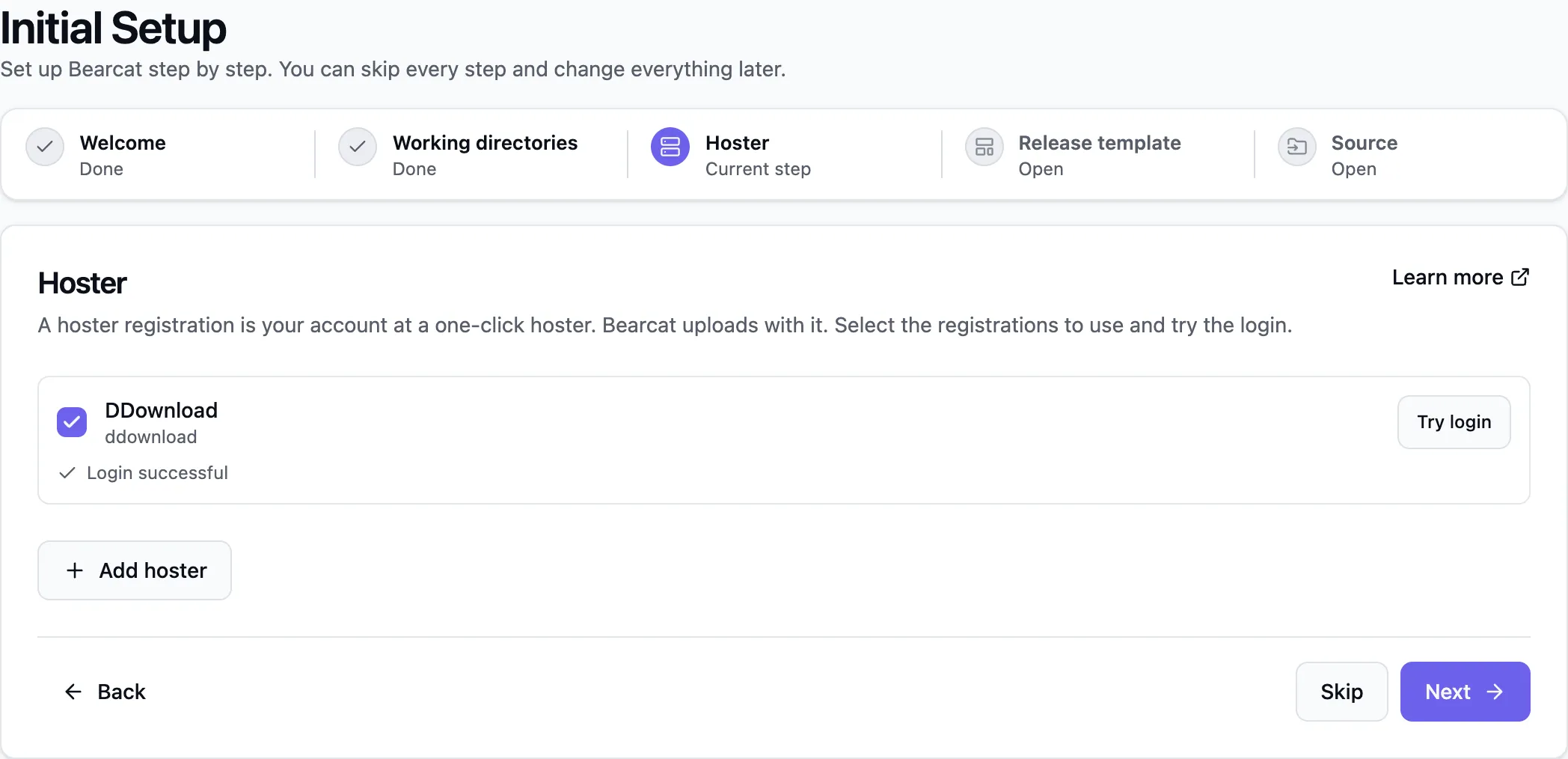
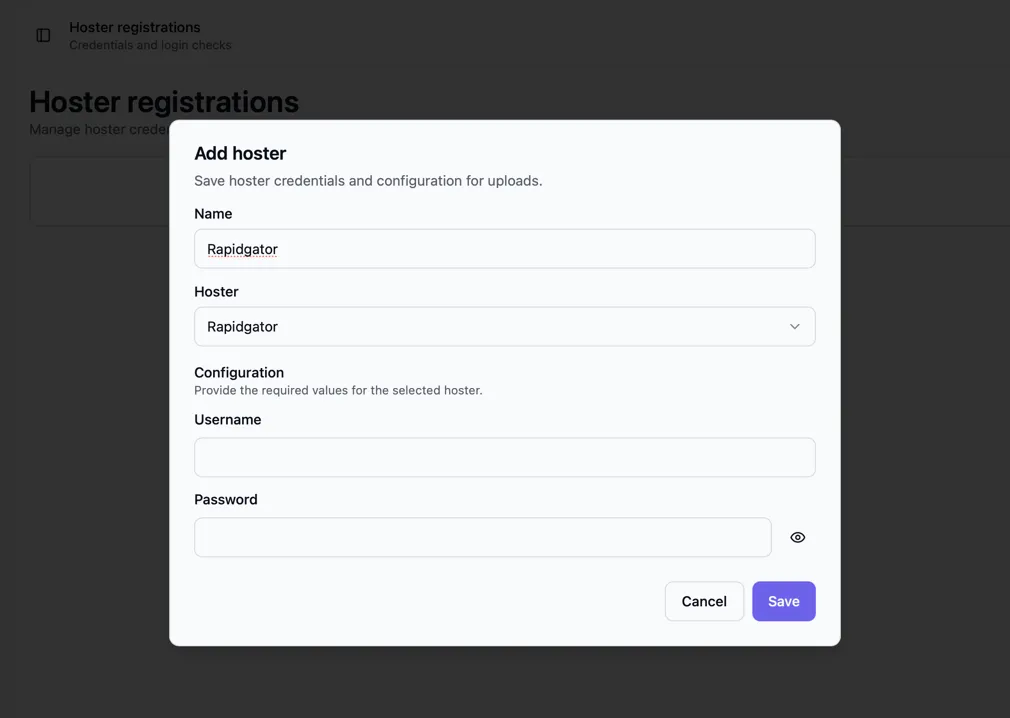
Section titled “Hoster”- Click Add hoster, choose your hoster, and enter its username and password or API key. Leave upload limits and reupload settings at their defaults.
- Select the hoster registrations Bearcat should use for uploads.
- Click Try login for each selected hoster registration.
Once at least one login test succeeds, you can click Next.
Show hoster setup
Release group and template
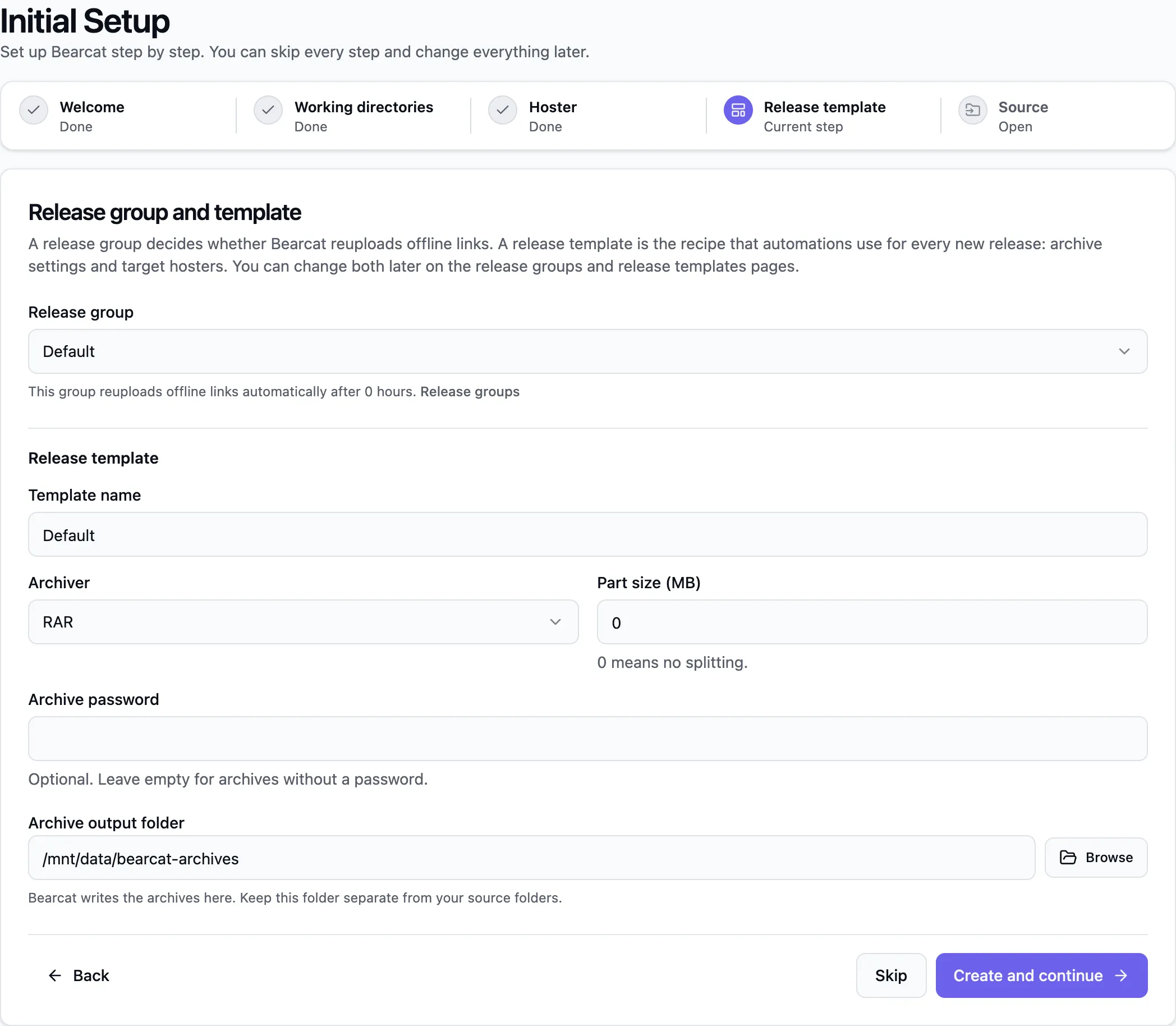
Section titled “Release group and template”The release group controls whether Bearcat replaces uploads that go offline. The release template stores the archive settings and target hosters. Automations use these settings for new releases.
If you already have a template, choose Use existing template. Otherwise, choose Create new template. New templates use these defaults:
| Field | Default |
|---|---|
| Release group | Default, or the first group if Default does not exist |
| Template name | Default |
| Archiver | RAR |
| Part size (MB) | The smallest file size limit of the selected hosters. Use 0 to keep the archive in one part. For 7z, the value must be greater than 0. |
| Archive password | Empty, no password |
| Archive output folder | bearcat-archives in the first writable working directory |
Below Release group, you can see whether automatic reuploads are enabled for the selected group. You can change this under Release groups.
If no group exists, a link takes you to Release groups. Create a group there before creating the template.
Choose an archive output folder separate from your source folders. If it does not exist yet, click Create folder. Save the template with Create and continue.
The new template is Managed and contains one archive configuration and one upload configuration per selected hoster. If you have not selected a hoster, add the upload configurations later under Release templates.
Archives get a random name. To use the release name, edit the archive configuration under Release templates.
Show template step
Source
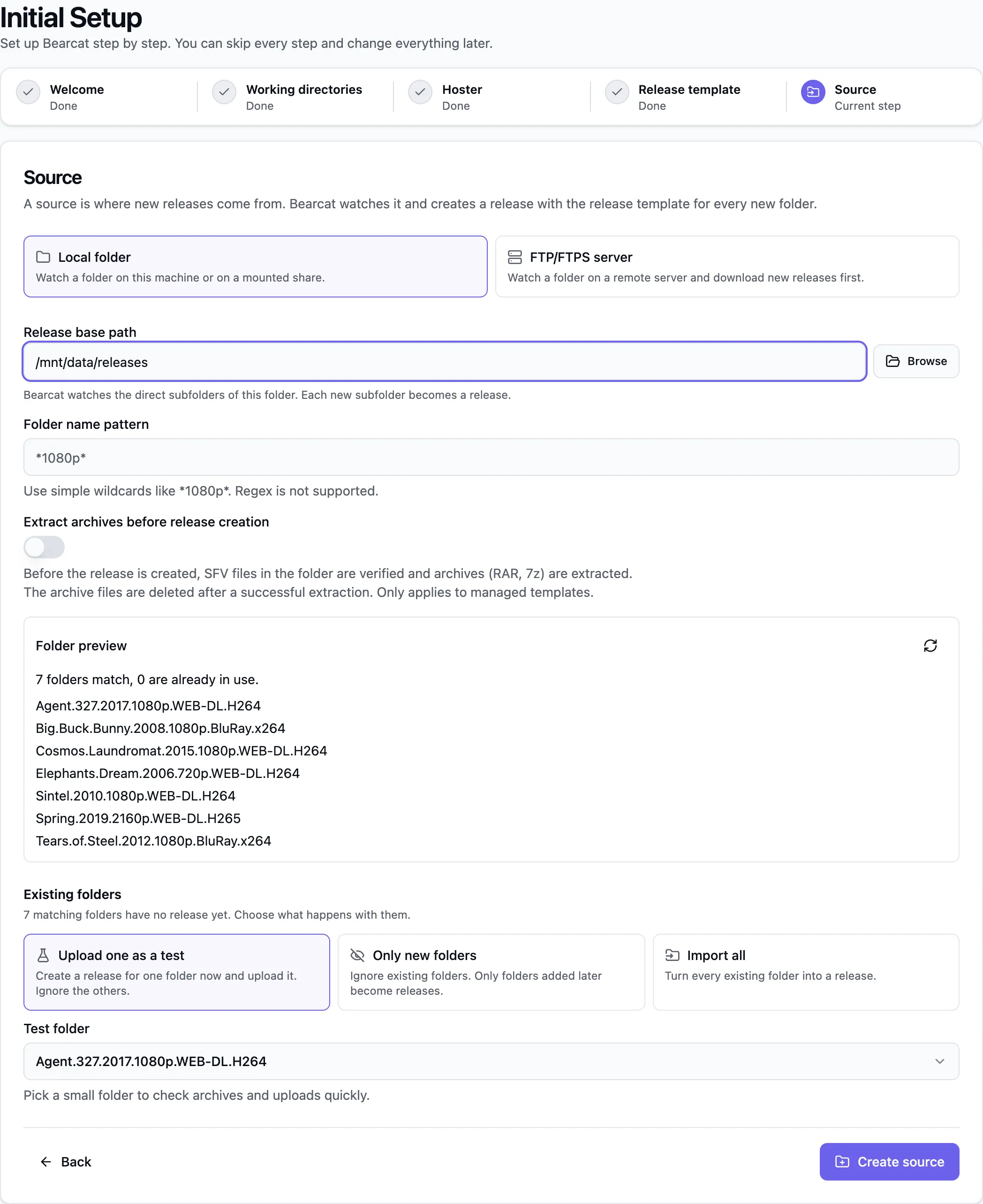
Section titled “Source”A source tells Bearcat where to look for new releases. Choose Local folder or FTP/FTPS server.
Local folder:
- Set Release base path to the folder whose direct subfolders should become releases.
- Optionally set a Folder name pattern, such as
*1080p*. - If the folders contain RAR or 7z archives, turn on Extract archives before release creation. See Extract archives before release creation.
The Folder preview lists matching folders and shows how many are already in use. Archive output folders count as used and never become releases.
Under Existing folders, choose what to do with matching folders that do not have a release yet:
| Option | Result |
|---|---|
| Upload one as a test (default) | Bearcat creates a release from the selected Test folder and starts its uploads without waiting. Other existing folders are ignored. This option is unavailable when archive extraction is enabled. |
| Only new folders | Existing folders are ignored. Only folders added later become releases. |
| Import all | All matching folders without a release are imported and uploaded. |
Pick a small test folder to check archives and uploads quickly. Click Create source.
Show source step
FTP/FTPS server:
- If no active remote source exists, click Add remote source and enter your server details.
- Click Create remote automation. In the dialog, choose the remote source, the remote folder to watch, and the local download folder.
Existing folders on the server are ignored. See FTP / FTPS Downloads for more about these settings.
Bearcat confirms the new source. If you selected a test folder, it also shows whether its uploads were created. Click Open release to view the test release or Go to activity to return to the start page.
What happens next
Section titled “What happens next”- Test release: packing starts shortly after you click Create source.
- New local folders: Bearcat scans about every two minutes. A folder must remain unchanged for the stability period (default: 5 minutes). Bearcat then creates the release.
- New folders on the server: Bearcat also waits until the folder has remained unchanged for the stability period (default: 5 minutes). It then downloads the folder and creates the release.
- Uploads start after the initial upload cooldown (default: 5 minutes). To skip the wait for one release, click Start uploads now on its detail page.
You can follow archive creation and uploads on the start page. On the release detail page, open Uploads and switch to History to follow progress. Once the upload finishes, copy the download links from Overview.
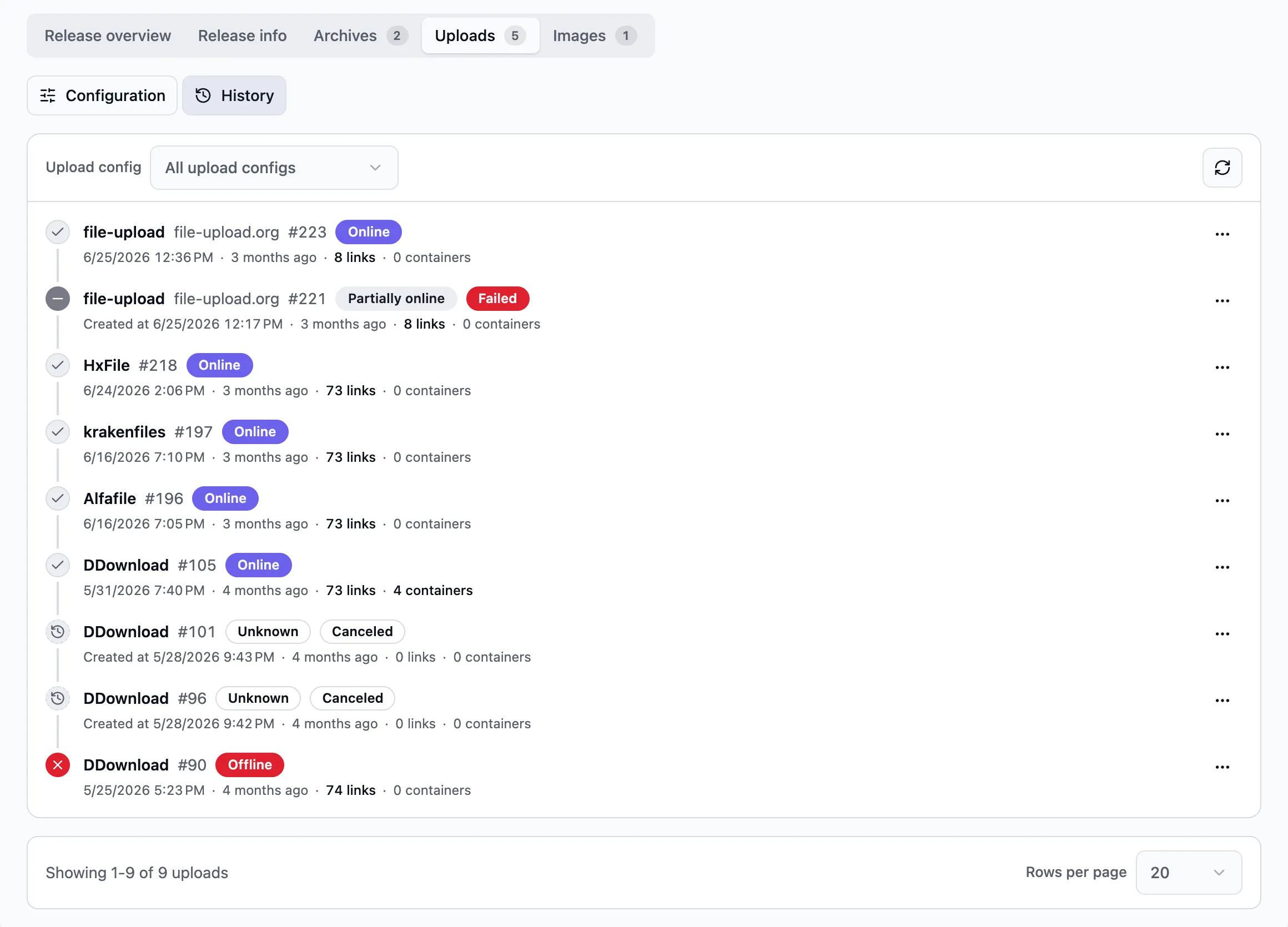
If the upload fails or does not start, check the notification bell for errors. Make sure Try login succeeds and the archive output folder is writable. See Upload lifecycle for the stages.
Start page
Section titled “Start page”A banner on the start page shows whether you still need a hoster, release template, or source. Click Continue setup to return to the wizard.
Once basic setup is complete, the start page shows Optional next steps: metadata and NFOs, an image hoster for cover images, link crypters, Telegram notifications, forum posting, and proxy servers. Each item links to the relevant settings and is marked as done once configured.
Show optional next steps
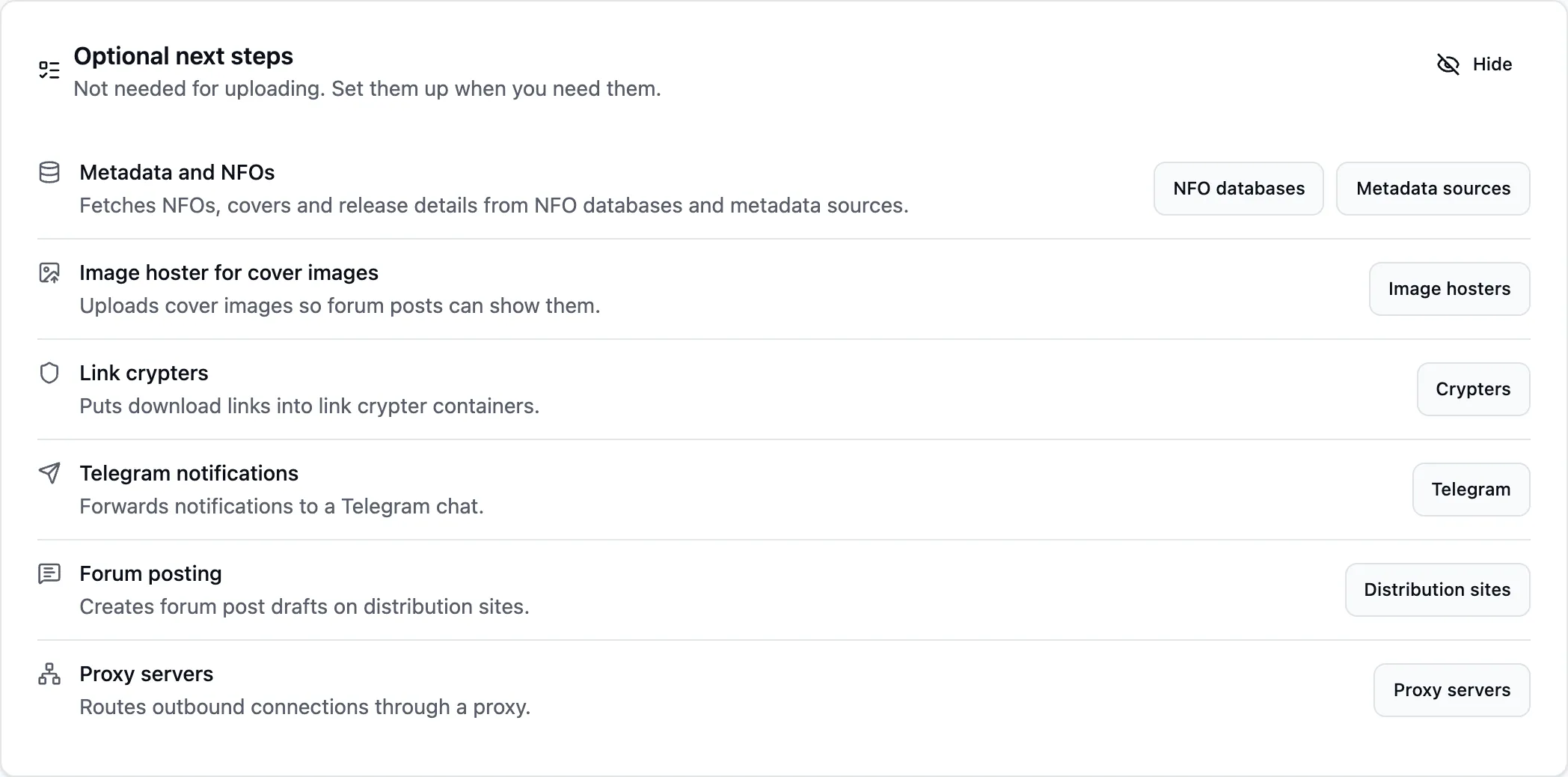
Click Hide to hide the list and setup banner in all browsers. To show them again, enable Show assistant on activity page under Configurations > Initial Setup.
Set up manually
Section titled “Set up manually”- Hoster: open Hoster registrations, click New hoster, enter your credentials, save, and click Try login.
- Release group: open Release groups, click New release group, and save. Keep automatic reuploads disabled for a first test.
- Release: put your files in a subfolder of a working directory, for example
releases/My.First.Upload/. Open Releases, click New release, select Managed, choose the folder and the group, and click Create release. In Docker,RELEASES_DIRappears as/mnt/data/releases. For archives you already have, use an unmanaged release. - Archives: on the release’s Archives tab, click Add and choose RAR or 7z. Choose a writable output folder in a working directory, separate from your source files. Enter a file prefix and a part size in MB within your hoster’s file size limit. Set a password if needed, then save.
- Uploads: on Uploads > Configuration, click Add, select your hoster account and the archive configuration, and save. Leave Links distributed to empty for now.
The upload starts after the initial upload cooldown, or right away with Start uploads now.
Show the login test
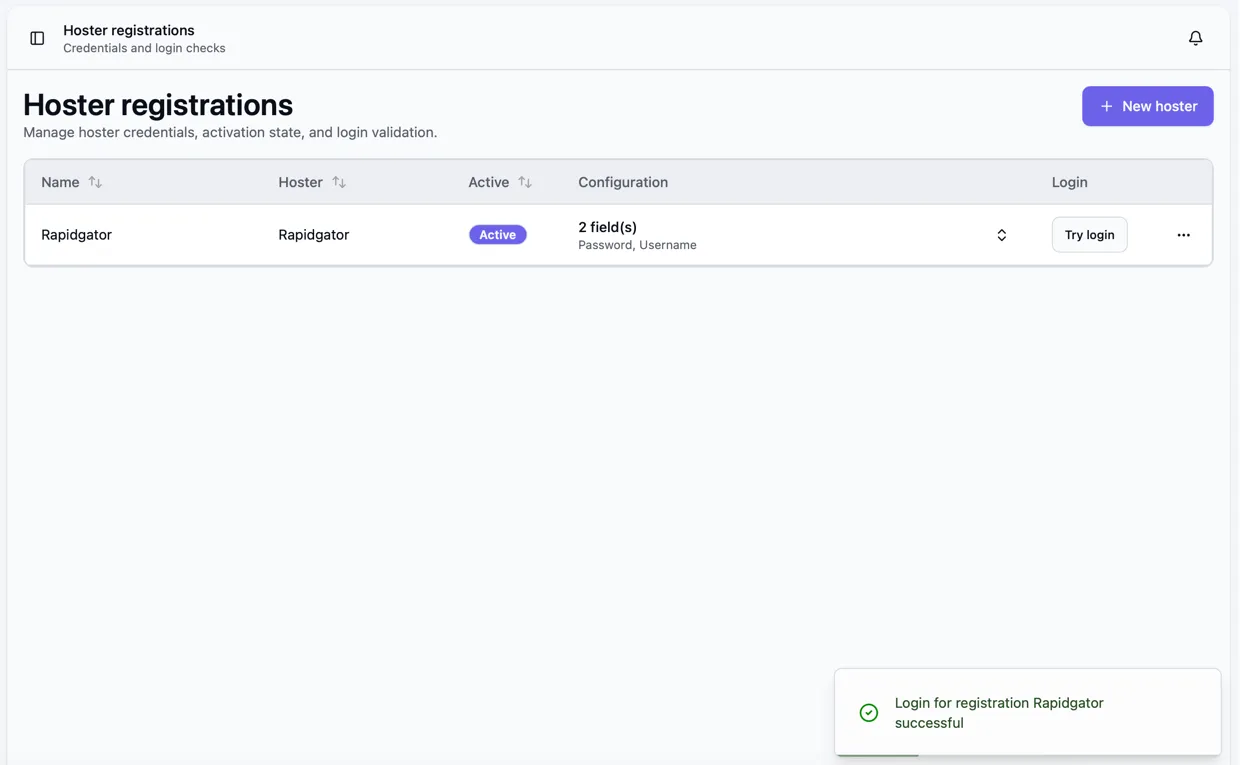
To create releases from new folders automatically, save the settings as a template and add a folder automation.
After your first upload
Section titled “After your first upload”For future uploads, you can:
- Save a template and watch folders to reuse these settings.
- Enable reuploads or add link crypters to manage your upload links.
- Download from FTP or FTPS to fetch releases automatically.
- Add metadata and cover images for your releases.
- Explore the release detail page for more settings.