Send Upload Notifications to Telegram
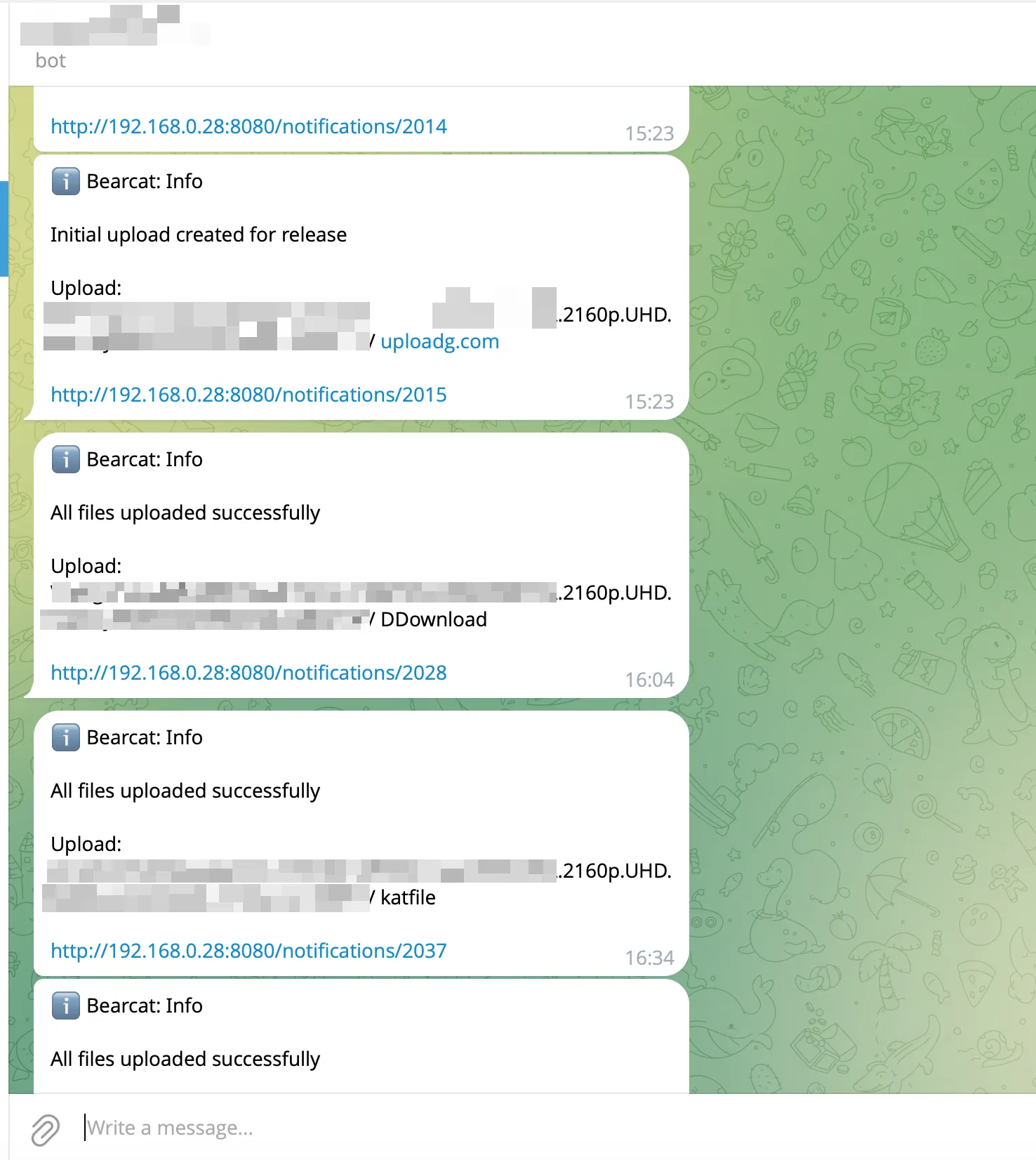
Bearcat can send upload completions, errors, and other notifications to your Telegram chat. Each message identifies the release, upload or archive and links to its notification in Bearcat.
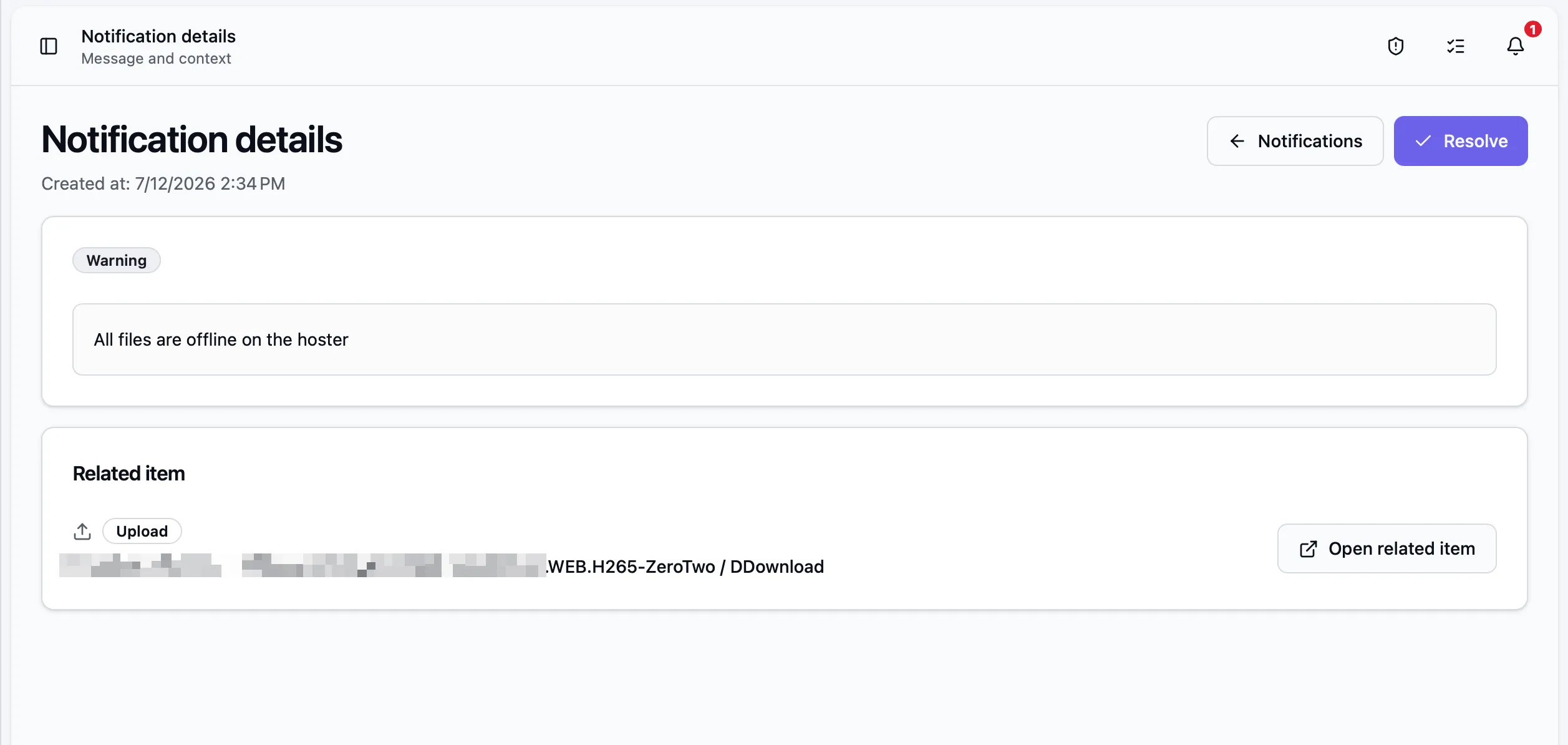
The link opens the notification details:
Where to find it
Section titled “Where to find it”Open Telegram notifications in the sidebar or go to /telegram.
Setting up the bot
Section titled “Setting up the bot”First, create your own Telegram bot:
-
In Telegram, open a chat with @BotFather and send
/newbot. Follow the prompts to pick a name and a username. BotFather gives you a bot token.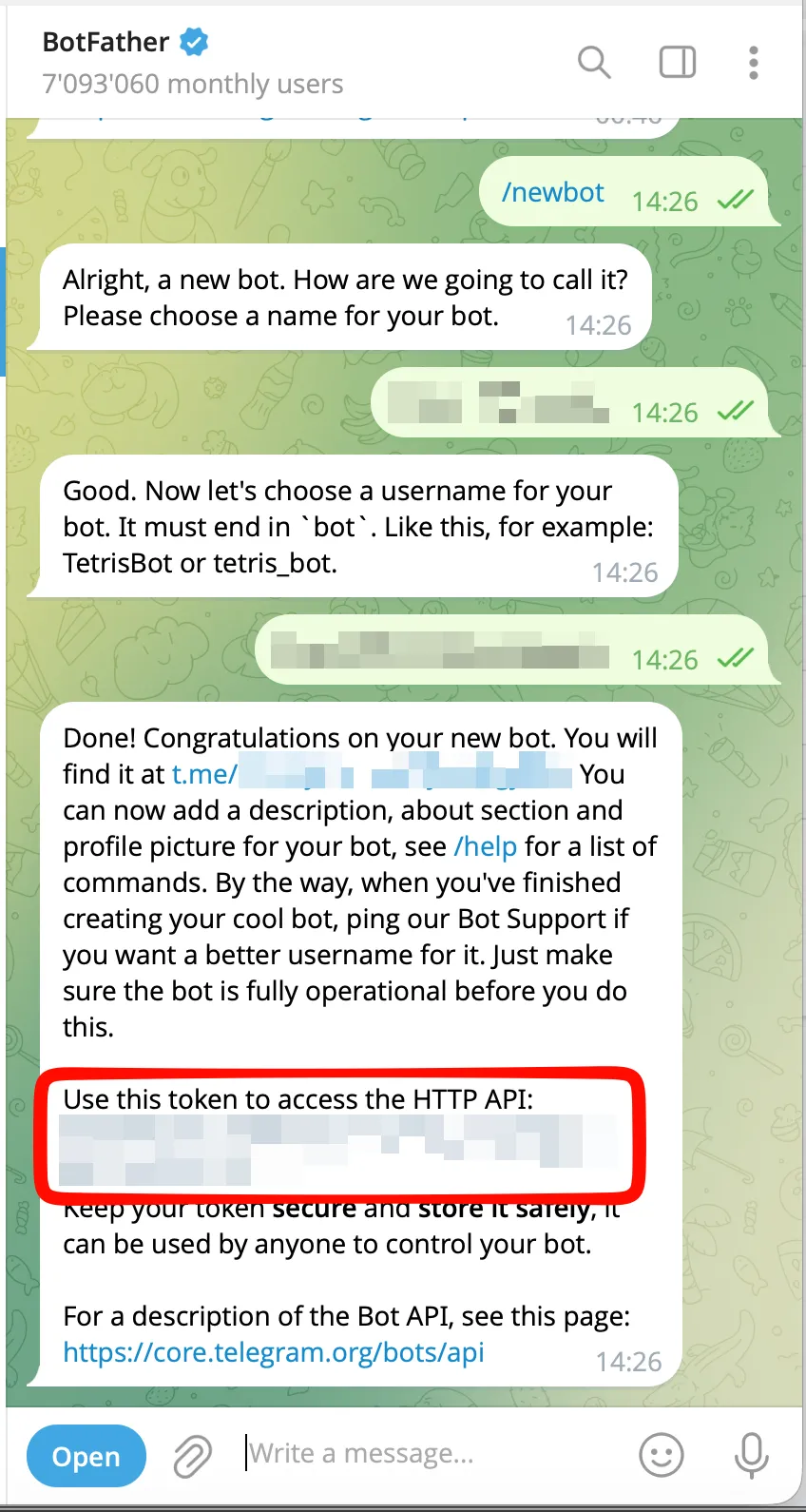
-
Paste that token into the Bot token field on the Telegram notifications page.
-
Enter a Bearcat URL that your phone can reach. If Bearcat is on a private network, your phone may need a VPN connection to open notification links.
-
Click Save.
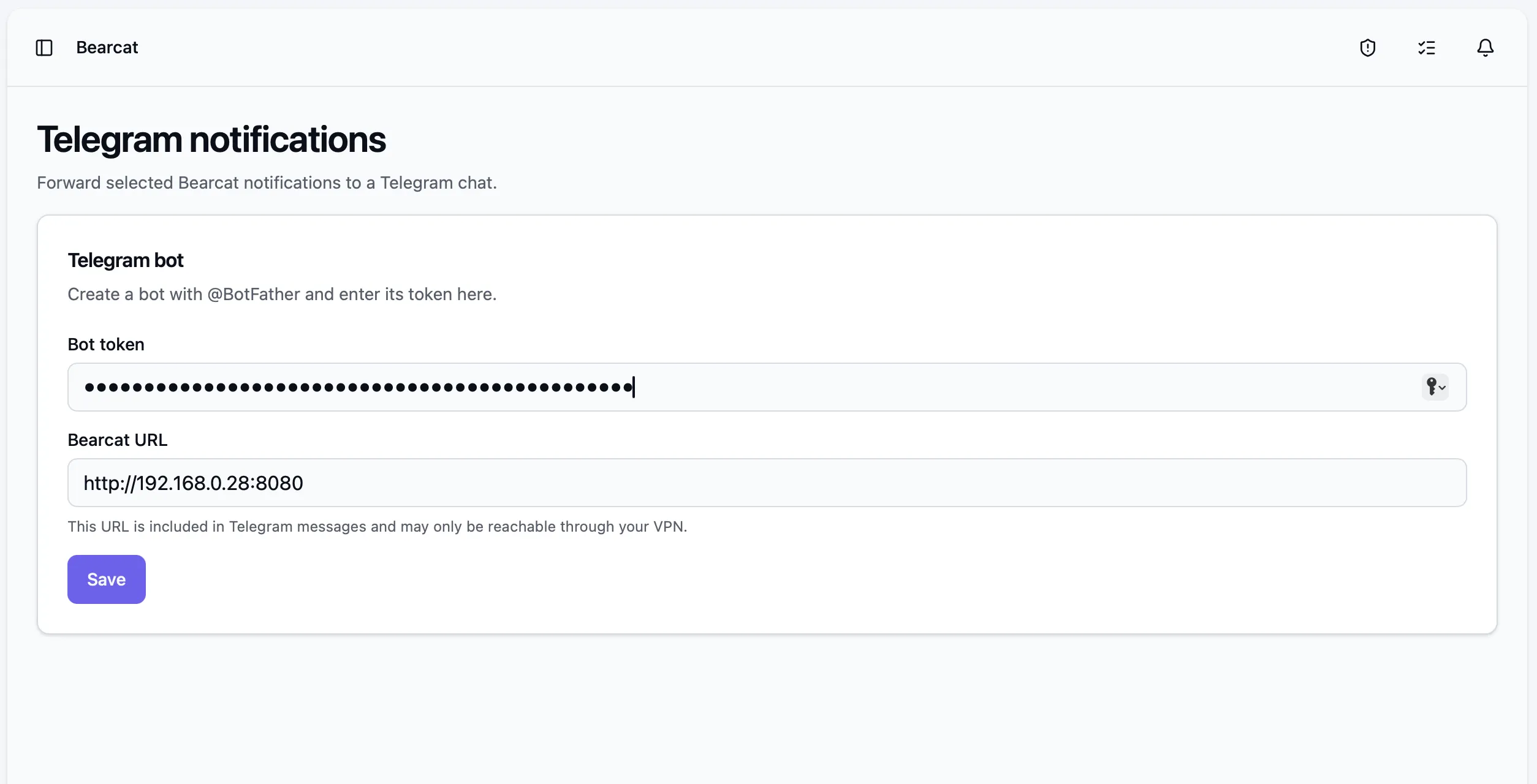
Bearcat stores the token encrypted. Leave the field empty when editing other settings to keep the current bot. Entering a new token replaces the bot and disconnects the chat; you must connect it again.
Connecting a chat
Section titled “Connecting a chat”-
In the Recipient section, click Connect Telegram. Bearcat generates a one-time link.
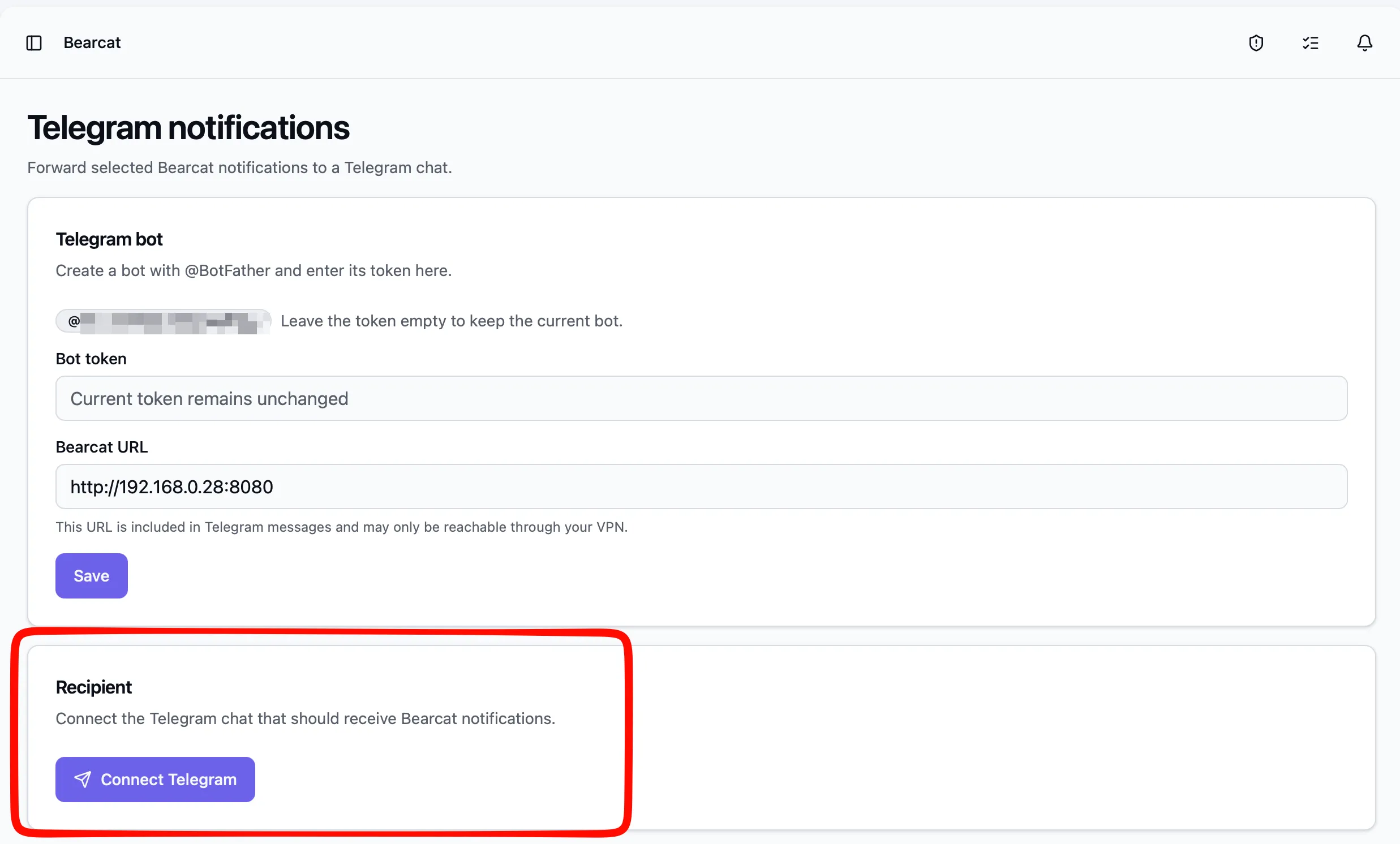
-
Click Open Telegram and press Start in the chat that opens. The link is valid for ten minutes.
-
Back in Bearcat, click Check connection. Once connected, the chat shows Connected and receives a short confirmation message.
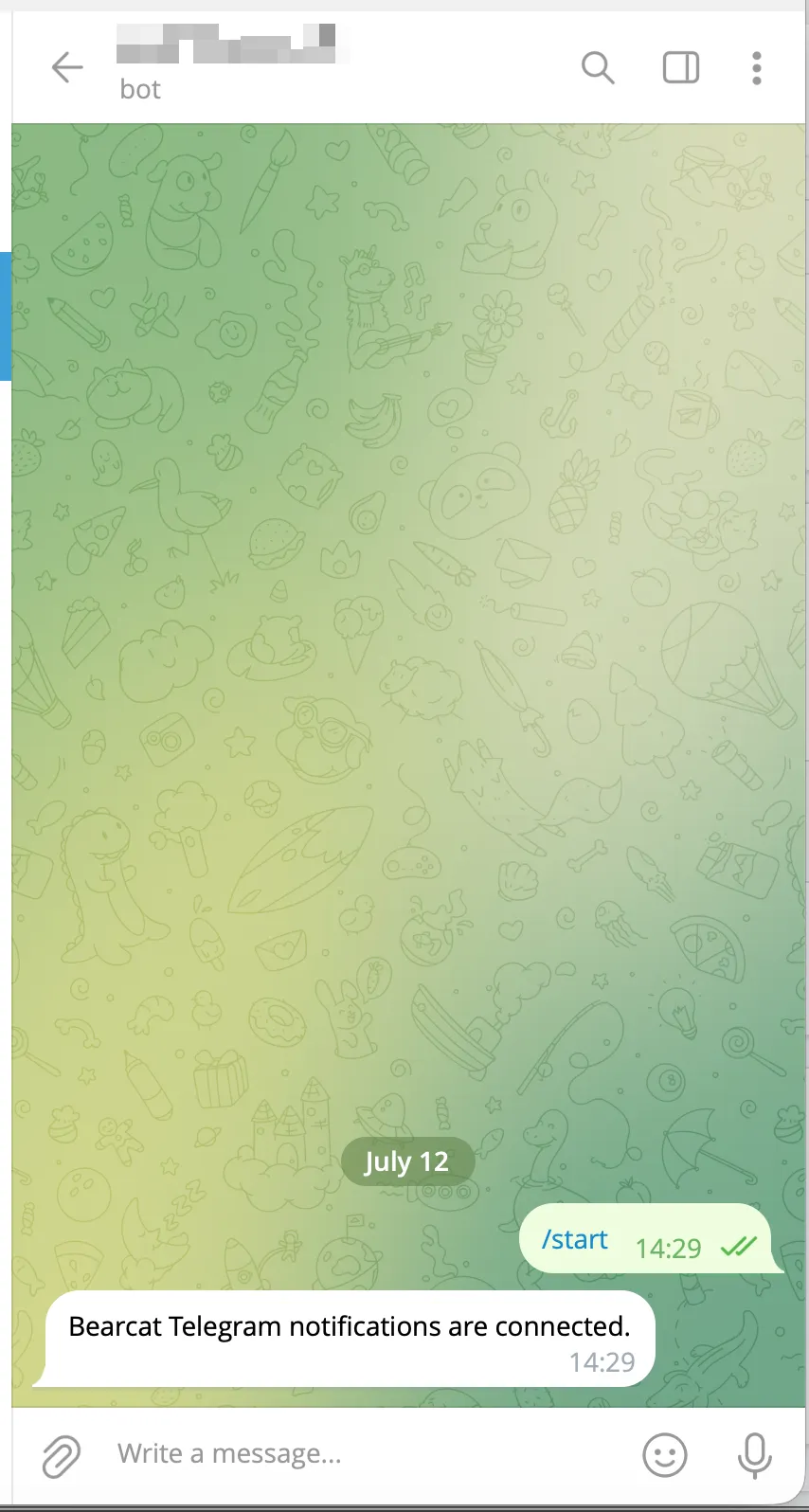
Click Send test notification to check that messages reach the connected chat.
If you reload the page during setup, use Check connection or generate a new link to continue.
Choosing which notifications get forwarded
Section titled “Choosing which notifications get forwarded”Under Forwarded notification types, select Info, Warning and/or Error, then click Save. Uncheck a type to stop forwarding it.
Only notifications created after you connect the chat are forwarded.
Delivery status
Section titled “Delivery status”The Recipient section shows the delivery status:
- how many notifications are still waiting to be delivered,
- how many could not be delivered after several attempts,
- when the last notification was delivered,
- the last error, if a delivery failed.
Bearcat retries failed deliveries, waiting longer between attempts. After several failures, it gives up on that notification. This can happen if the bot is blocked or the chat is deleted.
Disconnecting
Section titled “Disconnecting”Disconnect removes the connected chat and discards any notifications that are still waiting to be delivered. Bearcat asks for confirmation first, because this cannot be undone. The bot itself stays configured, so you can connect a new chat.