
Download Releases from FTP/FTPS Automatically
Bearcat watches FTP and FTPS servers for new release folders, downloads them, and verifies any SFV checksums. A release template controls how the files are then packed and uploaded.
With a managed template, Bearcat can extract RAR and 7z archives before repacking them. Extraction is off by default. Use an unmanaged template to upload the downloaded archives unchanged.
Add a server
Section titled “Add a server”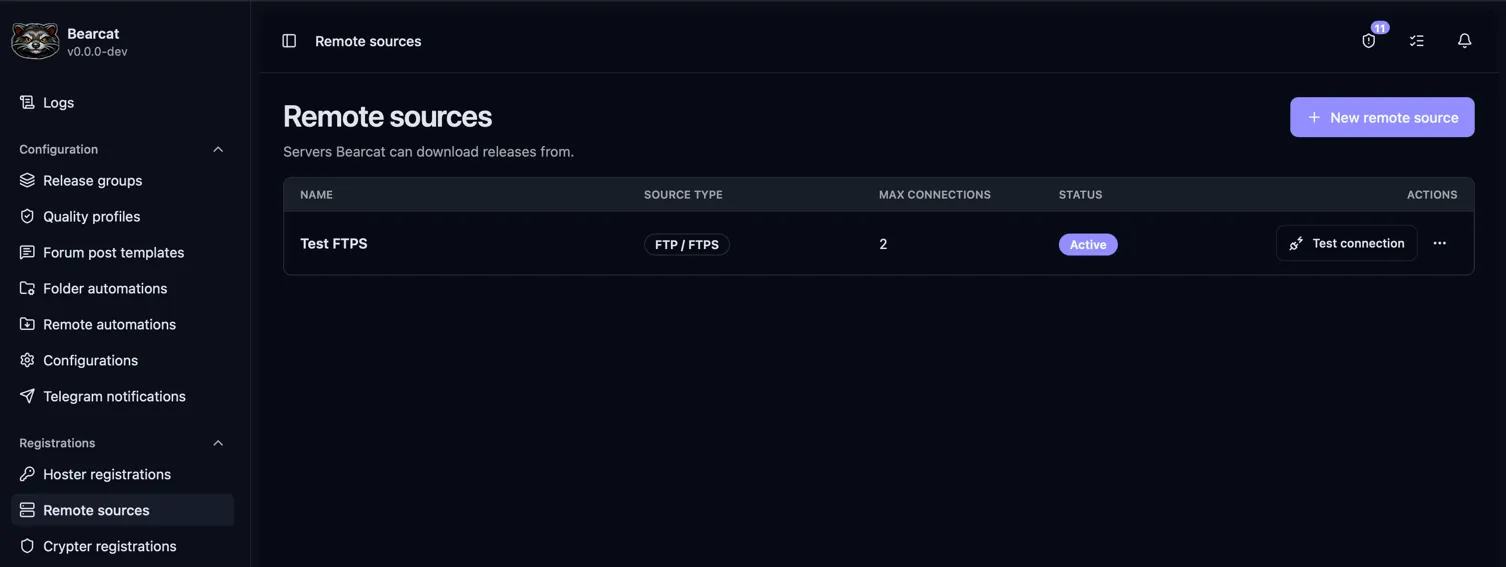
- Open Remote sources and click New remote source.
- Choose FTP / FTPS as the source type and give the connection a name.
- Enter the Host, Port, Username, and Password.
- Set Encryption to match the server: Explicit (FTPES), Implicit (FTPS), or None (plain FTP).
The defaults are explicit encryption and port
21. - Set Max connections to the number of connections your account allows. The default is
2. - Save, then choose Test connection from the server’s action menu.
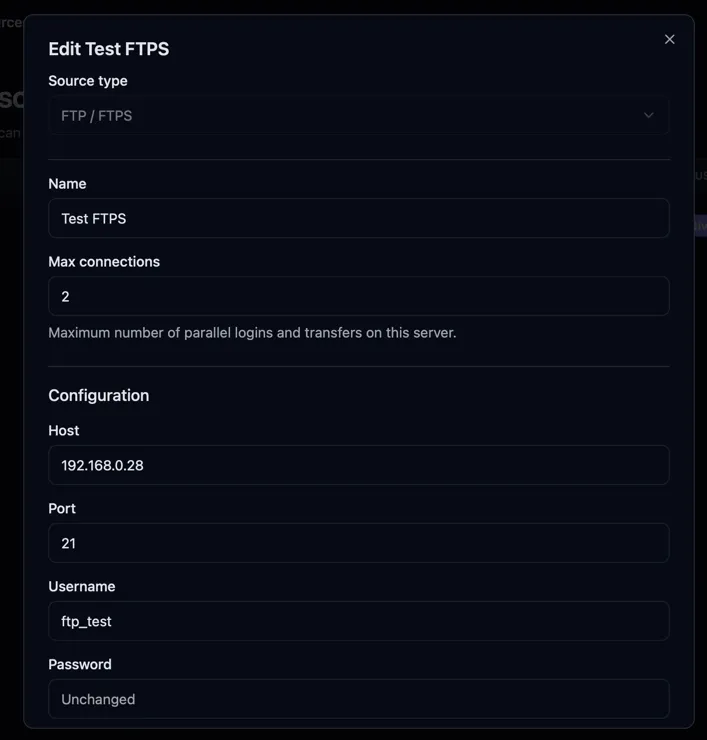
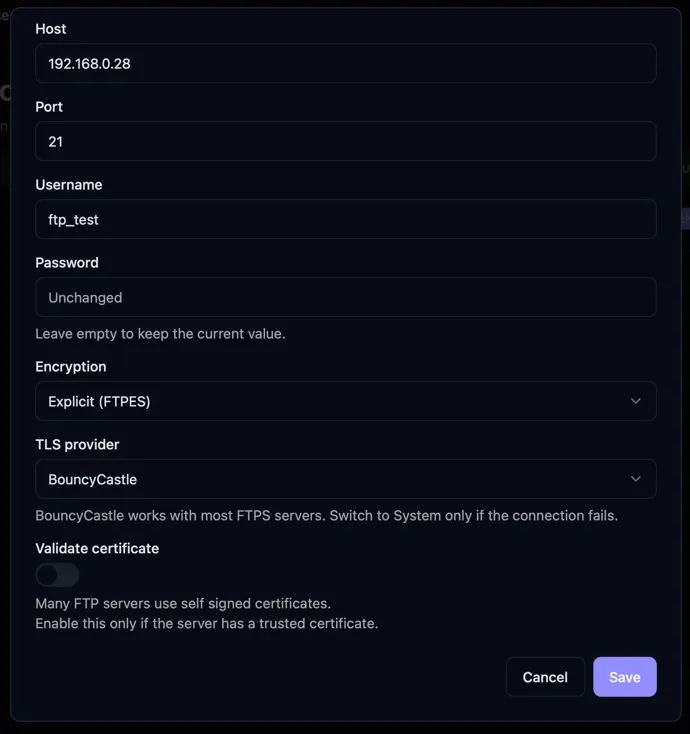
Leave TLS provider at BouncyCastle to start with. If the connection fails, check the server details and try System. Validate certificate is off by default. Enable it to check that the server has a trusted certificate.
Watch a remote folder
Section titled “Watch a remote folder”First, create a release template. Choose managed to pack the downloaded files or unmanaged to upload the provided archives.
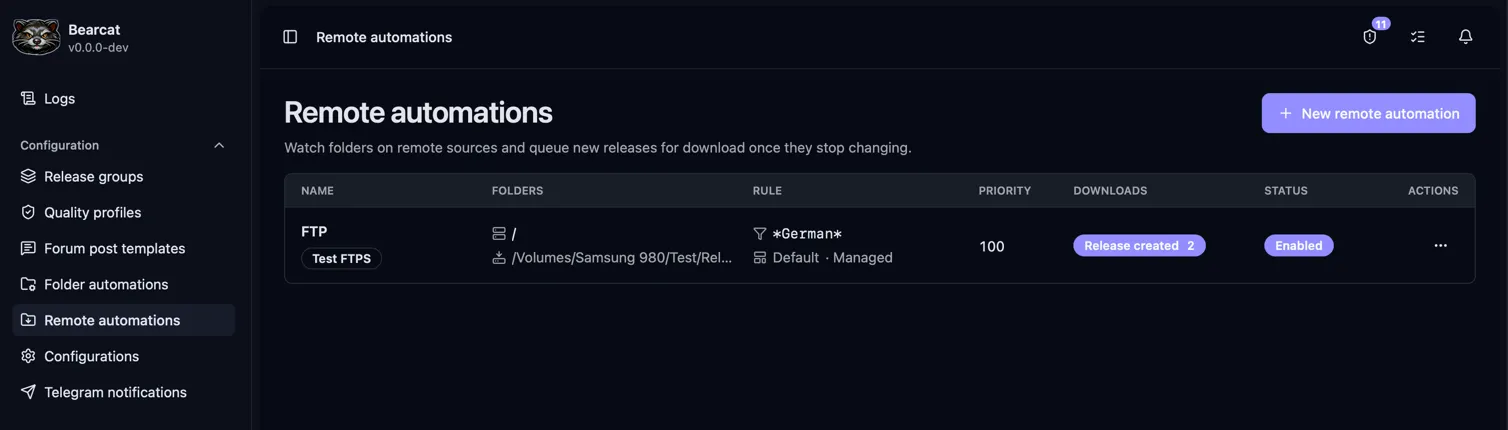
- Open Remote automations and click New remote automation.
- Give it a name and select your Remote source.
- Set Remote folder to the folder containing the releases. Use Browse to select it on the server.
- Choose a local Download folder. Bearcat creates a subfolder for each release there.
- Optionally enter a Folder name pattern, such as
*1080p*. Leave it empty to include all folders. Matching ignores case and uses wildcards, not regular expressions. - Select the Release template and, optionally, a Primary language for metadata.
- Decide if you want to Ignore existing folders, then save. The automation is enabled by default.
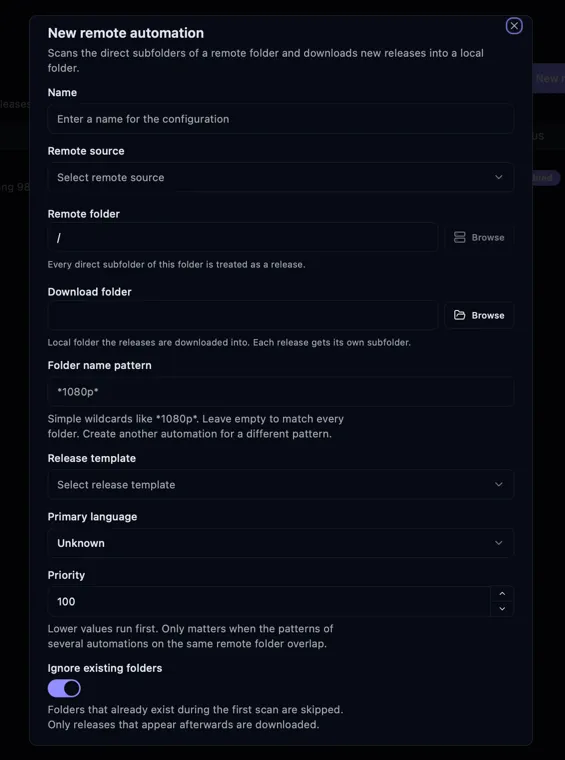
Ignore existing folders is on by default, so only folders added after the first scan are downloaded. Turn it off before saving to include existing releases. Changing it later does not affect folders already marked as ignored.
The download folder must be writable by Bearcat. In Docker, choose a path inside a mounted volume so the downloads survive container replacement.
Example
Section titled “Example”With Remote folder set to /movies, Folder name pattern set to *1080p*, and
Download folder set to /data/releases/incoming:
Bearcat looks for releases only in direct subfolders of /movies. Matching folders are downloaded
with all their contents. You do not need a separate local folder automation.
Overlapping automations
Section titled “Overlapping automations”Create more automations for different patterns, templates, or download folders.
If several match the same folder on a source, Bearcat uses the one with the lowest Priority.
For example, 10 takes priority over the default 100. Each remote folder is downloaded only once per source.
Changing priorities does not reassign folders Bearcat has already found.
Duplicate folders
Section titled “Duplicate folders”Bearcat marks a folder as Duplicate if a release or download from any remote source already has that name. It skips the duplicate even if the first download fails or is canceled. Use Restart download on Remote downloads to download it anyway.
Follow the download
Section titled “Follow the download”Bearcat scans about every two minutes. By default, a folder must be at least 1 MB and its file
count and total size must stay unchanged for five minutes before it is queued.
You can adjust these checks under Remote downloads settings.
Open Remote downloads to see folders, status, and errors. The usual sequence is:
| Status | Meaning |
|---|---|
| Observing | Waiting for the folder to stop changing and reach the minimum size. |
| Queued | Ready to download. |
| Downloading | Files are being saved locally. |
| Downloaded | All files are saved locally. Verification and extraction are next. |
| Verifying | Files are checked against the .sfv files in the folder. Skipped if there are none. |
| Extracting | Archives are being extracted. Only with Extract archives before release creation. |
| Ready for release creation | Release creation is next. |
| Release created | Open the linked release to follow its archives and uploads. |
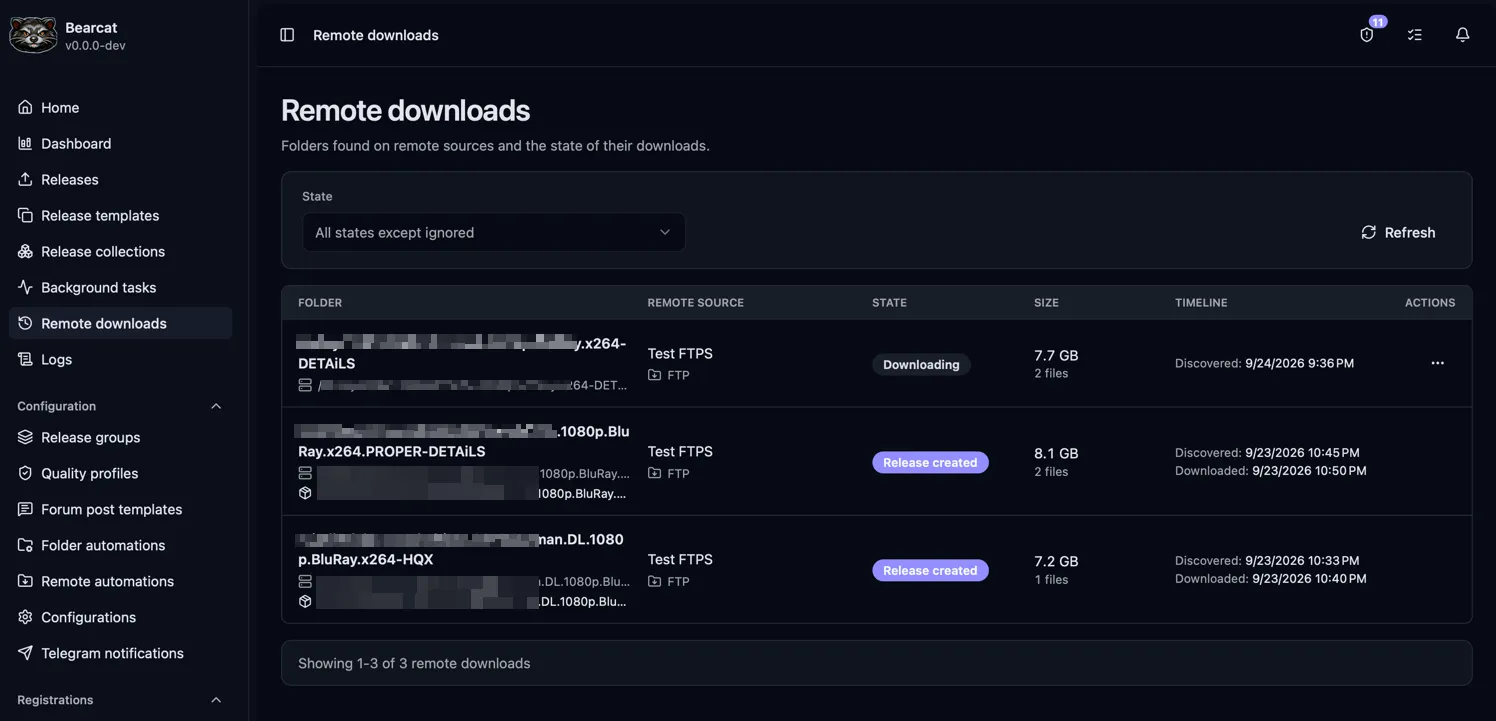
SFV verification
Section titled “SFV verification”After every download, Bearcat looks for .sfv files in the release folder and its subfolders and
compares the CRC32 checksum of each listed file. If a listed file is missing or its checksum does not
match, the download fails and the files stay on disk.
You can also follow running downloads under Activity > Downloads on the start page. It shows progress, speed, remaining time, phase, and file details. The release detail page shows the remote source.
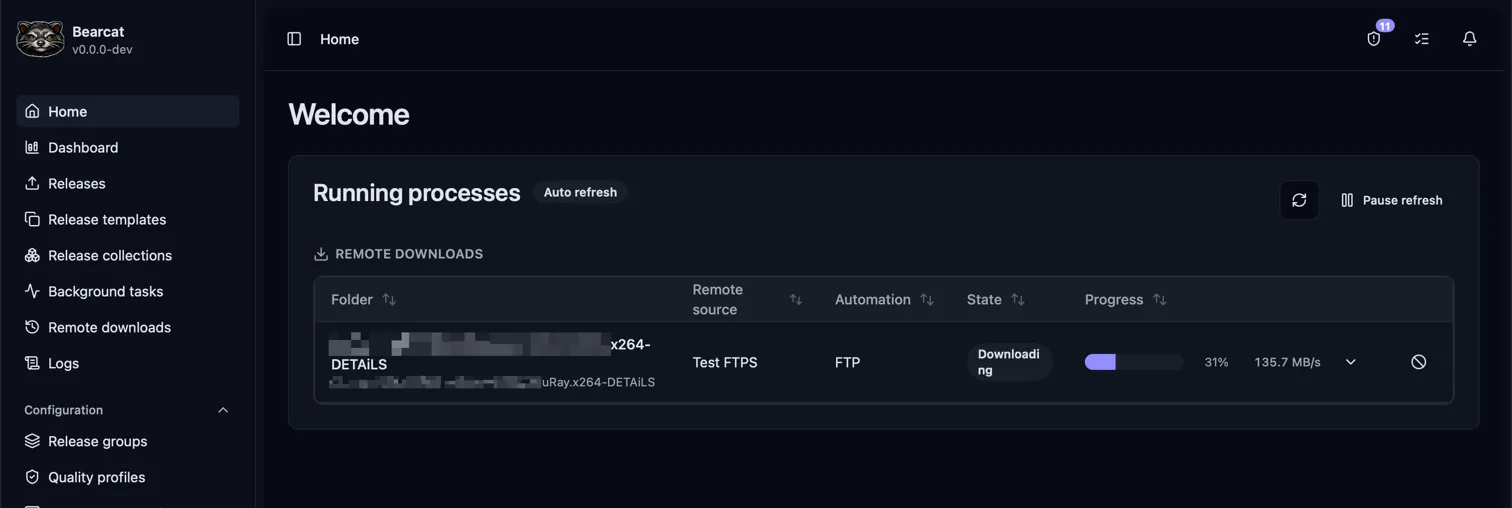
Cancel, retry, or skip a folder
Section titled “Cancel, retry, or skip a folder”Use the action menu in Remote downloads:
- Cancel stops an observed, queued, or running download. Files from a running download are deleted.
- Restart download queues a failed, canceled, or duplicate download again. It starts from scratch and removes files left by the previous attempt.
- Retry without downloading again uses the existing files to repeat verification, extraction, and release creation. Fix the reported error first. If the archives are already extracted, Bearcat only creates the release.
- Ignore skips a folder that has not started downloading, or a failed, canceled, or duplicate download. Ignored and duplicate folders are hidden by the default status filter and are not queued again.
If the local release folder is not empty before downloading, Bearcat stops with an error. Existing files are kept. Move them elsewhere before restarting the download.
Disabling an automation stops it from scanning. Already queued downloads stay queued. To stop one of those, cancel it on Remote downloads.
Extract archives before release creation
Section titled “Extract archives before release creation”With a managed template, turn on Extract archives before release creation in the automation to unpack RAR or 7z archives before Bearcat packs the release.
After SFV verification, Bearcat extracts all RAR and 7z archives in the release folder and its
subfolders, each into the folder that contains it. Once extraction succeeds, it deletes the archive
volumes and .sfv files that only list those volumes, then creates the release from the extracted files.
Bearcat stops extraction and keeps the archives if:
- There is not enough free disk space for the extracted files.
- Extraction would overwrite an existing file or folder.
- An archive is damaged or password protected.
This option is off by default and does not apply to unmanaged templates.
Delete raw files after uploading
Section titled “Delete raw files after uploading”For managed templates, Keep raw files is on by default. Turn it off in the automation if you want Bearcat to remove the downloaded release folder after uploading.
Bearcat waits until:
- Every upload configuration has a completed upload.
- No uploads are waiting or running, and no archives are being created.
- Every archive configuration has a created archive or an online mirror.
It then converts the release to unmanaged and deletes the downloaded folder. Future reuploads use the existing archives or mirrors.
Store archives outside the downloaded release folder. If it contains archives, Bearcat keeps the folder and notifies you. This option does not apply to unmanaged templates.
For releases with a video upload configuration, Bearcat keeps the downloaded folder.