The Release Detail Page
Open Releases and click a release name. For a walkthrough, see Your first upload.
Header
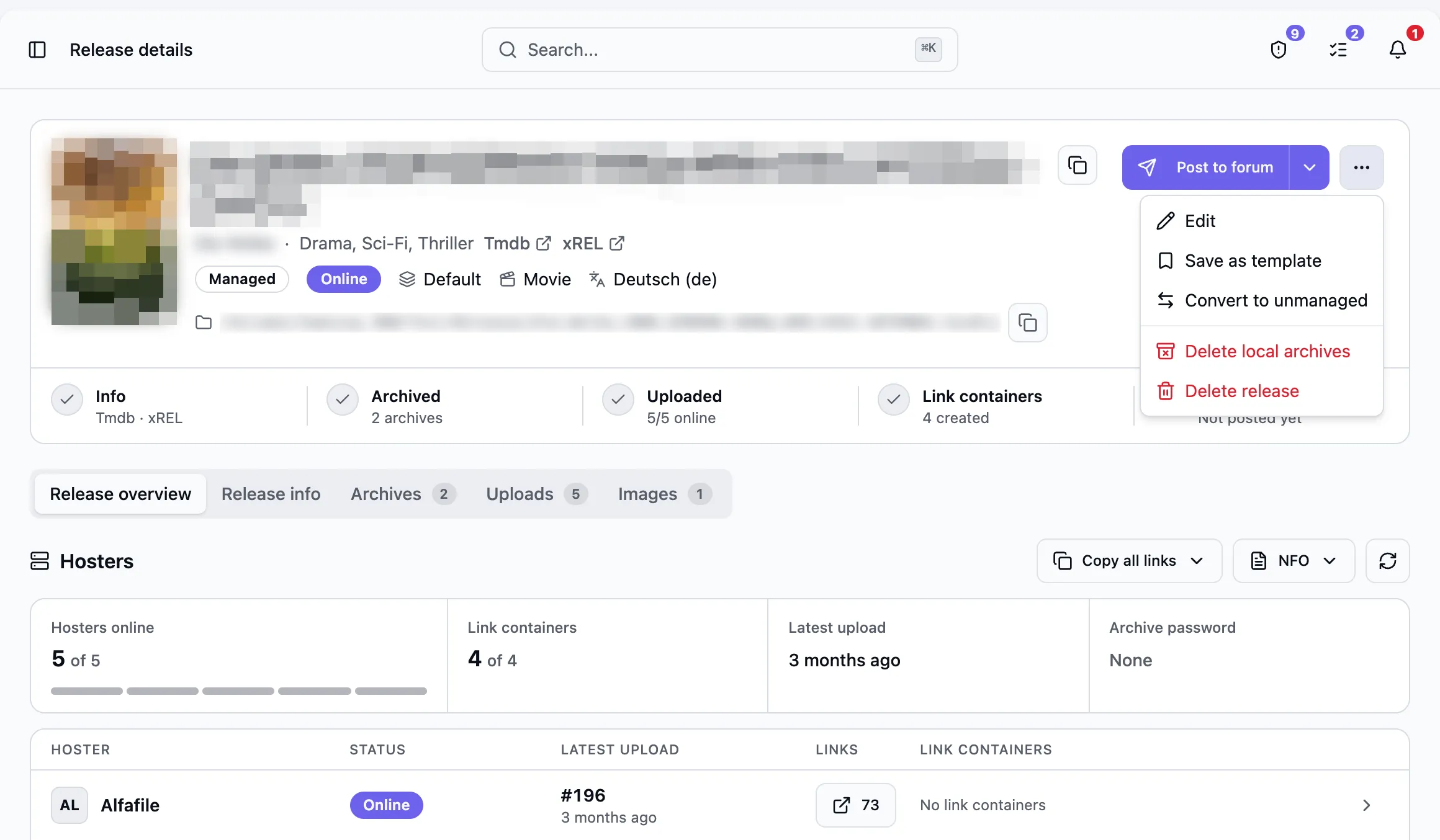
Section titled “Header”Post to forum opens the forum posting dialog. The button is highlighted when the release has at least one online hoster and has not been posted yet. Without an active forum distribution site, you see Render forum post instead.
Click Start uploads now to skip the initial upload cooldown for this release. The button appears if at least one upload configuration has no upload yet.
Use the ... menu to convert between release types.
The status display below the header shows progress. Red marks a problem or an unfinished step. Click a step to open its tab.
Overview
Section titled “Overview”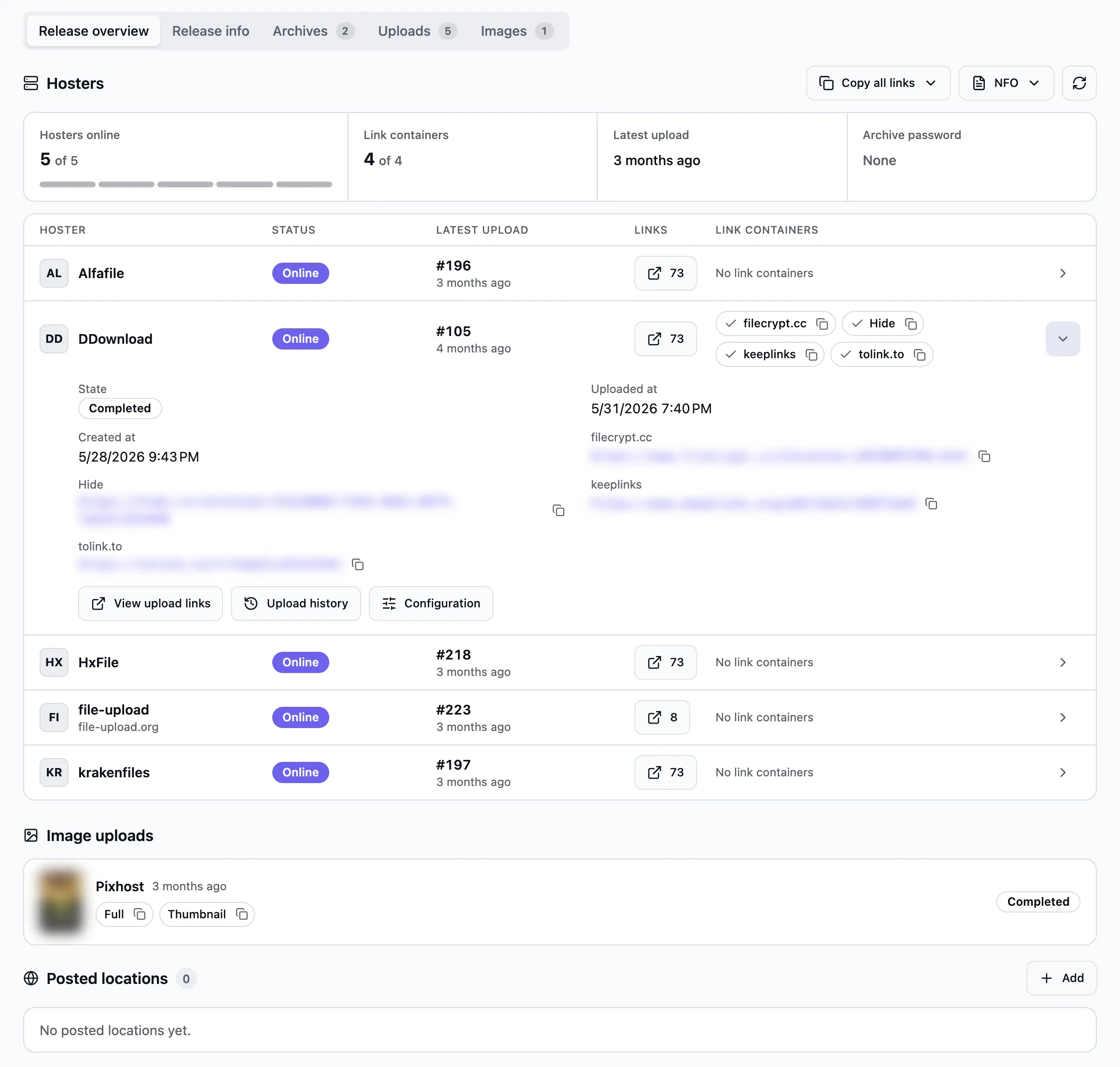
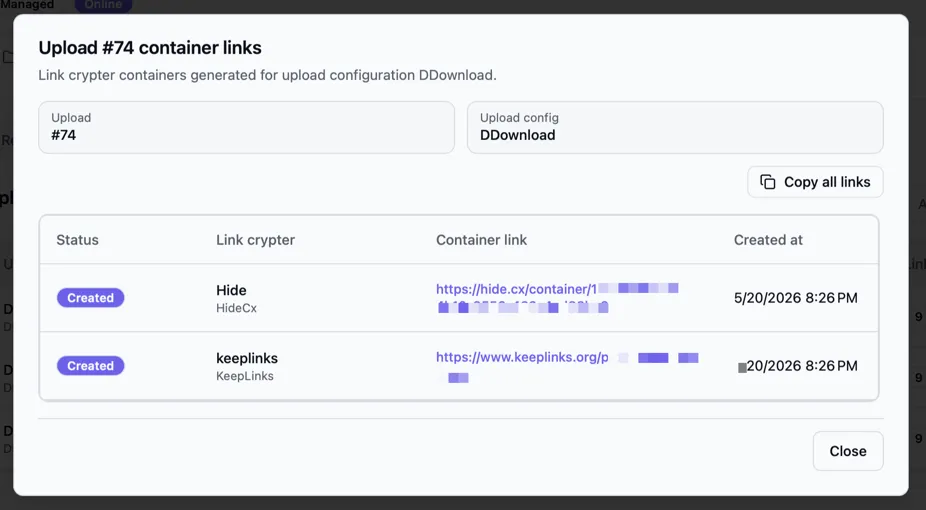
Copy all links copies one link crypter’s container links for all hosters. Posted locations are listed at the bottom.
Release info
Section titled “Release info”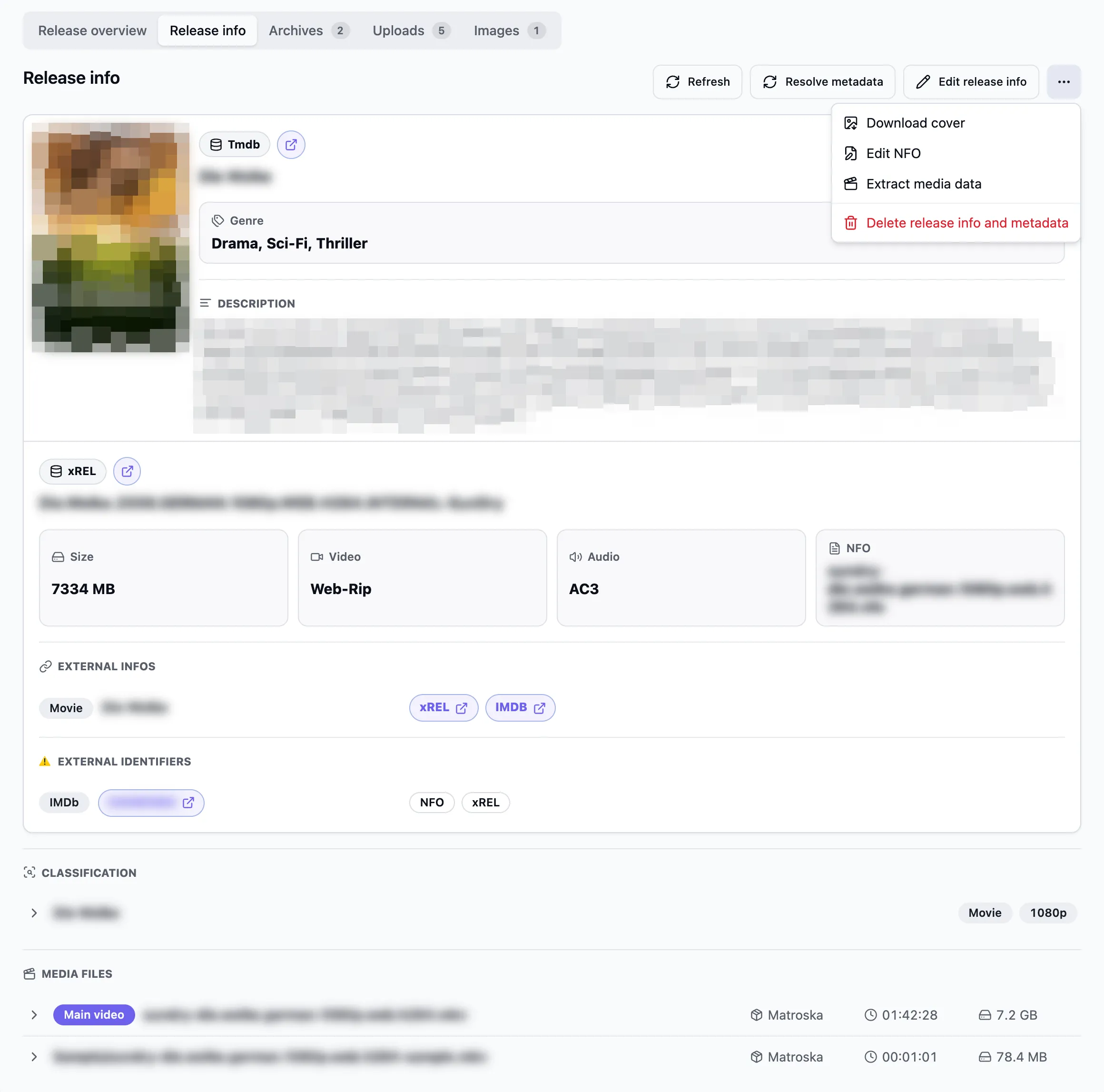
See Release Information and Metadata.
Archives
Section titled “Archives”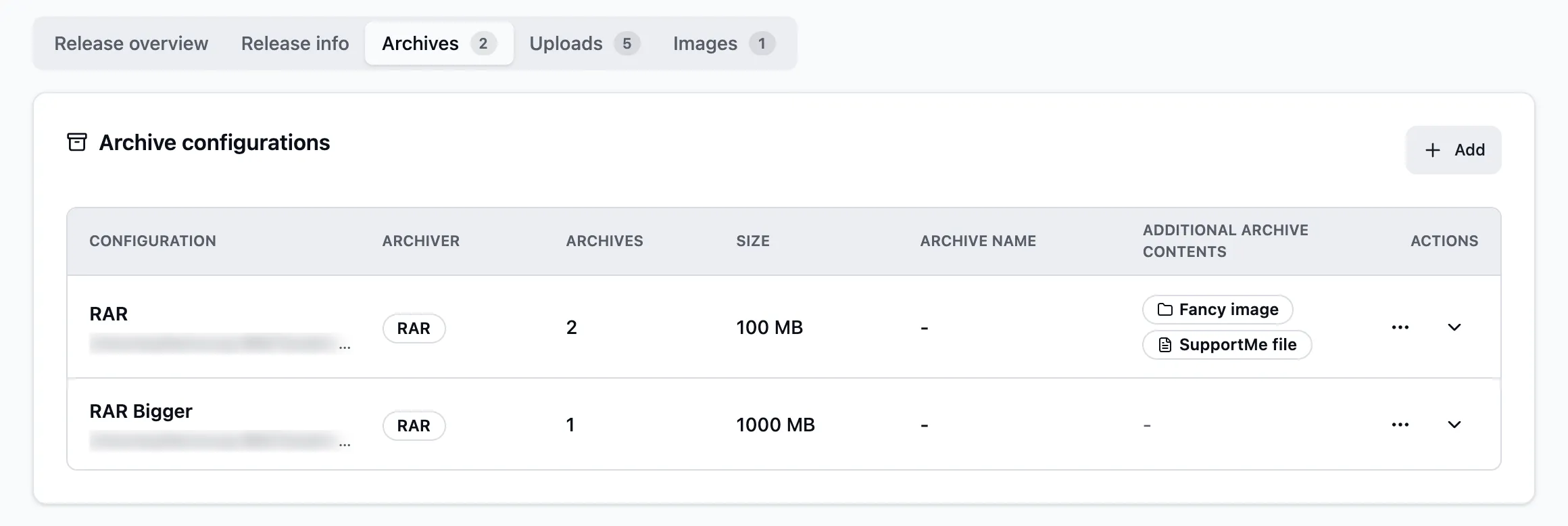
A managed release needs at least one archive configuration. See Creating the archive for the packing options.
Archives in a storage folder show the storage folder name next to their state. While a reupload uses a local working copy, the name is followed by local working copy.
Uploads
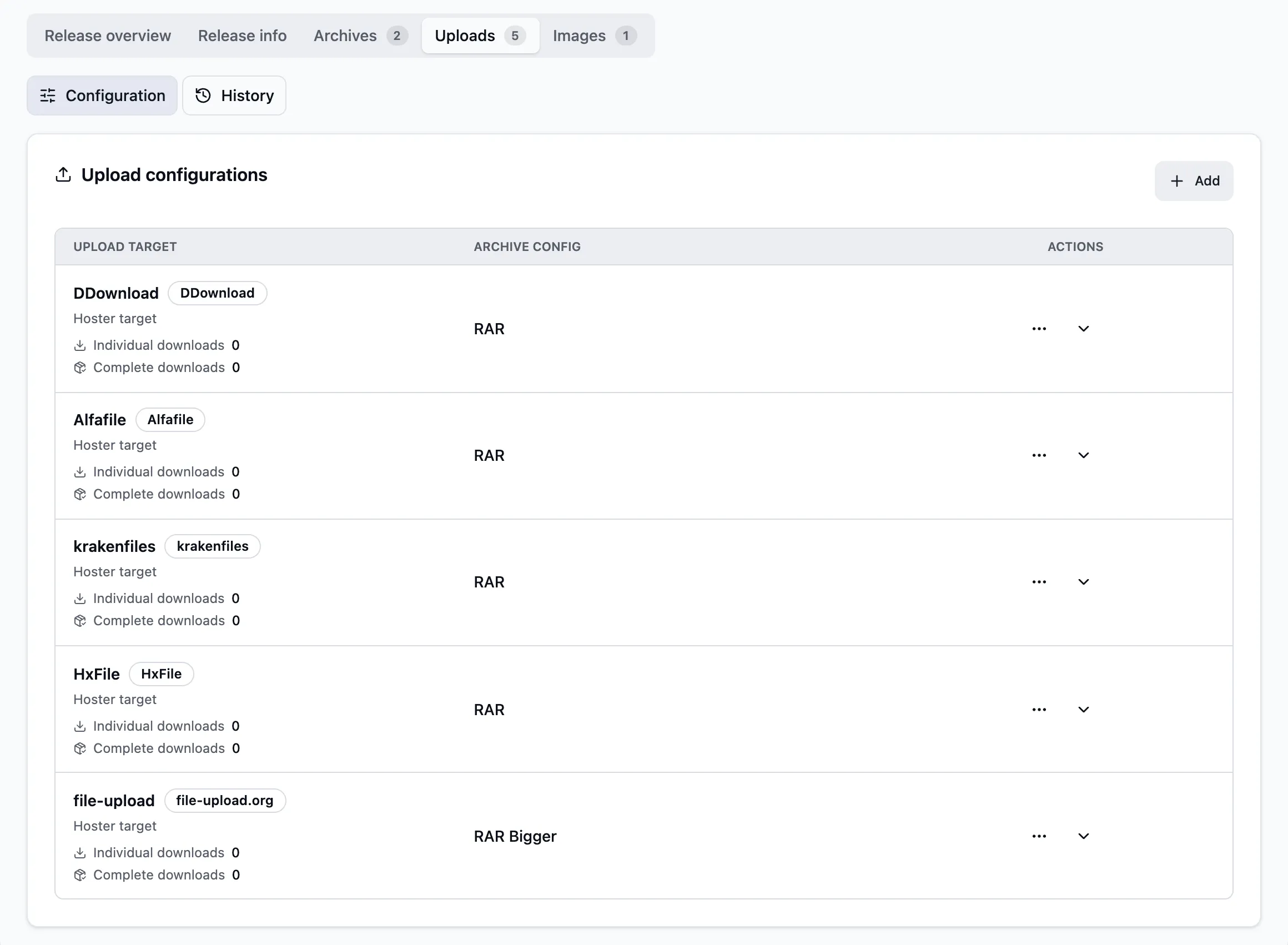
Section titled “Uploads”Configuration connects an archive configuration to a hoster account and optional link crypters.
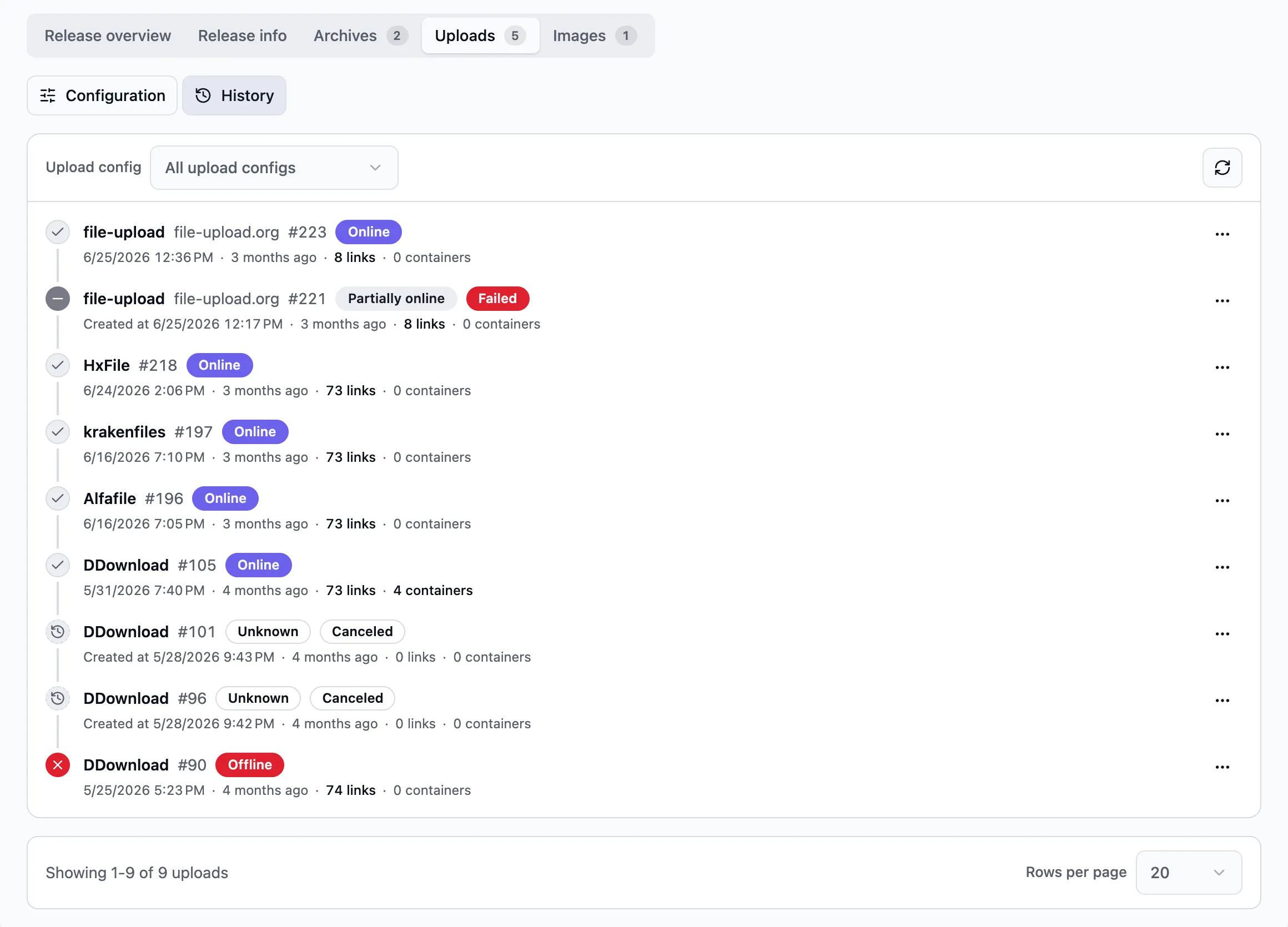
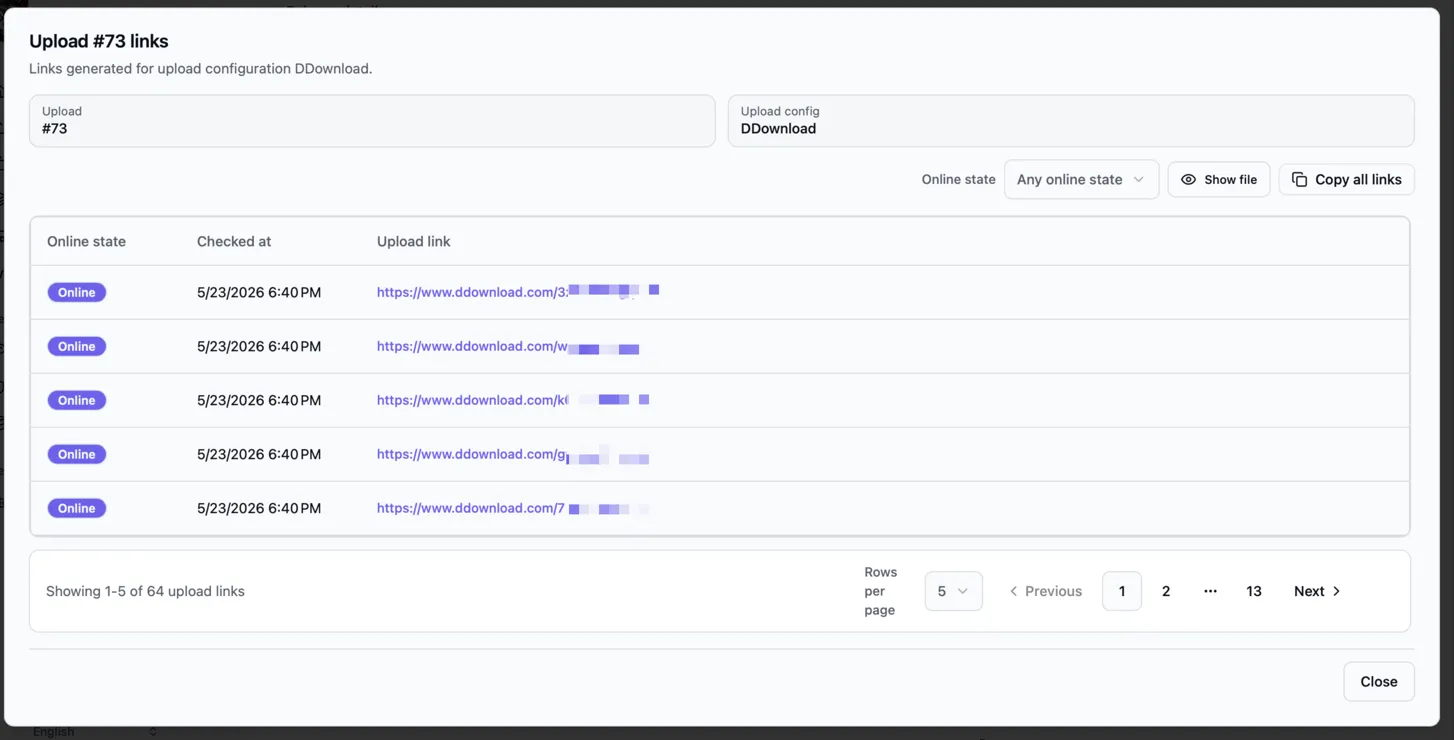
History lists all upload runs. Use the actions for a run to start a manual reupload, for example.
Images
Section titled “Images”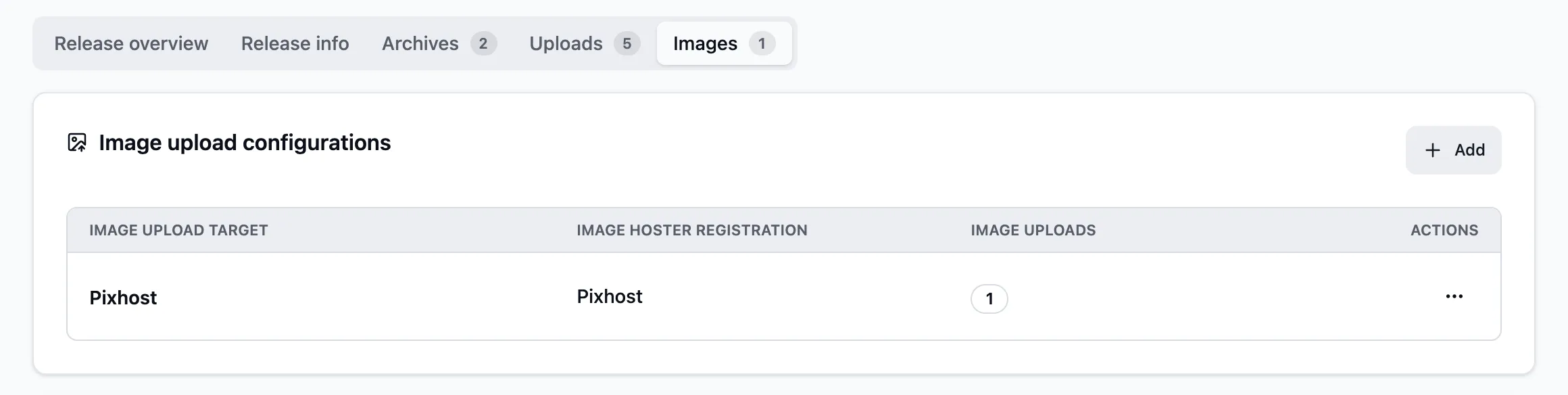
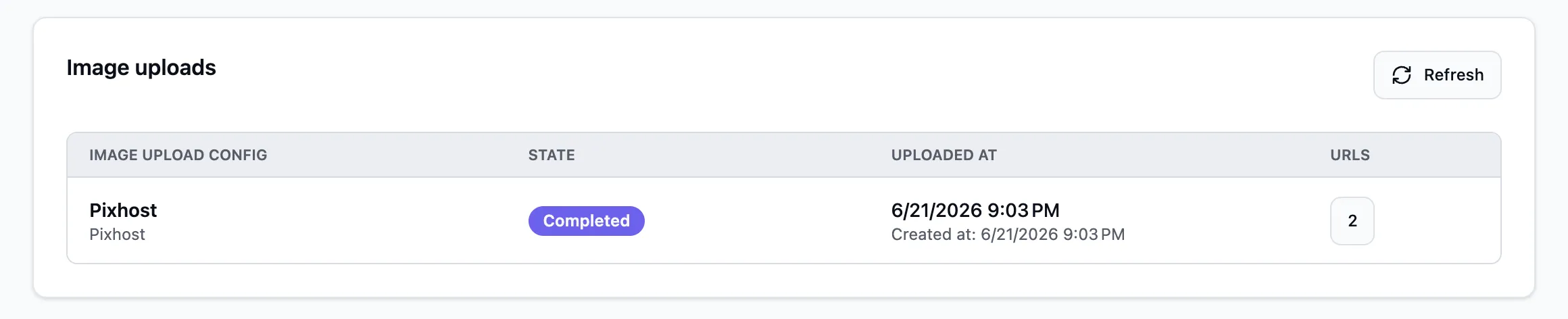
Image uploads need a cover URL, for example from TMDB or xREL.