
Background Tasks and Advanced Settings
Bearcat packs, uploads, and checks files in the background. Manage tasks under Background tasks and their settings under Configurations.
Background tasks
Section titled “Background tasks”Each task runs on its own schedule.
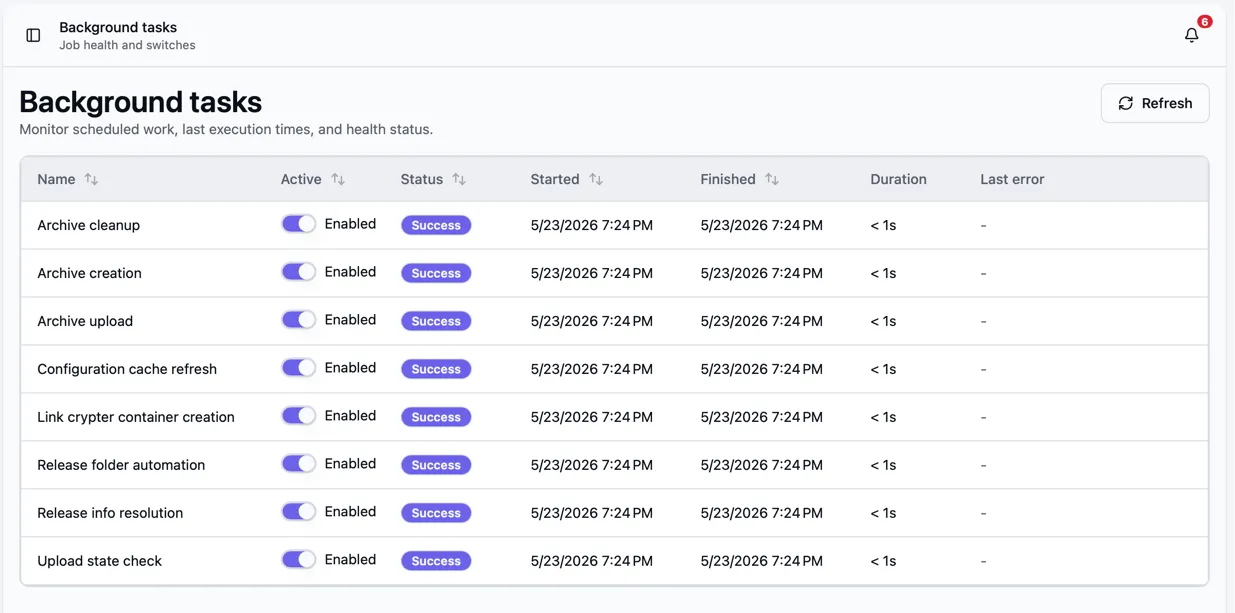
The table shows each task’s status, start and finish times, duration, and last error. Use Active to enable or disable future runs. Running tasks are not canceled. All tasks are enabled by default.
Available background tasks
Section titled “Available background tasks”| Task | Runs | What it does |
|---|---|---|
| Configuration cache refresh | Every 5 minutes | Refreshes cached settings. Changes made in the UI apply immediately. |
| Release folder automation | Every 2 minutes | Creates releases from matching direct subfolders using the selected template, once the folder checks pass. |
| Remote source scan | Every 2 minutes | Finds matching folders on FTP or FTPS servers and queues them once the remote folder checks pass. |
| Remote source download | Every 20 seconds | Downloads queued remote folders. |
| Remote download verification and extraction | Every 20 seconds | Checks completed downloads against their SFV files and extracts archives when the automation is set to do so. |
| Remote download release creation | Every 20 seconds | Creates releases from completed downloads using their selected templates. |
| Remote download raw file cleanup | Every 2 minutes | Converts downloaded releases to unmanaged and removes their raw files when Keep raw files is off and the cleanup conditions are met. |
| Release info resolution | Every 10 minutes | Fills in missing scene information, NFOs, external IDs, and metadata from active sources. |
| Archive creation & restore | Every 20 seconds | Reuses, restores, or creates archives for waiting uploads. |
| Auto cleanup | Every 30 minutes | Applies enabled cleanup rules after their retention periods. Deletes local working copies of stored archives once their uploads have finished. |
| Archive upload | Every 20 seconds | Uploads archives to the configured hosters. |
| Image upload | Every 30 seconds | Uploads release cover images to configured image hosters when a cover image URL is available. |
| Upload state check | Every 20 seconds | Checks links and schedules first uploads and automatic reuploads. |
| Link crypter container creation | Every 20 seconds | Creates link crypter containers for completed uploads. |
| SQLite query planner statistics | At startup, then daily | Only with SQLite. Updates the statistics SQLite uses to choose indexes. The first run on a large database can take several seconds. |
Configurations
Section titled “Configurations”Open Configurations in the sidebar to change global settings.
Switches and dropdowns save immediately. Number fields have save and discard buttons. You can also press Enter to save or Escape to discard.
Changed settings have a dot beside their name and show the default value. Click Reset to restore the default.
Auto cleanup
Section titled “Auto cleanup”Auto cleanup is off by default. Under Configurations > Auto cleanup, you can enable two independent rules:
- Convert releases to unmanaged automatically: stop using the release folder after a set period
(default:
14days). You can also enable Delete release folder on conversion. - Local archives after retention: Keep (default), Delete, or Move to storage folder
after Archive retention (default:
30days).
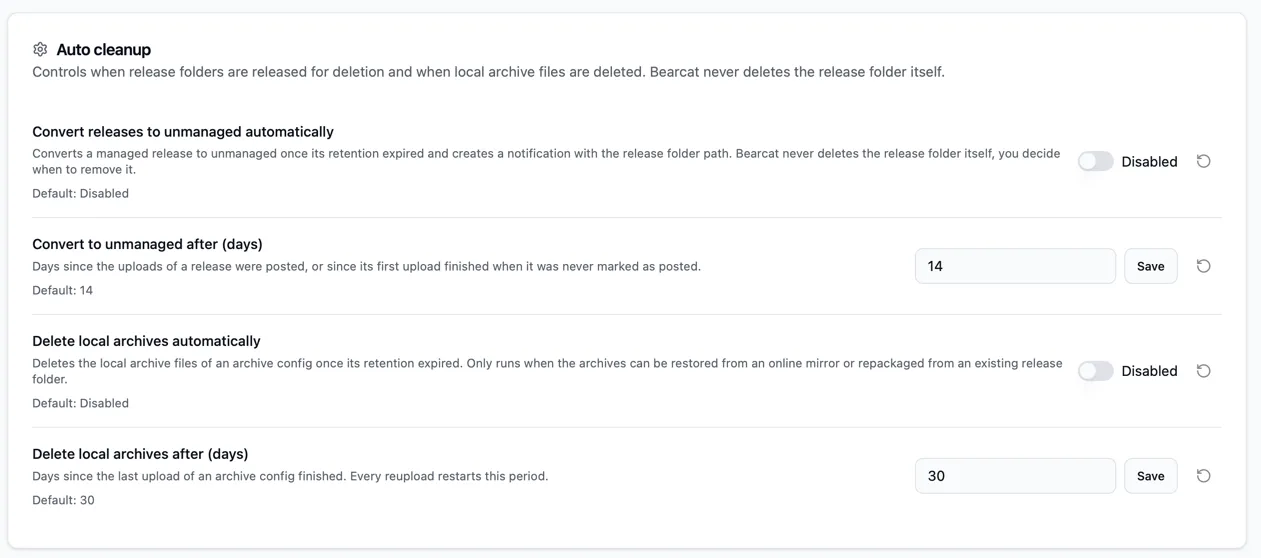
Convert releases to unmanaged automatically
Section titled “Convert releases to unmanaged automatically”After conversion, Bearcat reuploads existing archives instead of repacking the release files. The period starts at the posting date, or the first completed upload if the release was never marked as posted. Without either date, it stays managed.
Bearcat converts the release only when no upload is running and every archive configuration has a local archive or a fully online mirror. Releases with a video upload configuration stay managed.
By default, Bearcat keeps the release folder and sends you its path in a notification. You can delete the release files yourself. If the folder also holds archives, keep those files.
With Delete release folder on conversion enabled, Bearcat also deletes the folder, but only when:
- Every archive configuration has a complete archive on disk. A mirror alone is not enough.
- No archive is stored inside the release folder.
- The folder is not a drive root or a working directory and does not contain a working directory.
If these conditions are not met or deletion fails, the release still becomes unmanaged. The folder is kept, and the notification tells you why.
Local archives after retention
Section titled “Local archives after retention”The period starts at the last completed upload of the archive configuration. Every reupload restarts it.
With 0 days, the action can run on the next cleanup after uploading.
Bearcat skips archives while an upload of that archive configuration is waiting, pending, or running.
| Action | Result |
|---|---|
| Keep | Leave archive files where they are. |
| Delete | Delete archive files only if they can be restored from a fully online mirror or repacked from a managed release’s folder. |
| Move to storage folder | Move archives to an active storage folder. No mirror is required. |
Deleting archives removes their folder only if it is empty. Files on the hoster are kept. Archives in storage folders are never deleted automatically.
Existing installations with automatic archive deletion enabled keep the Delete action after updating.
Exclude single releases
Section titled “Exclude single releases”Enable Exclude from auto cleanup when creating or editing a release to skip both rules.
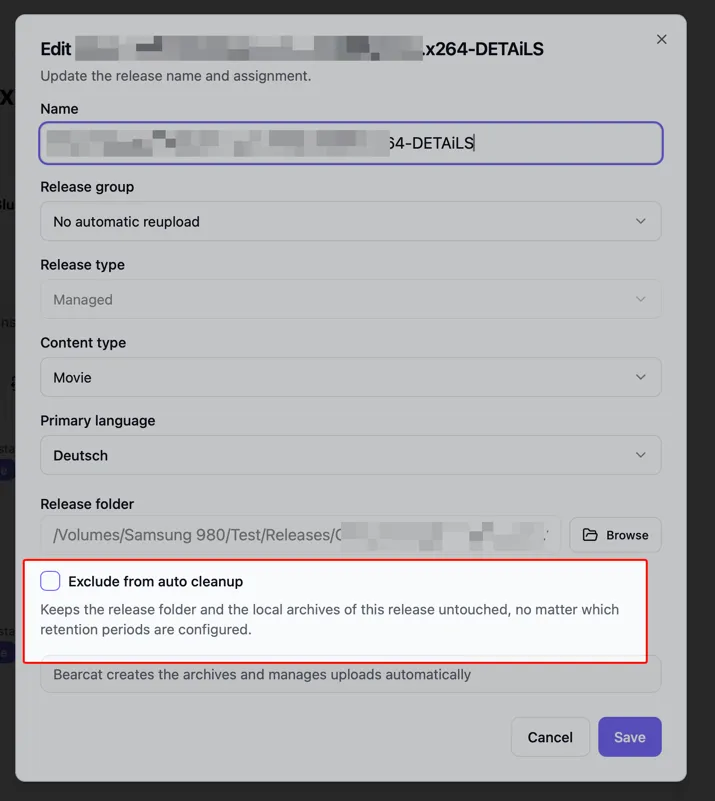
Remote downloads have a separate cleanup option. Leave Keep raw files enabled in the automation if you want to keep the downloaded release folder.
Archive repackaging
Section titled “Archive repackaging”Hosters can recognise files by their MD5 hash. Before reuploading to the same hoster type, Bearcat gives the files being uploaded new hashes. Parts not uploaded again keep their hashes and links.
- RAR: Bearcat appends zero bytes until each file’s hash is new. It keeps the hash history even after local files are deleted. Archives still extract normally, and the configured part size usually stays the same. Compression and solid mode follow the selected strategy.
- 7-Zip: Bearcat repacks the release using the Repackaging strategy under Configurations:
| Strategy | Effect on 7-Zip archives |
|---|---|
| Change archive file size by 1 MB (default) | Each new archive uses parts 1 MB larger than the previous archive. The first uses the configured size. No compression or solid mode. |
| Nonce only, no compression | Changes the random __nonce.txt. Uses little CPU, but some parts may keep their old hash. |
| Solid archive with compression | Spreads the nonce change more reliably across parts, but uses more CPU. |
Create nonce file is enabled by default in the archive configuration.
Without it, 7-Zip increases the part size by 1 MB with each repack, regardless of the strategy.
RAR still uses zero bytes for new hashes.
For older RAR archives with missing hashes, the strategy also determines the part size.
The default strategy increases it by 1 MB when repacking.
Folder automation
Section titled “Folder automation”Bearcat creates a release from a watched folder once both conditions are met:
- Its total file count and size stay unchanged for “Folder stability”, default
5minutes. - It reaches “Minimum folder size”, default
1MB.
This helps avoid creating releases while files are still being copied.
Increase the stability period for slow or interrupted copies. Set the minimum size to 0 to allow empty folders.
Manual release creation and metadata lookup under Release info are unaffected.
Remote downloads
Section titled “Remote downloads”Find settings for FTP / FTPS downloads under Configurations > Remote downloads. They apply independently of local folder automation.
| Setting | Default | Effect |
|---|---|---|
| Folder stability | 5 min |
Wait until the remote folder’s file count and total size stay unchanged for this long. |
| Minimum folder size | 1 MB |
Keep smaller folders in Observing. Set to 0 to disable the size check. |
| Maximum parallel file downloads | 4 |
Limit how many files are downloaded at the same time. The source’s Max connections also applies. |
| Download retry delay | 30 s |
Wait this long before retrying a failed download attempt. |
Increase the stability period if files arrive slowly or uploads to the FTP server often pause. Bearcat downloads one release folder at a time, with several files in parallel. Lower the connection limit if the server rejects simultaneous transfers.
Initial upload cooldown
Section titled “Initial upload cooldown”“Initial upload cooldown” defaults to 5 minutes. It gives you time to finish setting up a release before archiving and uploading begin.
Once an upload configuration exists and the release is older than the cooldown, the next “Upload state check” run creates the first upload record.
The wait is measured from release creation. Set it to 0 to allow the first upload on the next check.
Changes only affect upload configurations without an upload. Existing uploads are not canceled or delayed.
Upload concurrency
Section titled “Upload concurrency”“Maximum parallel uploads” defaults to 10. It limits parallel file uploads across all hosters.
Each hoster’s own limit also applies.
View and, where allowed, override individual limits on the “Hoster registrations” page. See Parallel uploads per hoster.
“Maximum upload speed” (MB/s) is empty by default, which means no limit. It caps the combined upload
speed of all running uploads across all hosters. Decimal values such as 0.5 or 0,5 are allowed.
Each hoster registration can set its own limit as well. See
Upload speed limit per hoster.
Very low speed limits can cause uploads to time out.
Database
Section titled “Database”New Desktop, Windows service, and Docker installations use SQLite. Existing PostgreSQL setups keep using PostgreSQL.
Database settings are read at startup from environment variables or a settings file:
| Installation | Where to set them |
|---|---|
| Docker | docker-compose.yml, or docker-compose.postgres.yml for PostgreSQL. See Run Bearcat in Docker. |
| Desktop app | Database type in the Desktop app settings. |
| Windows service | Database section in %ProgramData%\Bearcat\config.json, written by Bearcat.Cli.exe setup. |
| Setting | Environment variable | Value |
|---|---|---|
Database:Provider |
Database__Provider |
Sqlite or Postgres, case-insensitive. Not set: Postgres. |
Database:SqliteFilePath |
Database__SqliteFilePath |
Path to the SQLite database file. Not set: bearcat.db in the data directory. |
Database:ConnectionString |
Database__ConnectionString |
PostgreSQL connection string, for example Host=localhost;Database=bearcat;Username=bearcat;Password=.... Only used with Postgres. |
Bearcat checks these locations in order to find its data directory:
- Environment variable
BEARCAT_DATA_DIR - Setting
Bearcat:DataDirectory(environment variableBearcat__DataDirectory) /datainside a container- The user’s application data folder plus
Bearcat:%APPDATA%\Bearcaton Windows,~/Library/Application Support/Bearcaton macOS
The Windows service uses %ProgramData%\Bearcat as its data directory.
SQLite notes:
- Keep the SQLite database on local storage. Network shares (NFS/SMB) are unsuitable for its WAL mode.
- Back up the database together with
bearcat.keyfrom the data directory. Stop Bearcat before copying. For a backup while Bearcat is running, usesqlite3 bearcat.db ".backup bearcat-backup.db". - The SQLite query planner statistics task keeps query statistics up to date. PostgreSQL does this itself.
Changing Database:Provider does not transfer existing data. A new database starts empty.
Without Database:Provider, Bearcat uses PostgreSQL so older configurations keep working.
Time zone
Section titled “Time zone”Bearcat uses the local time zone for displayed times and time-based rules. By default, it uses the operating system’s time zone.
| Installation | Default | How to change it |
|---|---|---|
| Desktop app | Time zone of your computer | Change the time zone of your computer. |
| Windows service | Time zone of the Windows server | Add "LocalTimezone": "Europe/Berlin" to %ProgramData%\Bearcat\config.json and restart the service. |
| Docker | UTC | Set BEARCAT_TIMEZONE in .env. See Docker settings. |
The value is an IANA time zone ID such as Europe/Berlin or America/New_York.
An unknown ID stops Bearcat on startup.