Post Queue
The post queue lists releases and collections with new uploads that you have not posted yet. From there, you can prepare forum posts, submit them through posting rules, or mark releases as posted after sharing them yourself.
Where to find it
Section titled “Where to find it”Click the list icon next to the notification bell. Its badge shows how many releases and collections still need posting.

The badge disappears when all entries are done.
When something enters the queue
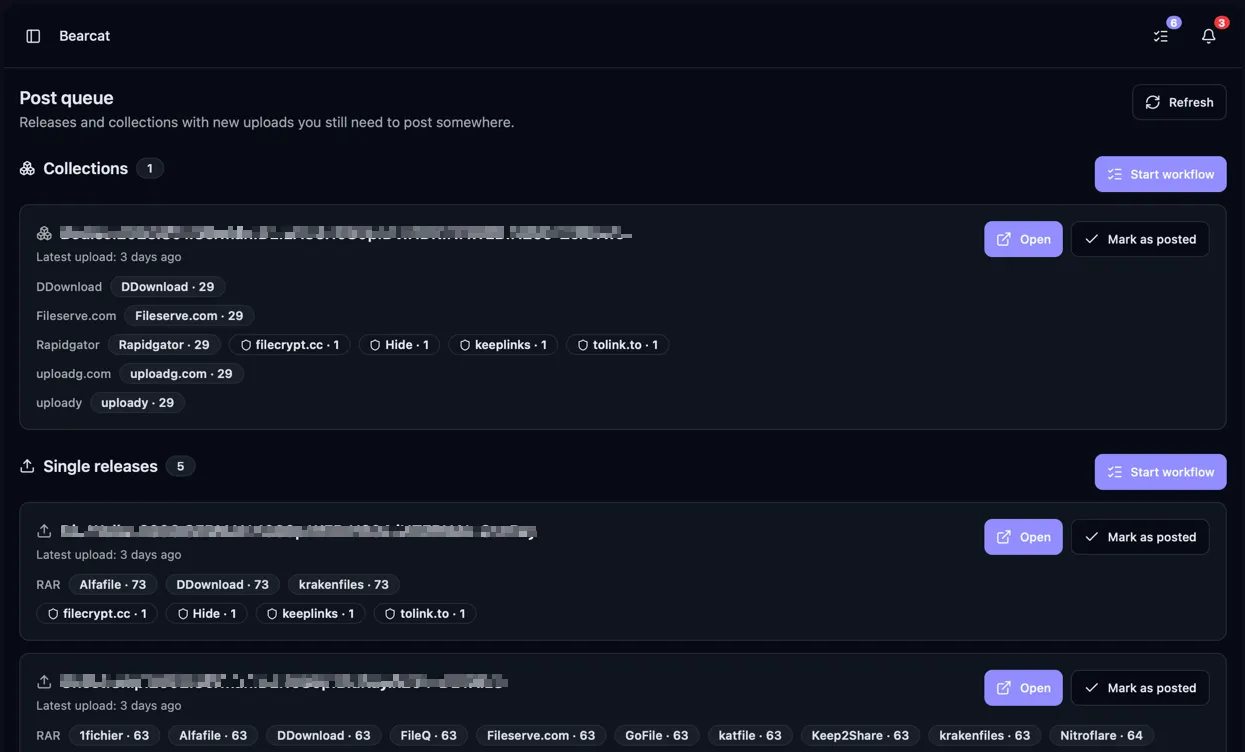
Section titled “When something enters the queue”A release shows up in the queue once it has a finished upload that you have not marked as posted. Bearcat uses the latest completed upload per upload configuration. Older uploads are not listed separately.
The queue has two sections:
- Single releases: releases uploaded outside a collection.
- Collections: new uploads made through collection slots. A TV season appears as one entry.
See Release Collections for how collections and their upload slots work.
Posting to a forum from the queue
Section titled “Posting to a forum from the queue”With posting rules configured, the Automatic posting section for single releases shows the matching rule and target subforum for each forum.
Click Post to submit the post. Post to all matched sites handles all remaining forums. The Auto badge shows that Bearcat posts to this forum automatically.
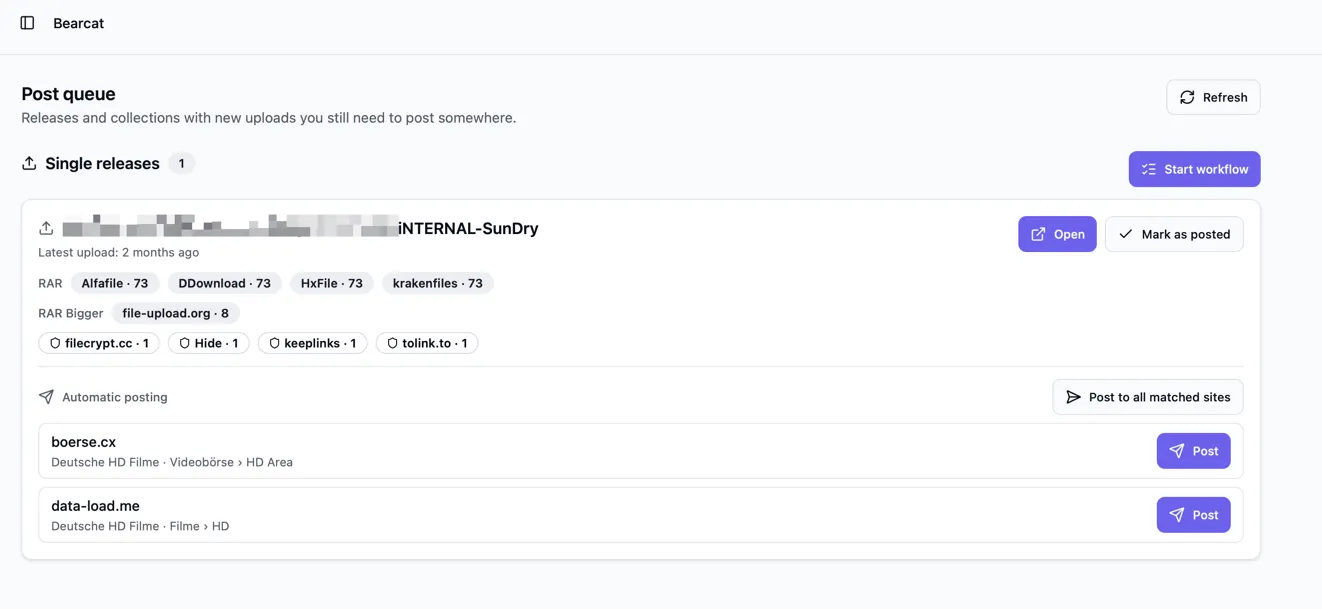
Once all matching forums are handled, Bearcat marks the release as posted and removes it from the queue.
Marking something as posted
Section titled “Marking something as posted”When you have posted a release somewhere, click Mark as posted on its entry. The entry is then removed from the list.
The guided workflow
Section titled “The guided workflow”Click Start workflow under single releases or collections to work through the entries one at a time. Bearcat opens the first entry and shows your progress in the workflow bar.
In the release or collection header, use Post to forum to prepare a draft, or Render forum post from its arrow menu to copy the text. Submit the post in the forum, then return to the workflow bar.
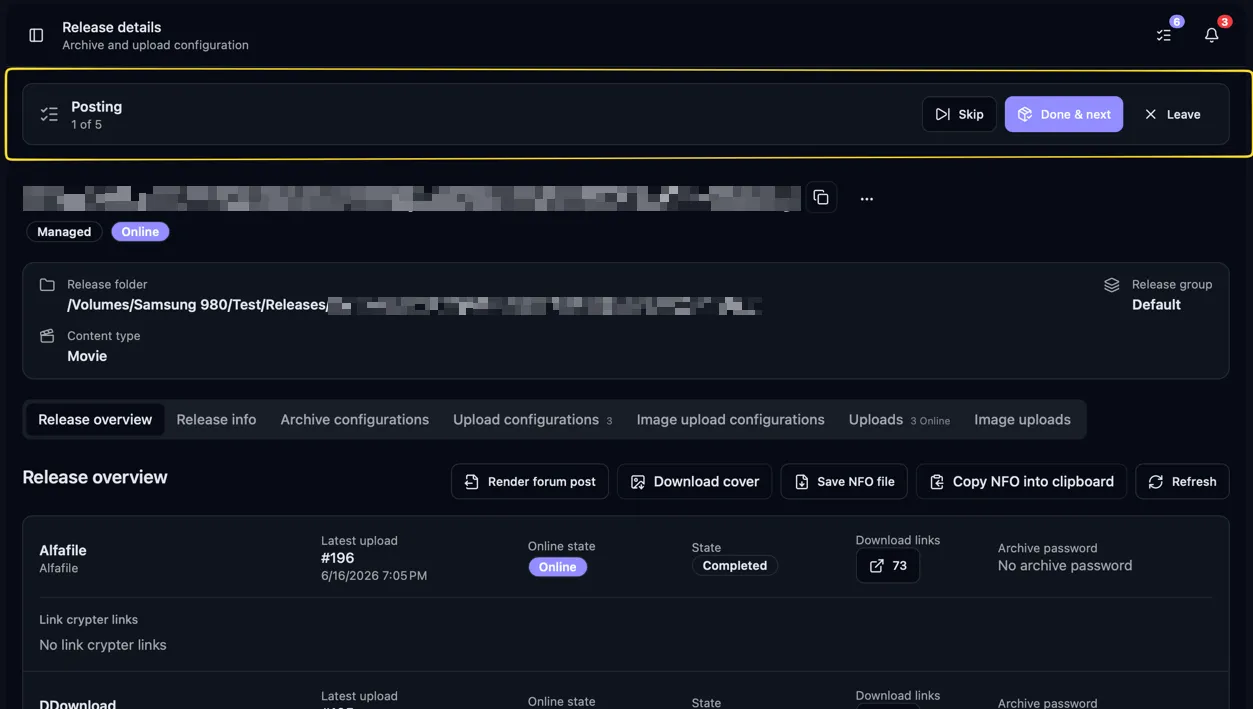
The workflow bar gives you three actions:
- Done & next marks the current release as posted and takes you to the next one.
- Skip moves on without marking the current release, so it stays in the queue.
- Leave workflow ends the run and takes you back to the post queue page.
After the last entry, you return to the post queue. If all entries are done, it shows Nothing waiting to be posted.
Click Open on an entry to start the workflow there.
Turning the post queue off
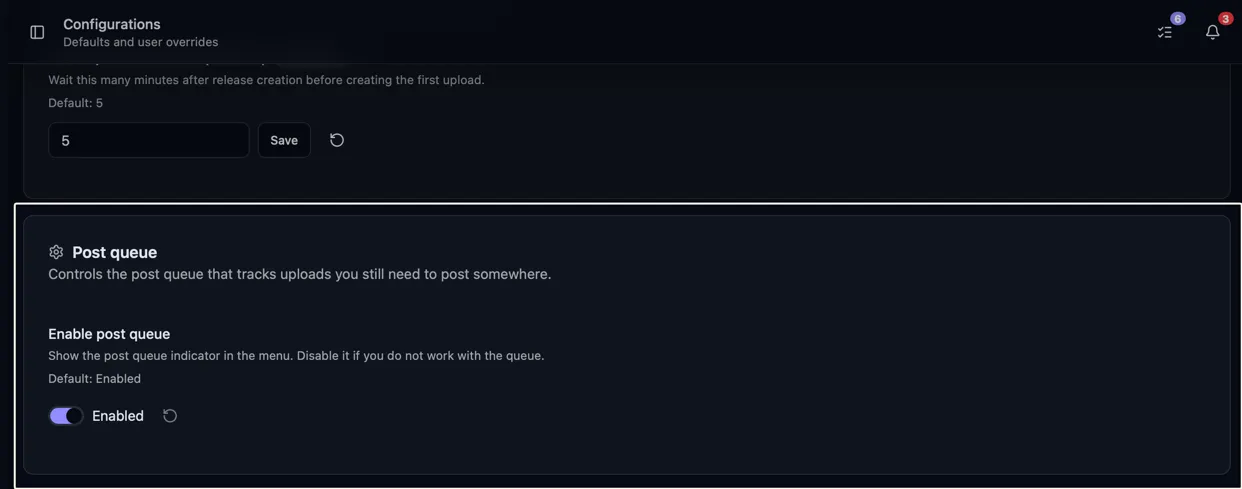
Section titled “Turning the post queue off”Disable the post queue under Configurations to hide its header icon and stop counting pending items. The queue page then shows a note instead of the lists. You can enable it again without restarting Bearcat.