
Accounts and Reupload Settings
Use a proxy
Section titled “Use a proxy”See Proxy Servers to set up HTTP or SOCKS5 proxies for uploads and mirror downloads. You can choose a default per category or a proxy for individual accounts.
Setting up link crypters and metadata sources
Section titled “Setting up link crypters and metadata sources”- Open Crypter registrations to add accounts for link containers. On a release, expand a saved upload configuration and add a link crypter registration, with an optional container password.
- Open NFO database registrations to enable sources for scene release information and NFOs.
- Open Metadata sources to add providers for titles, descriptions, genres, and cover images.
See Release Information and Metadata for details.
Setting up image hoster accounts
Section titled “Setting up image hoster accounts”Open Image hoster registrations and click New image hoster. Choose the hoster and enter the required credentials.
Image upload configuration
Section titled “Image upload configuration”On a release’s Images tab, click Add under Image upload configurations. Choose a name and the image hoster registration that should receive the cover.
The name is also used in forum post templates.
For example, access an image named ImgBB Cover with imagelinks.imgbb_cover.full.
Bearcat uploads the image once a cover URL is available.
Automatic reuploads
Section titled “Automatic reuploads”Edit a release group to enable automatic reuploads and set Hours until reupload.
With 24, Bearcat waits at least 24 hours after detecting offline files before scheduling a reupload.
With 0, it can schedule one immediately.
Choose the release group when creating or editing a release. To change several releases at once, select them in the release list and choose Change release group. See Automatic reuploads for details.
Reupload overrides per hoster
Section titled “Reupload overrides per hoster”In Hoster registrations, open New hoster or Edit to override reupload settings for one account. Leave the override fields empty to use the release group’s settings.
| Setting | Effect |
|---|---|
| Hours until reupload (override) | Replaces the release group’s waiting time for this hoster. |
| Reupload trigger: Partially or fully offline | Starts the waiting time when any file goes offline. |
| Reupload trigger: Only when fully offline | Waits until every file is offline. The waiting time starts when the last file goes offline. |
| Always reupload all files | Uploads every file again, including those still online. |
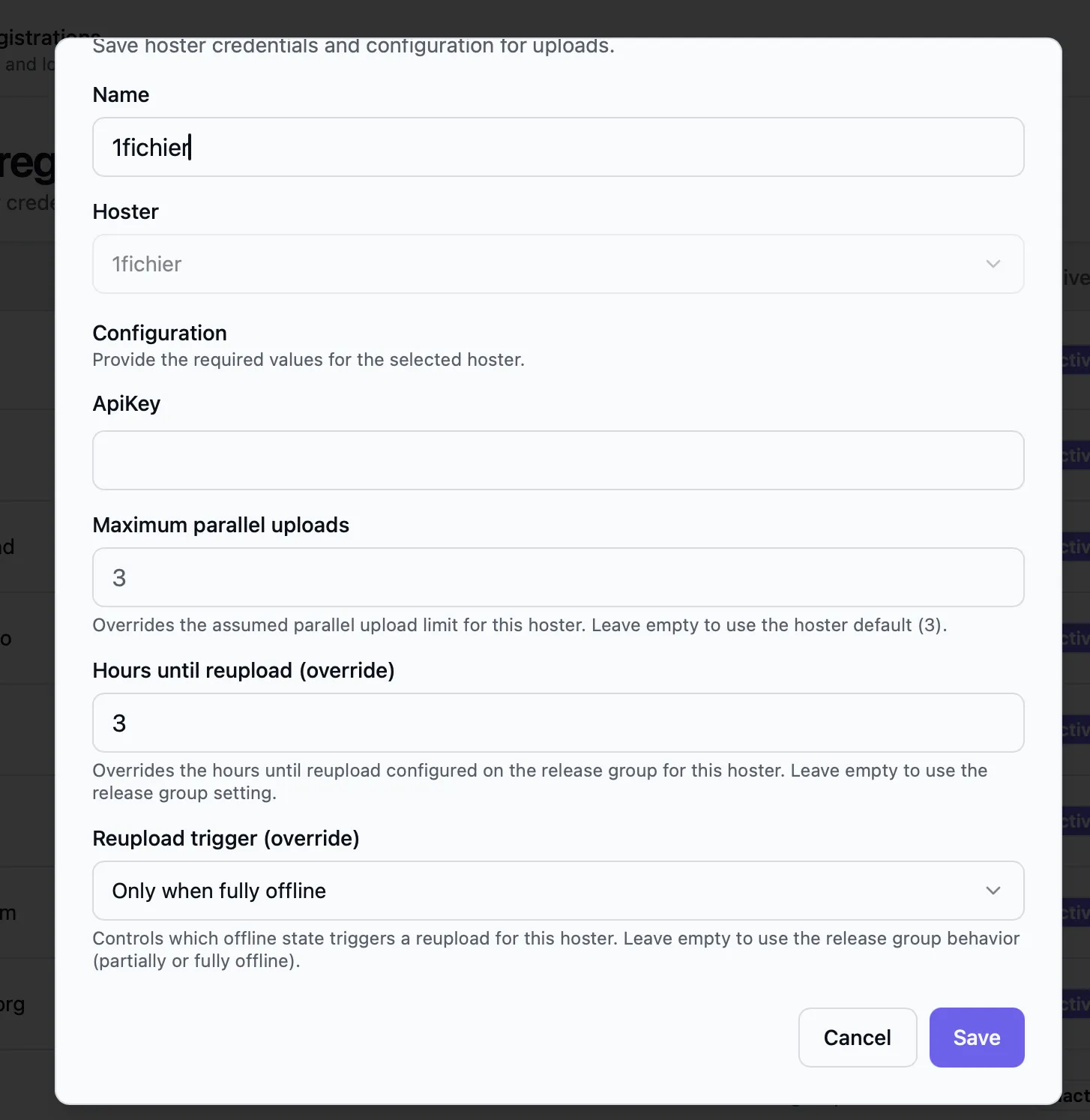
The release group must have automatic reuploads enabled for these overrides to apply. See Per-hoster overrides for when to use each option.
The Reupload column shows the overrides or Release group defaults when none are set. Full reuploads indicates that Always reupload all files is enabled.
Parallel uploads per hoster
Section titled “Parallel uploads per hoster”Some hosters set their upload limit through the API. Bearcat shows Via API; you cannot change this limit. For other hosters, New hoster and Edit offer a Maximum parallel uploads field. Leave it empty to use the default shown in the field, or enter your own limit.
The Parallel uploads column shows the effective limit and an Override badge for custom values. The global upload limit also applies: Uploads must stay within both limits.
Upload speed limit per hoster
Section titled “Upload speed limit per hoster”Set Maximum upload speed (MB/s) in New hoster or Edit to limit the combined upload speed
for this account. Decimal values such as 0.5 or 0,5 are allowed. Leave it empty for no limit.
The global speed limit also applies. Uploads must stay within both limits. The Parallel uploads column shows the account’s limit.