
Use Proxy Servers
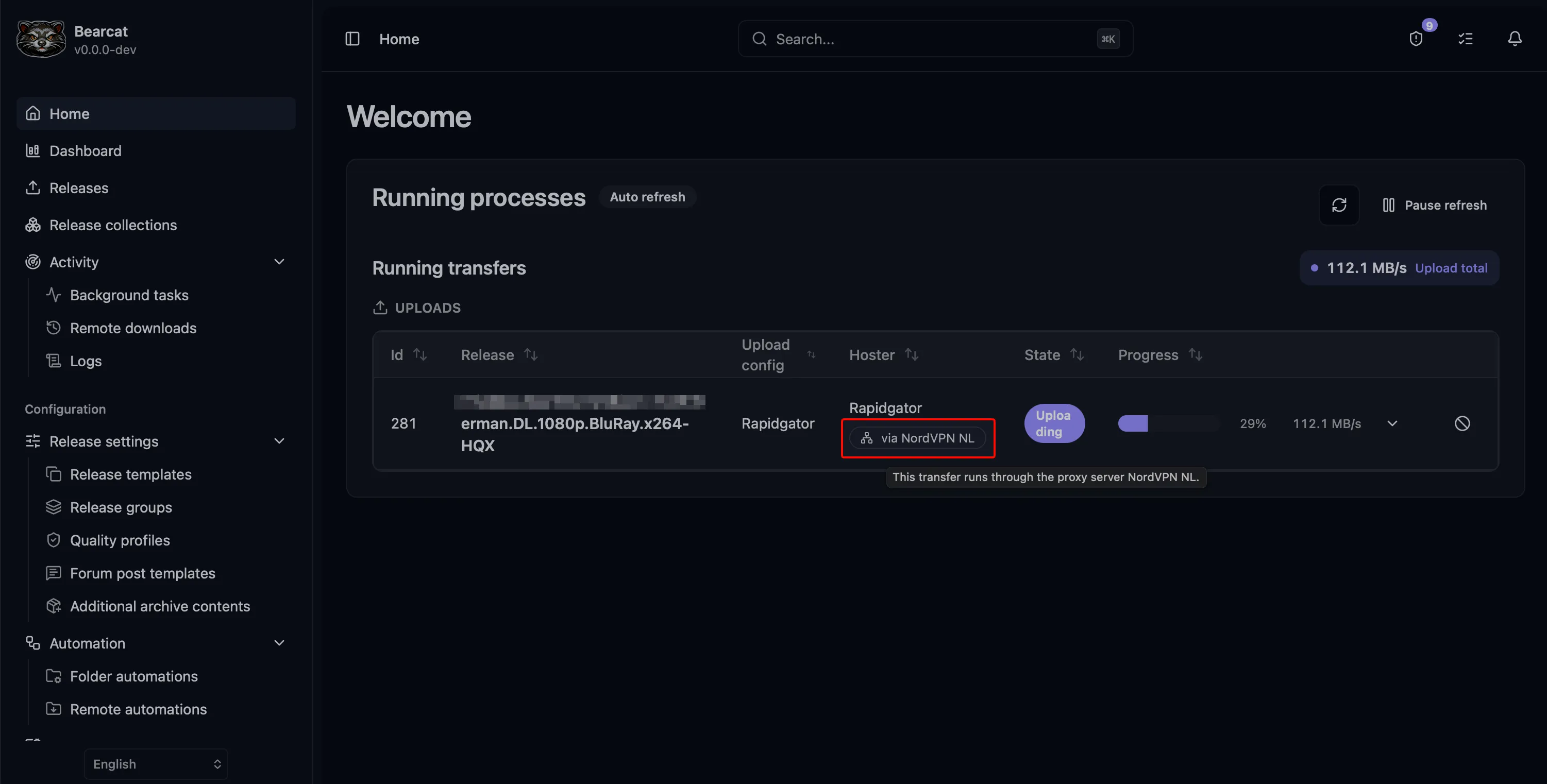
Bearcat can send HTTP and HTTPS requests through an HTTP or SOCKS5 proxy. Choose a default per category, or select a different proxy for an individual account. Without a proxy, Bearcat connects directly.
Add a proxy
Section titled “Add a proxy”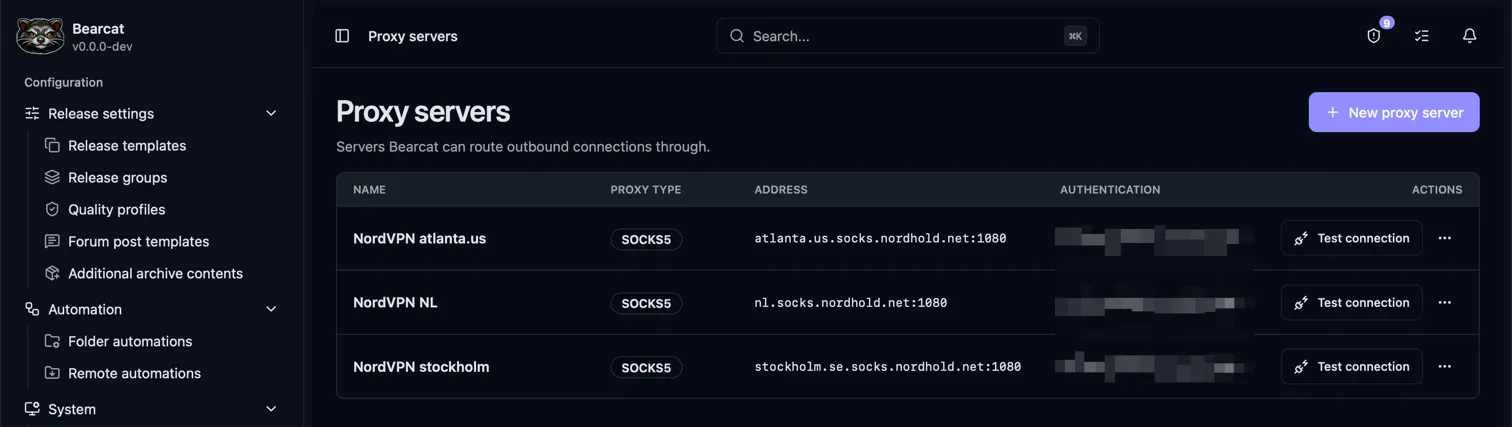
- Open Proxy servers in the sidebar and click New proxy server.
- Enter a name and choose HTTP or SOCKS5 as the Proxy type.
- Enter the Host and Port separately. Use a hostname or IP address, such as
proxy.example.com, withouthttp://, a port, or a path in the host field. - Enter Username and Password if the proxy requires them.
- Click Save, then Test connection.
The test checks the proxy connection. Assign the proxy to a category or account to use it.
Choose which requests use the proxy
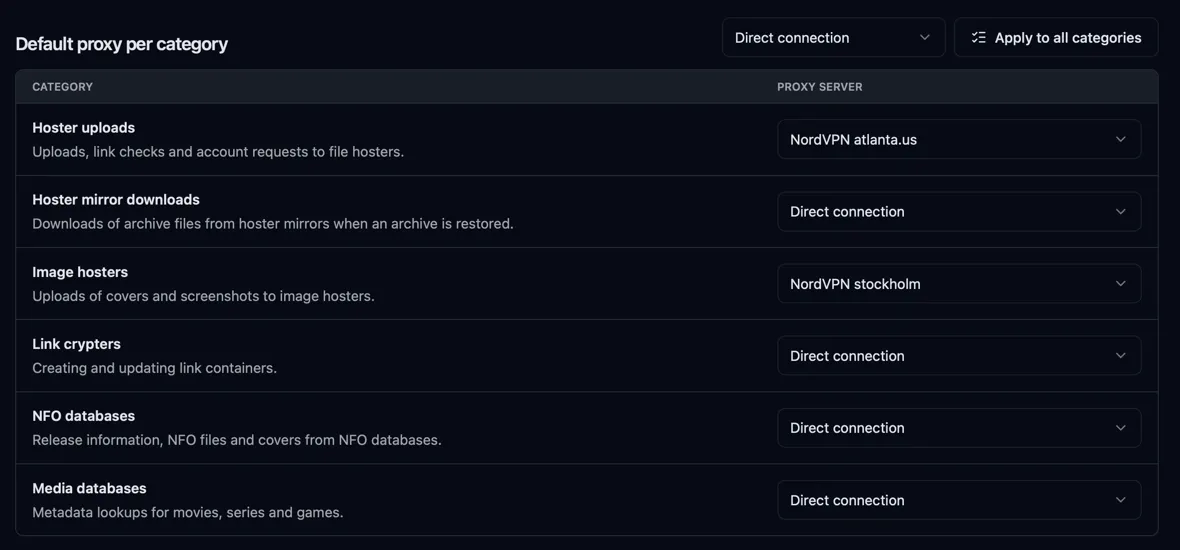
Section titled “Choose which requests use the proxy”Under Default proxy per category, select a proxy for each category you want to route through it. Changes are saved immediately and do not require a restart.
| Category | Requests |
|---|---|
| Hoster uploads | File uploads, link checks, logins, and other account requests. |
| Hoster mirror downloads | Archive downloads from hoster mirrors and the hoster requests they require. |
| Image hosters | Cover uploads and other image hoster requests. |
| Link crypters | Creating and updating link containers. |
| NFO databases | Fetching release information, NFO files, and covers. |
| Media databases | Looking up movie, series, and game metadata. |
Choose Direct connection to use no proxy. To set one default for every category, select it beside Apply to all categories and click the button. Account overrides still take priority.
Forums, distribution sites, and FTP / FTPS remote sources do not use these proxy settings.
Override the proxy for an account
Section titled “Override the proxy for an account”Edit a registration and choose one of these options:
| Option | Effect |
|---|---|
| Category default (currently: …) | Follows the category setting, including later changes. This is the default. |
| No proxy (direct connection) | Connects directly, even when the category has a proxy. |
| A proxy’s name | Always uses that proxy, regardless of the category setting. |
In Hoster registrations, there are two separate fields:
- Proxy for uploads and account requests also applies to Try login and link checks.
- Proxy for mirror downloads applies when restoring archives. This field is available for hosters that support mirror downloads.
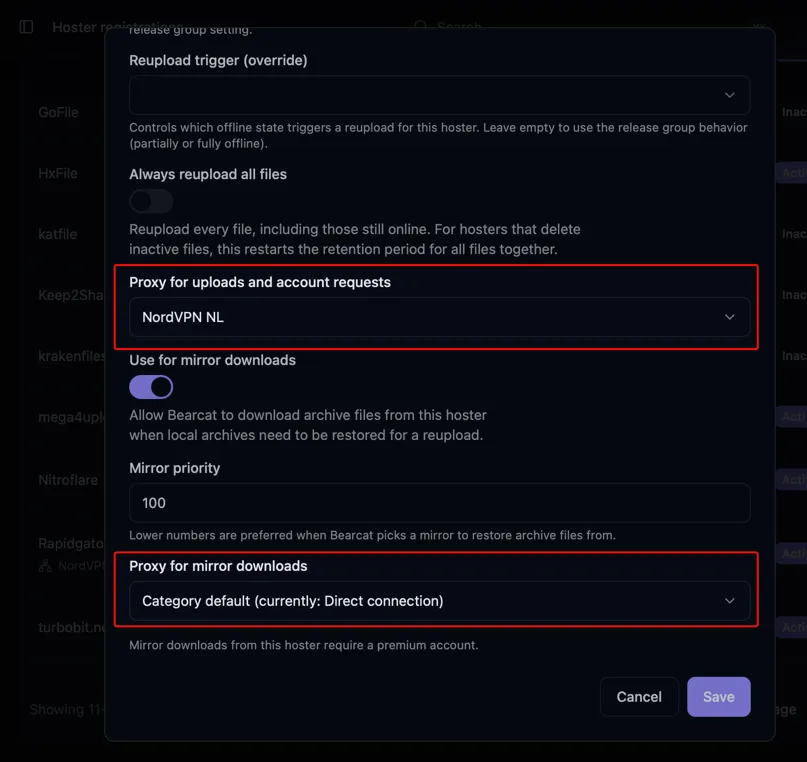
In Image hoster registrations and Crypter registrations, use the Proxy field. Save the registration after changing it.
To upload through a proxy and download archives directly, set Hoster uploads to your proxy and Hoster mirror downloads to Direct connection. Leave both hoster registration fields on Category default.
Change or remove a proxy
Section titled “Change or remove a proxy”Use Edit in the proxy’s action menu to change its address or credentials. Leave the password field empty to keep the stored password, or enable Remove stored password to clear it.
Remove all category and account assignments before deleting a proxy. Bearcat shows any remaining assignments that prevent deletion.
If a request fails
Section titled “If a request fails”- Run Test connection and check the host, port, proxy type, and credentials.
- If the test passes but a transfer fails, check whether the proxy allows access to that hoster.
- If Bearcat cannot decrypt the stored proxy password, edit the proxy and enter the password again.
Bearcat does not fall back to a direct connection when the selected proxy fails.