
Group Related Releases into Collections
A release collection groups related releases, such as episodes of a TV season.
Why you would use one
Section titled “Why you would use one”Set hosters, archive settings, and password policies for the whole collection, and gather its download links in one link crypter container.
How a collection is created
Section titled “How a collection is created”Enable Collection detection on a release template to create collections automatically. Bearcat checks the name of each new release created from that template for a matching collection.
Choose how Bearcat groups releases:
- Series episode pattern reads names like
Show.S01E01and groups everything from the same show and season together. - Custom regex lets you describe your own pattern when your names do not follow the usual series layout.
For a matching release, Bearcat creates a collection or adds it to an existing one. Find them under Release collections.
To add a release manually, open a collection and select Add release. Only releases from the same release group can be added.
Upload slots
Section titled “Upload slots”An upload slot applies the same settings to every release in the collection. Choose:
- A name, such as “Rapidgator passworded”.
- The hoster to upload to.
- The archive configuration to use for each release.
- Whether to restrict downloads to premium users, if supported by the hoster.
- A password policy for all releases in the slot.
A collection can have several slots, for example one per hoster.
Container links
Section titled “Container links”Use Edit container link crypters to gather a slot’s links in one container, for example for a whole season. The password and other crypter settings apply to all uploads in the slot.
What you find inside a collection
Section titled “What you find inside a collection”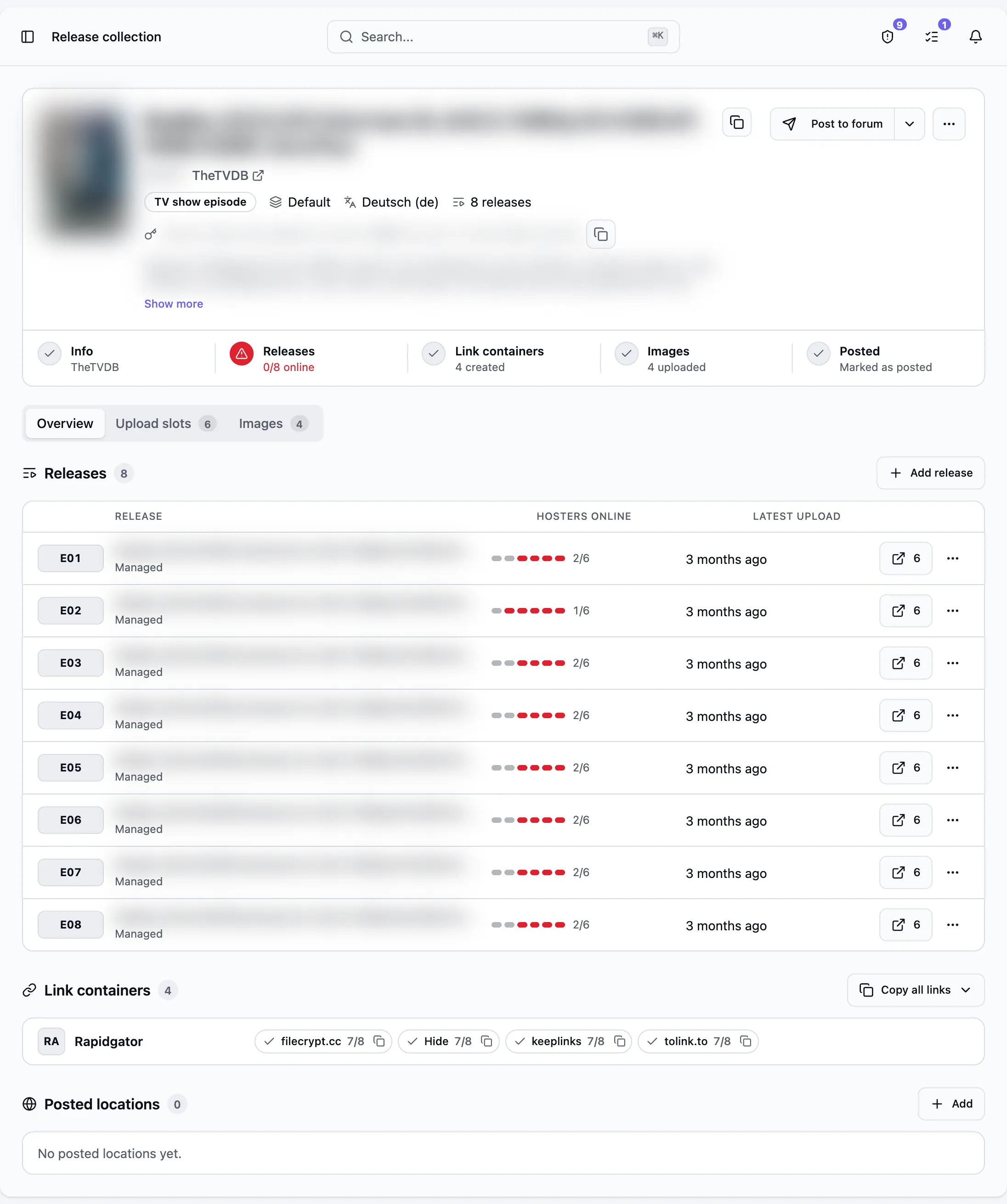
Header
Section titled “Header”The header shows the cover, the series title from the metadata source, the collection key and the series description. Show more expands a long description.
Post to forum opens the forum posting dialog. It is highlighted while at least one release has an online hoster and the collection is not posted yet. Without an active forum distribution site, only Render forum post is shown.
The ... menu contains Edit collection settings for the content type and primary language,
Edit metadata and Resolve metadata.
The status display shows progress for metadata, uploads, link containers, images, and posting. Red marks a problem or an unfinished step. Click a step to open its tab.
Series metadata
Section titled “Series metadata”Bearcat uses active metadata sources such as TMDB and TheTVDB to find the series title,
description, and cover. Select Resolve metadata in the ... menu to search again after
changing the name or language.
The primary language sets the language for titles and descriptions. Without a selection, the provider’s default applies. Bearcat searches using an IMDb ID from an included release or the title.
Use the metadata in forum post templates and upload the cover to your image hosters. See Release Information and Metadata for lookup details.
Overview
Section titled “Overview”Releases shows each release with its episode number, such as E01, or S01E01 for a collection
spanning several seasons. The bar shows how many hosters are online. Use a row’s ... menu to open
the release or remove it from the collection.
Link containers lists each slot’s containers and the number of uploads they include. Not created yet means the crypter has no container. You can delete failed containers here. Copy all links copies one crypter’s container URLs across all slots.
See Posted locations for the list at the bottom.
Upload slots
Section titled “Upload slots”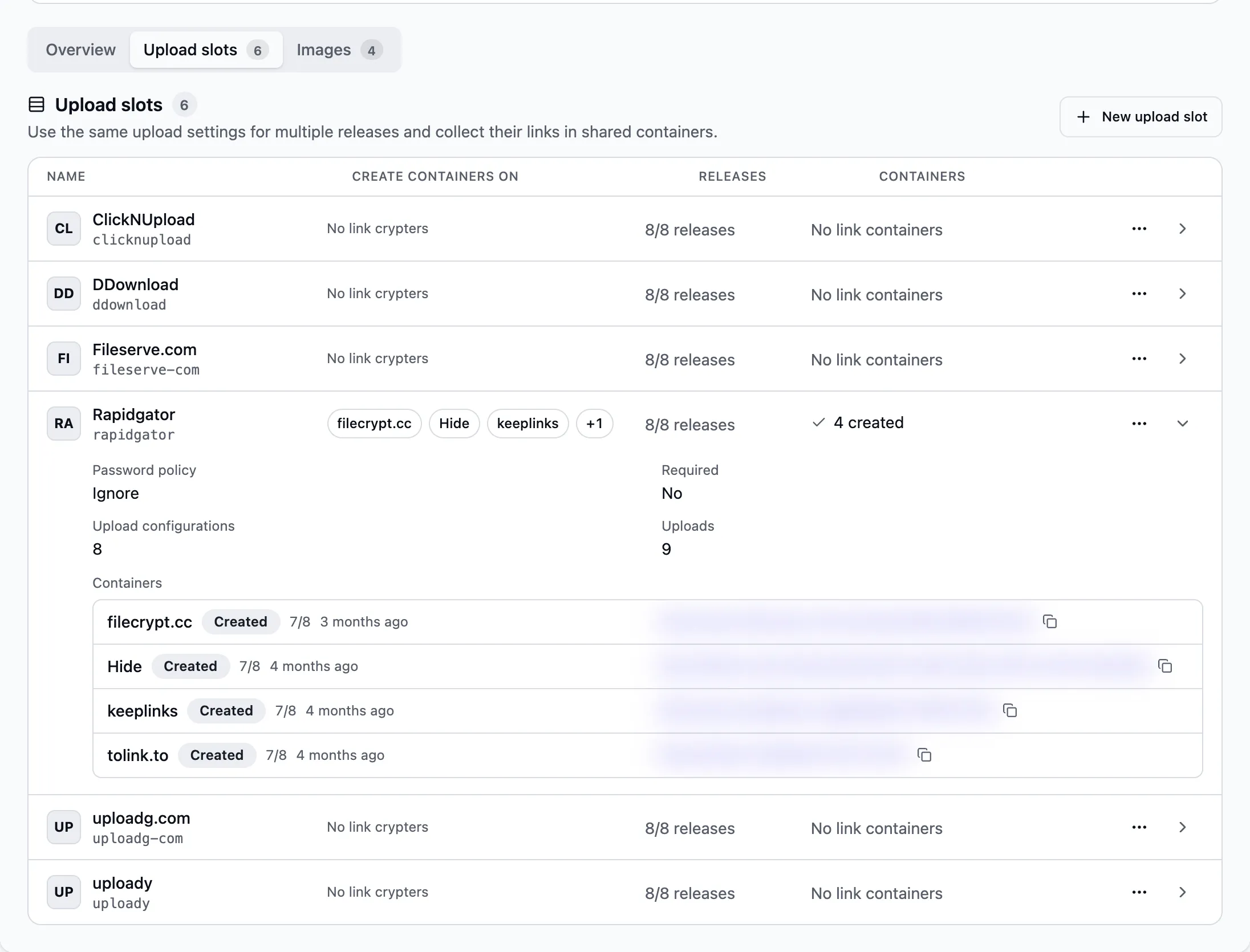
Each row shows the link crypters of the slot, how many releases have an upload configuration for it, and the state of its containers. Click a row to see the password policy, the upload counts and every container with its link. Slots with a failed container are expanded when the page opens.
Edit container link crypters and Delete upload slot are in the ... menu of a row.
Images
Section titled “Images”Upload the series cover to your image hosters for use in forum posts. Configure this in either place:
- On a release template: enable collection detection, then add hosters under Collection image upload configurations. These settings apply to collections containing releases created from this template.
- On a collection: select Add on the Images tab and choose a hoster.
If you leave the name empty, Bearcat names the configuration after the hoster. You can rename an existing entry. To use a different hoster, add a new image upload configuration.
Each entry shows its upload state. After uploading, it shows a preview and image links in different
sizes. Copy links individually or together, or use imagelinks in forum post templates. See Forum post templates for details.