
Post Releases to Forums Automatically
Posting rules let Bearcat choose a subforum, fill in a template and submit the post. Run them with Post in the post queue or enable automatic posting. To review and submit drafts yourself, use Posting to Forums.
Each forum has its own rules. Bearcat skips forums with no matching rule.
What you need first
Section titled “What you need first”- A forum added under Distribution sites, with a working login.
- A suitable forum post template.
- Releases in the post queue with a classification and a passed or manually approved quality gate. Groups without a quality profile pass the gate.
Opening the posting rules page
Section titled “Opening the posting rules page”Open Distribution sites in the sidebar. The table has a Posting rules column that shows how many rules a forum has.

Click the number to open the page, or use Posting rules in the row menu.
Site-wide settings
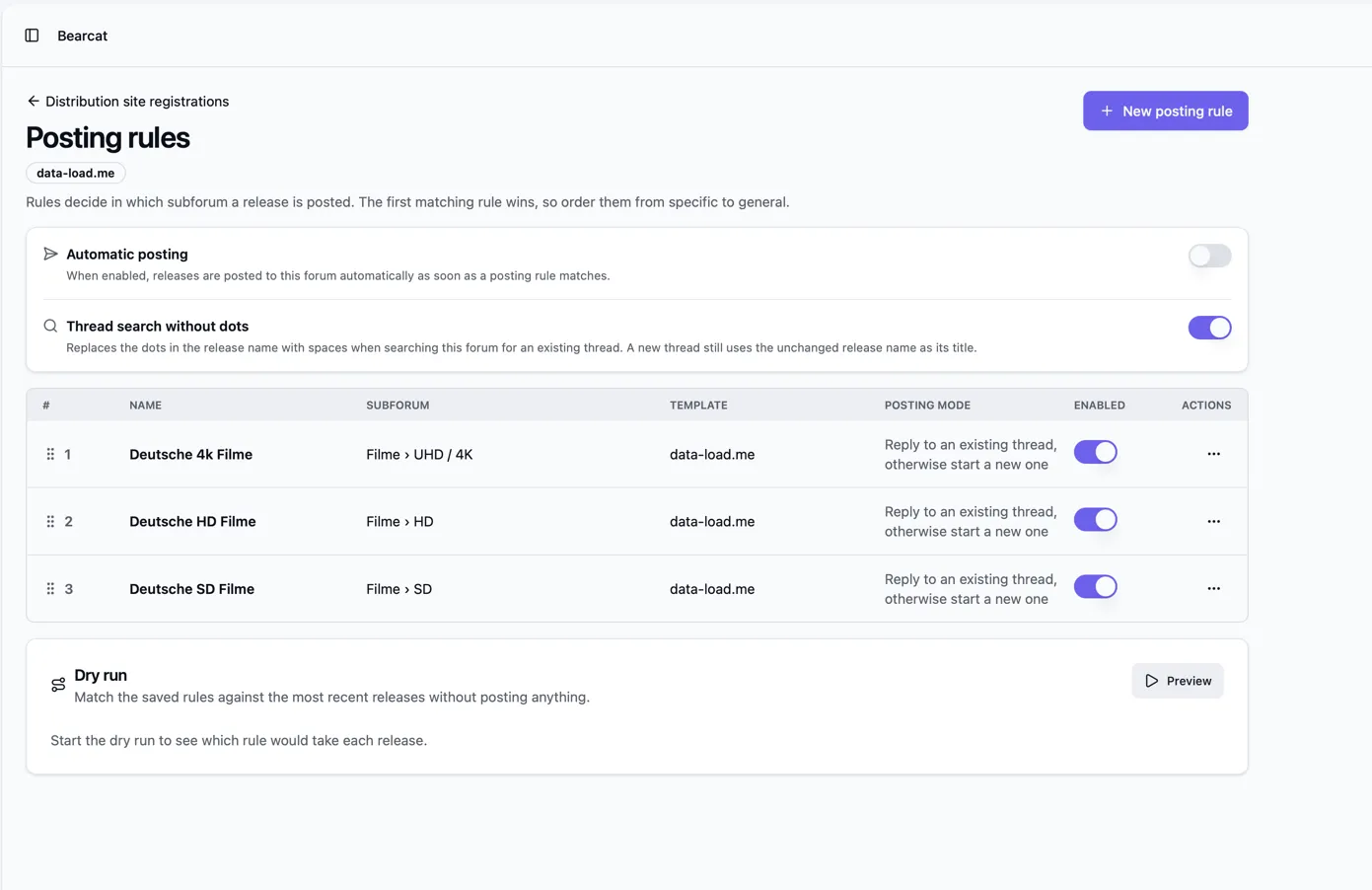
Section titled “Site-wide settings”Automatic posting is off by default. You can still preview rules and use Post in the post queue. When enabled, the “Automatic forum posting” background task posts matching releases in the queue every 15 minutes by default. Change the interval under Background tasks.
Thread search without dots is on by default. Bearcat replaces dots with spaces when searching for threads and naming new ones. Turn it off to use the dotted release name for both.
Adding a rule
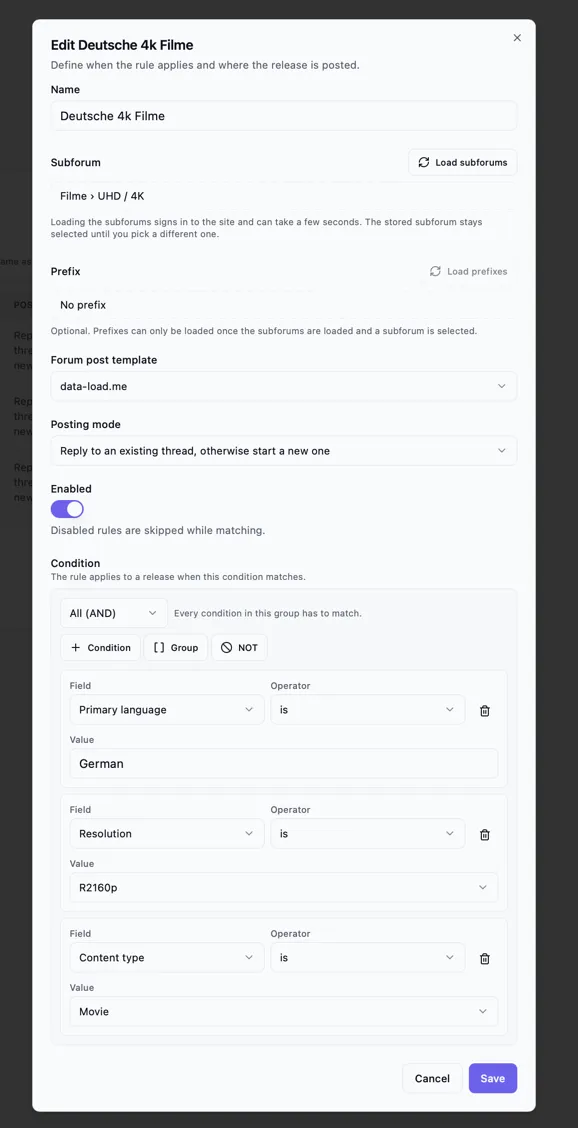
Section titled “Adding a rule”Click New posting rule and fill in these fields:
- Name: your own name for that rule
- Subforum: the destination for the post. Click Load subforums and select one. Loading can take a few seconds.
- Prefix: some subforums allow you to set prefixes on new threads
- Forum post template: the template for the post body.
- Posting mode: either Reply to an existing thread, otherwise start a new one, or Always start a new thread.
- Enabled: disabled rules are skipped while matching
Conditions
Section titled “Conditions”Conditions define which releases a rule applies to. You can group comparisons:
- All (AND): every entry in the group has to match.
- Any (OR): at least one entry has to match.
- NOT: matches when the single condition inside does not match.
Groups can be nested, so you can build something like “German and (1080p or 2160p) and not from group X”. Use Condition, Group and NOT inside a group to add entries.
Each comparison row picks a field, an operator and a value:
| Field | Values |
|---|---|
| Release name | Free text |
| Resolution | From the classification, for example R1080p or R2160p |
| Primary language | Language of the release, for example German |
| Multi-language | Yes or no |
| Content type | Movie, TvShowEpisode or Other |
| Source | For example BluRay or WebDl |
| Release group | The Bearcat release group the release belongs to |
| Release group tag | The group tag from the release name, for example FLAME |
| Year | Number |
| Season | Number |
| Episode | Number |
The available operators depend on the field:
| Field | Operators |
|---|---|
| Release name | is, is not, pattern matching and matches regex |
| Release group, release group tag | is, is not, pattern matching, is one of, is none of, is set, is not set |
| Primary language | is, is not, is one of, is none of, is set, is not set |
| Resolution, year, season, episode | Include is at least and is at most |
With matches pattern (%), % stands for any text. The pattern must match the whole value:
%German%matches names containingGerman.%-FLAMEmatches names ending in-FLAME.
Patterns and regular expressions ignore case. An invalid regular expression or a match that times out is treated as no match.
Most fields come from the classification, based on the release name and available media info. Posting rules require a release classification.
Ordering the rules
Section titled “Ordering the rules”The first matching rule is used. Drag rules by the handle on the left to reorder them. Put specific rules before general ones.
Dry run
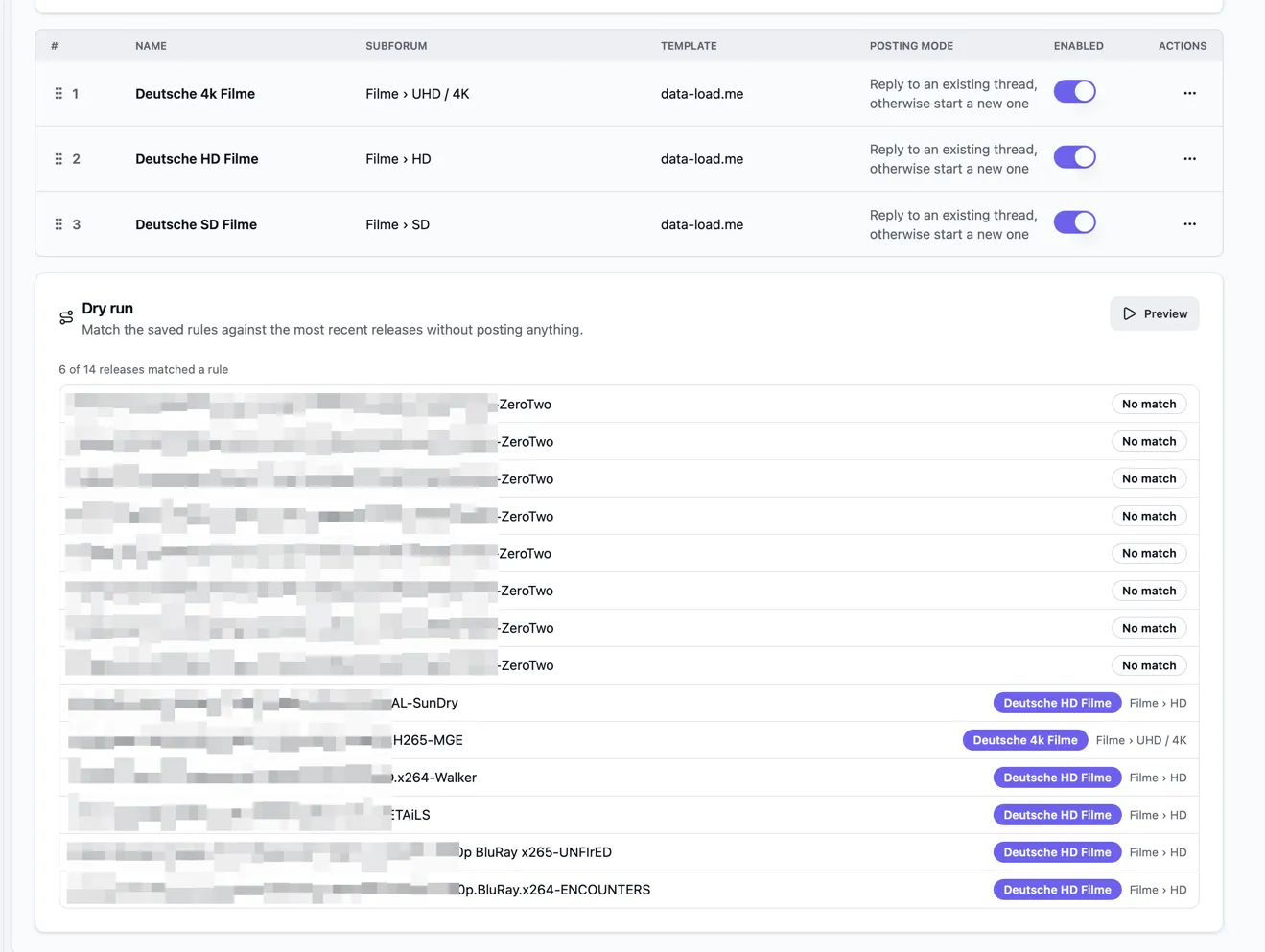
Section titled “Dry run”Save your rules, then click Preview in the Dry run card at the bottom of the page. The preview shows the matching rule and subforum, or No match, for recent releases. It does not post anything.
Run a preview after changing conditions or rule order, before enabling automatic posting.
Posting from the post queue
Section titled “Posting from the post queue”Every entry under Single releases in the post queue has an Automatic posting section that shows, per forum, what the rules would do:
- the matched rule and its subforum, with a Post button,
- Posted with a link, if the release was already posted to that forum,
- No matching posting rule, if no rule matches the release.
The Auto badge shows that Bearcat posts to this forum automatically.
Post submits the template as a reply or new thread, depending on the rule. Bearcat saves the post URL under Posted locations. Post to all matched sites posts to the remaining matching forums one after another.
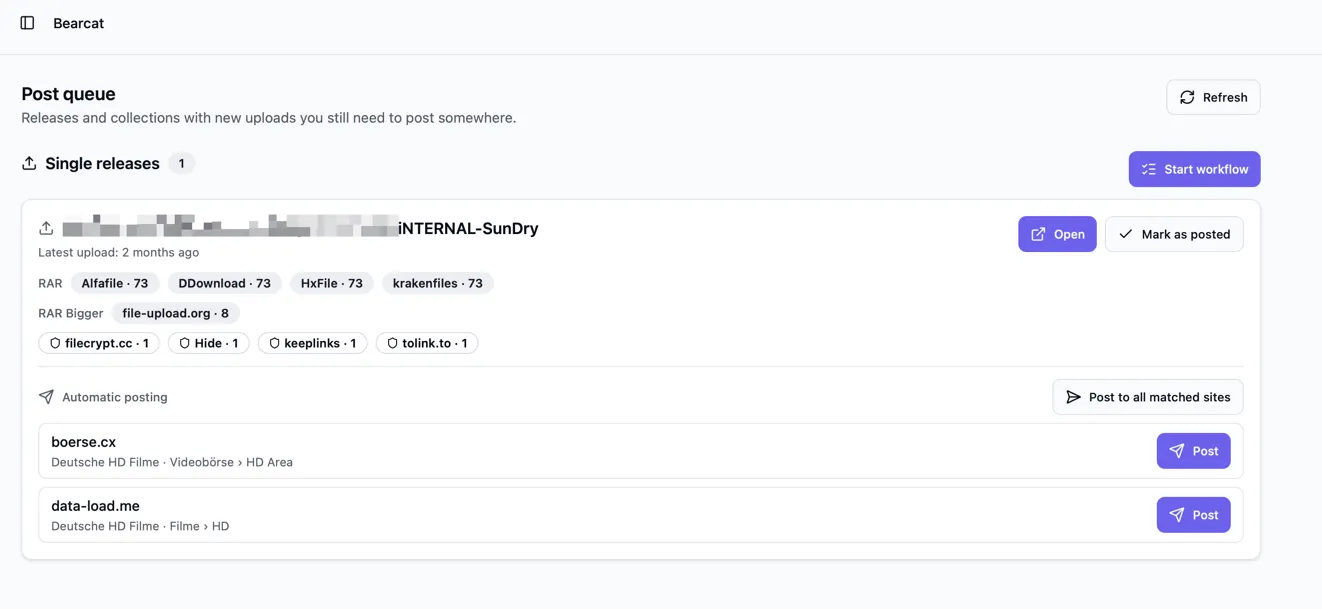
Once all matching forums are handled, Bearcat marks the release as posted and removes it from the queue. If you post manually, use Mark as posted.
Automatic posting is available for single releases only.
When a release cannot be posted
Section titled “When a release cannot be posted”Instead of the forum list, the entry shows a short reason:
- Automatic posting is blocked: the quality gate has not passed. The release must pass its quality checks or be manually approved. Bearcat checks unevaluated releases on the next background run.
- Automatic posting is blocked: the release has no classification. Bearcat classifies releases every 30 minutes and after extracting media data. Wait for the next run or click Extract media data on the release.
- No forum has posting rules yet. No forum registration has an enabled rule.
The background task retries blocked releases once they meet these requirements.
Updating a post after a reupload
Section titled “Updating a post after a reupload”After a reupload, Bearcat can update existing posts with the new download links. It fills the template with the current data and replaces the entire post, including any edits you made in the forum. Use this for posts with direct download links instead of a link crypter container.
Updating from the queue
Section titled “Updating from the queue”A reupload puts the release back in the post queue. Previously used forums show Post content is outdated next to the stored link. Click Update post to replace the post. The template and update time are saved with the URL under Posted locations.
For forums with Automatic posting enabled, the background task updates posts automatically if a template is available. The release leaves the queue once all posts and updates are complete.
Choosing a template
Section titled “Choosing a template”Bearcat uses the first available template in this order:
- The template you pick in the dialog.
- The template the post was created with.
- The template of the rule that currently matches the release.
Older posts may have no stored template. Choose one in the dialog or make sure a posting rule matches.
Updating from posted locations
Section titled “Updating from posted locations”You can also update a post from Posted locations on a release or collection. Click the update button and confirm the replacement. The entry must be linked to a distribution site; posts you confirmed by hand also qualify.
Collections can only be updated this way. The background task handles single releases.
Notifications
Section titled “Notifications”Bearcat notifies you of successful and failed posts. You can disable notifications for successful and failed updates separately.
Posted locations and duplicates
Section titled “Posted locations and duplicates”Bearcat records each forum in Posted locations and shows Posted instead of offering to post again. The background task skips those forums, even if the rules have changed.