Install Bearcat on Windows, macOS, and Linux
The Desktop app starts Bearcat and opens its web interface in your browser. New installations use SQLite, which needs no database server.
1. Install the archive tools
Section titled “1. Install the archive tools”Bearcat needs both RAR and 7-Zip to start.
| System | What to install |
|---|---|
| Windows | WinRAR and 7-Zip. |
| macOS | RAR for macOS ARM and the 7-Zip console version for macOS. Extract both into folders you will keep. |
| Linux (x64) | RAR for Linux x64 and the 7-Zip console version for Linux x64. Extract both into folders you will keep. |
In step 3, select the tools’ executable files. On Windows, these are usually
C:\Program Files\WinRAR\Rar.exe and C:\Program Files\7-Zip\7z.exe.
On macOS and Linux, select the extracted rar and 7zz files.
On macOS, you can also install 7-Zip via Homebrew:
For Homebrew, select /opt/homebrew/bin/7zz under 7z executable in step 3
(the default path on Apple Silicon).
RAR’s Homebrew cask (brew install --cask rar) is disabled.
Use the official download above. If RAR is already installed through Homebrew,
select /opt/homebrew/bin/rar under RAR executable.
2. Download and open Bearcat
Section titled “2. Download and open Bearcat”Download the Desktop package for your computer from GitHub releases:
- Windows: extract the
Bearcat.Desktop-win-...zippackage and openBearcat.Desktop.exe. Keep all extracted files in the same folder. - macOS (Apple Silicon): extract
Bearcat.Desktop-macos-arm64.zip, move Bearcat Desktop.app to Applications, and open it. - Linux (x64): open
Bearcat.Desktop-linux-x64.rpm(Fedora, openSUSE) orBearcat.Desktop-linux-x64.deb(Ubuntu, Debian), install it, and start Bearcat Desktop from the app menu. In a terminal:sudo dnf install ./Bearcat.Desktop-linux-x64.rpmorsudo apt install ./Bearcat.Desktop-linux-x64.deb. On other distributions, extractBearcat.Desktop-linux-x64.tar.gzand runBearcat.Desktopfrom a terminal.
macOS says the app is damaged or blocks it from opening
If macOS blocks the app, move it to /Applications and run this in Terminal:
Open the app again.
3. Choose your folders and tools
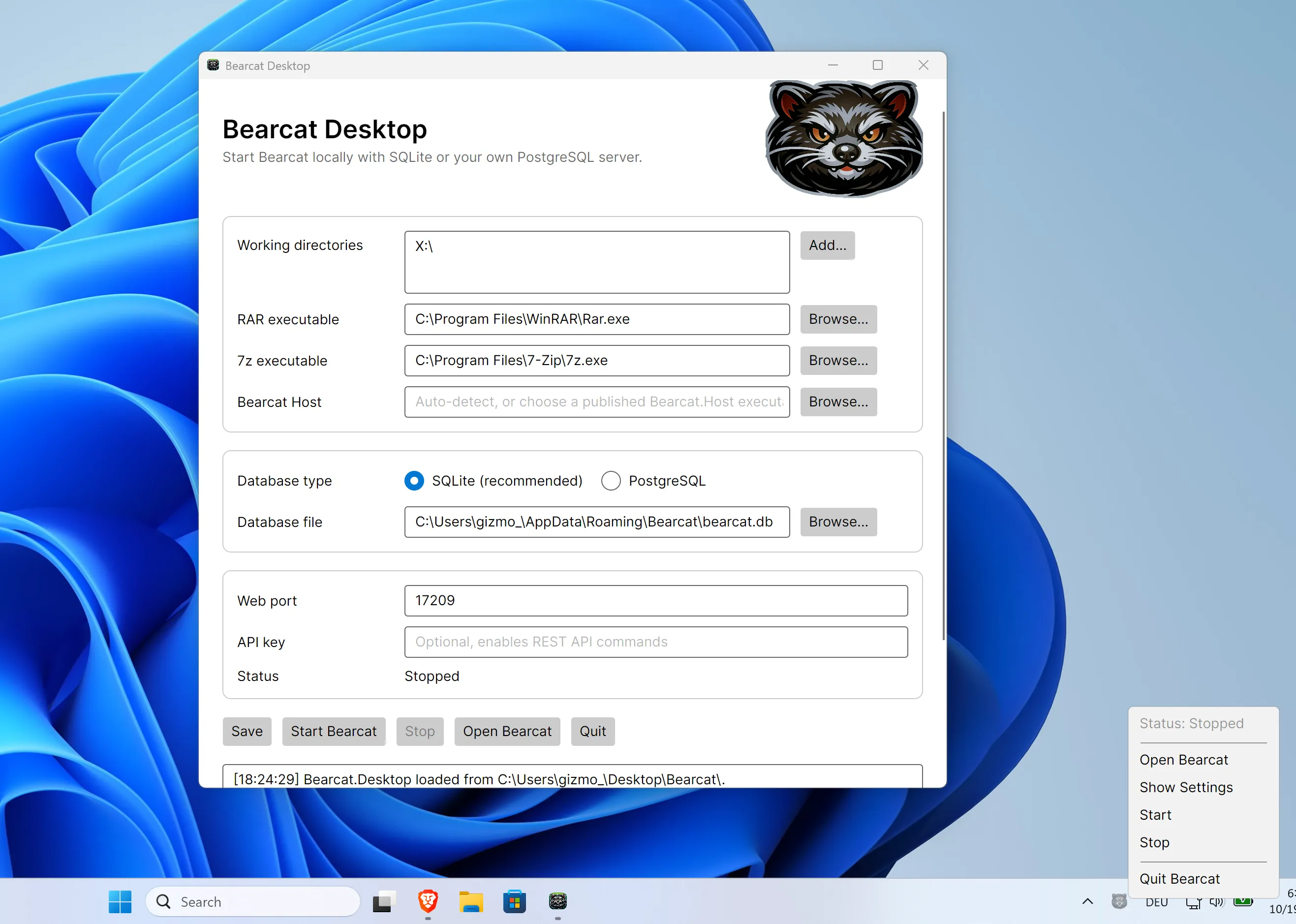
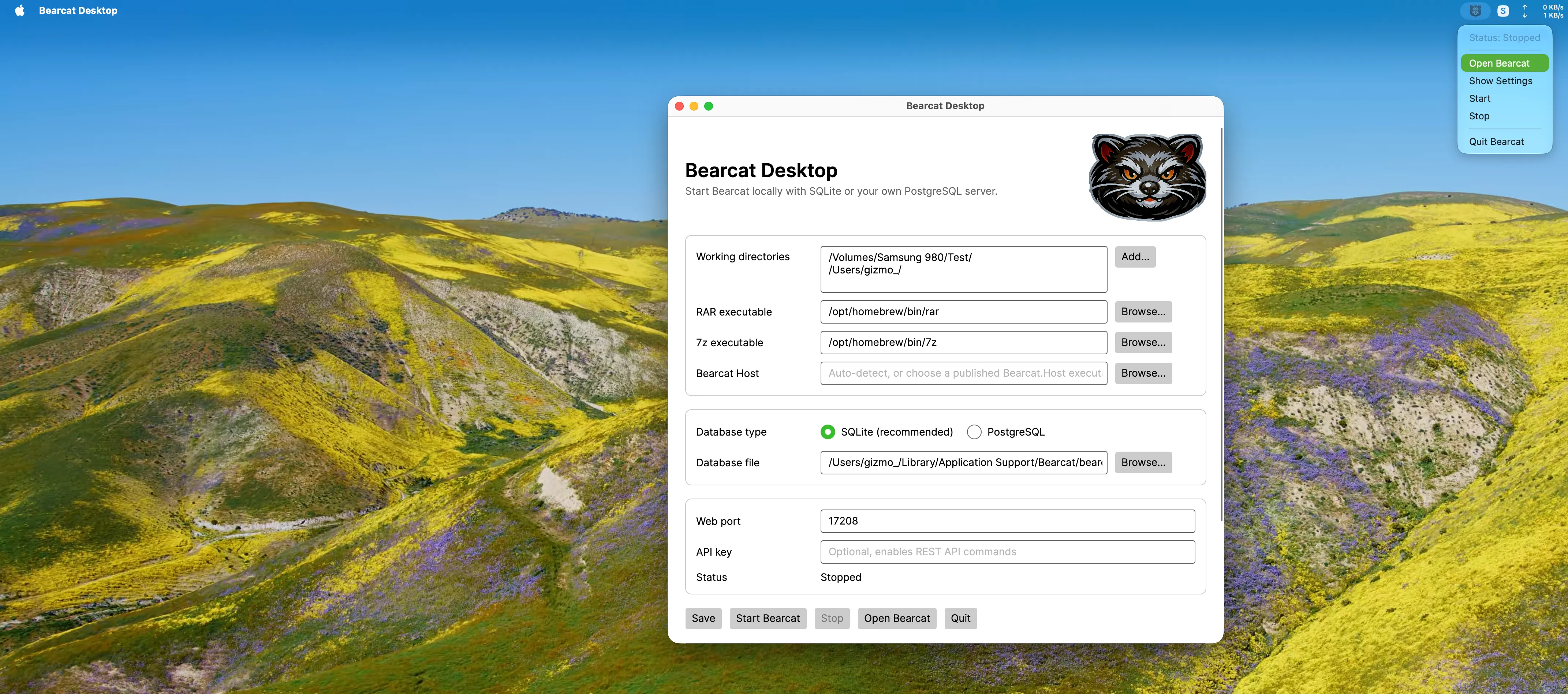
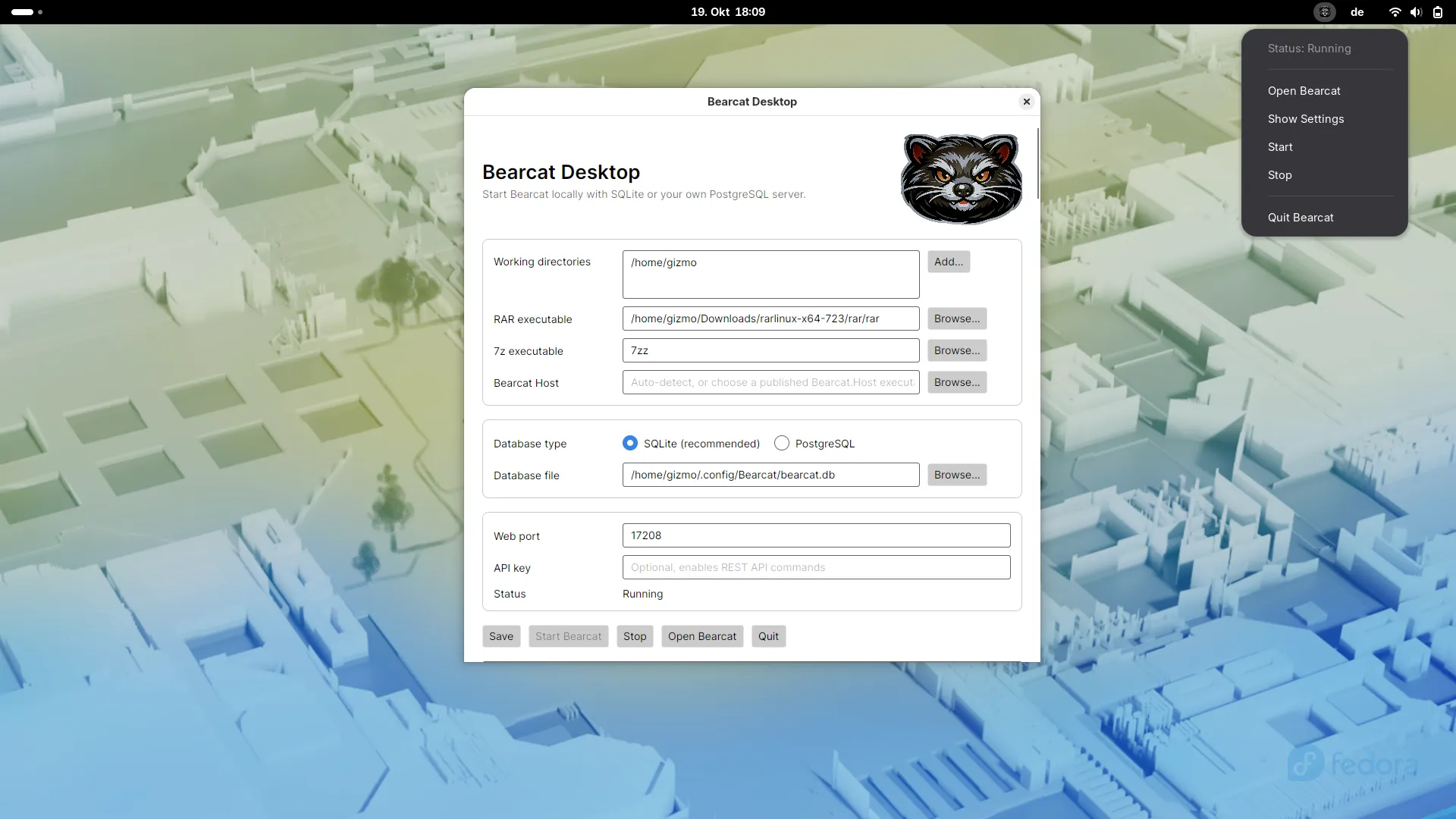
Section titled “3. Choose your folders and tools”Create a folder for your releases, for example C:\Bearcat\releases on Windows or
~/Bearcat/releases on macOS and Linux. In the Desktop app, fill in:
| Field | What to enter |
|---|---|
| Working directories | Click Add… and select your release folder. Bearcat must be able to read and write here. |
| RAR executable | Click Browse… and select Rar.exe on Windows or rar on macOS and Linux. |
| 7z executable | Click Browse… and select 7z.exe on Windows or 7zz on macOS and Linux. |
Keep the defaults for SQLite (recommended), Database file, Bearcat Host, Web port, and API key.
Show screenshots of the Desktop app
Windows
macOS
Linux
4. Start Bearcat
Section titled “4. Start Bearcat”Click Save, then Start Bearcat. Once it is ready, click Open Bearcat or open http://127.0.0.1:17208.
Next: Set up Bearcat and upload your first release.
Closing the settings window keeps Bearcat running. Use Stop or Quit to stop it. On GNOME, the tray icon needs the AppIndicator extension; Ubuntu includes it. To run Bearcat on Windows without logging in, use the Windows service.
Updating Bearcat
Section titled “Updating Bearcat”- Exit the Desktop app with Quit or Quit Bearcat in the tray menu. Closing the window is not enough; Bearcat keeps running.
- Download the new Desktop package for your system from GitHub releases and install it:
| System | Update steps |
|---|---|
| Windows | Extract Bearcat.Desktop-win-...zip and replace all application files in the existing install folder, including DLLs and subfolders. |
| macOS | Extract Bearcat.Desktop-macos-arm64.zip and replace Bearcat Desktop.app in Applications. |
| Linux (DEB/RPM) | Install the new package with sudo apt install ./Bearcat.Desktop-linux-x64.deb or sudo dnf install ./Bearcat.Desktop-linux-x64.rpm. |
| Linux (TAR.GZ) | Extract Bearcat.Desktop-linux-x64.tar.gz and replace the application files in the existing install folder. |
- Open the Desktop app and click Start Bearcat. Reload the web interface and check the version shown in the sidebar below the logo.
Your settings and data stay in their existing locations. If you chose a database file inside the install folder, keep it when replacing the application files. If you set Bearcat Host manually, make sure it points to the host from the new package. Bearcat updates the database automatically on startup.
Other settings
Section titled “Other settings”Database type
Section titled “Database type”SQLite stores your data in a file on this computer. Keep it on a local drive, not a network share. The default location is:
To use PostgreSQL, set up a PostgreSQL server, select PostgreSQL, and enter its host, port, database name, username, and password. Bearcat updates the database on startup and creates it if the user has permission.
Existing PostgreSQL settings are kept. Switching databases does not transfer data; the new database starts empty.
Bearcat Host
Section titled “Bearcat Host”Leave this empty for automatic detection. If detection fails, select the Bearcat.Host executable
or Bearcat.Host.dll from the downloaded package.
Web port
Section titled “Web port”Keep 17208 unless another application uses that port. If you change it, use the new port in the browser address.
API key
Section titled “API key”Leave this empty unless you want to control Bearcat through the REST API.
Settings and backups
Section titled “Settings and backups”The Desktop app saves its settings here:
It also contains any API key and PostgreSQL password you entered.
Bearcat also creates bearcat.key in %APPDATA%\Bearcat on Windows,
~/Library/Application Support/Bearcat on macOS, or ~/.config/Bearcat on Linux. It uses this key to decrypt your saved credentials.
For a backup, keep the database and bearcat.key together. Without the key, Bearcat cannot decrypt
your credentials after a restore or a move to another computer.
- SQLite: stop Bearcat and copy
bearcat.dbfrom its configured location. While Bearcat runs, usesqlite3 bearcat.db ".backup bearcat-backup.db"instead of copying the database file. - PostgreSQL: back up the PostgreSQL database.
Copy bearcat.key with either backup.
If Bearcat does not start
Section titled “If Bearcat does not start”- RAR or 7z was not found: select the executable files with Browse…. On macOS and Linux, the official 7-Zip download names its executable
7zz. - A folder is missing or not writable: check your working directories and database file location.
- The web port is in use: choose another port and start Bearcat again.
- Changes seem to have no effect on Windows: check the tray for another running copy of Bearcat Desktop and quit it.