
Prepare and Submit Forum Posts
Bearcat creates a forum draft from your template and release data. Open it in your browser, check the title and body, and submit it. You must be logged into the same forum account.
To let Bearcat submit posts for you, use posting rules.
What you need first
Section titled “What you need first”- A distribution site, which is a forum account you added to Bearcat.
- A forum post template.
- A release with completed uploads and download links.
Setting up a distribution site
Section titled “Setting up a distribution site”Open Distribution sites in the sidebar and add one. Pick the forum, enter your username and password, and save. Your password is stored encrypted. Activate the site and use Try login to check the connection.
For boerse.cx and data-load.me, select the matching forum entry.
For other XenForo forums, pick XenForo. Enter your username, password and the forum start page
address, including any installation folder, for example https://example.org/community/. Use the
address shown in your browser after redirects. Add each forum separately.
The XenForo entry needs friendly URLs and the standard XenForo login, post and draft forms.
Routing through index.php, SSO, CAPTCHA and two-factor login are not supported. Custom themes,
required thread fields or add-ons can prevent posting. Test the login and prepare a draft
before enabling automatic posting.
Posting a release
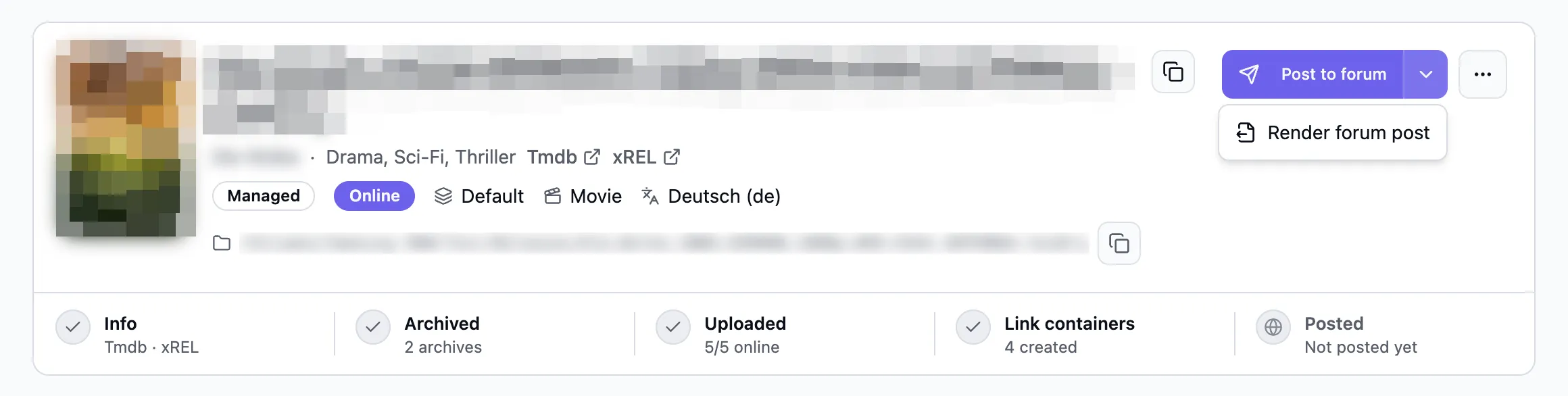
Section titled “Posting a release”Open a release and click Post to forum in the header. Render forum post is in the arrow menu of the same button.
In the dialog:
-
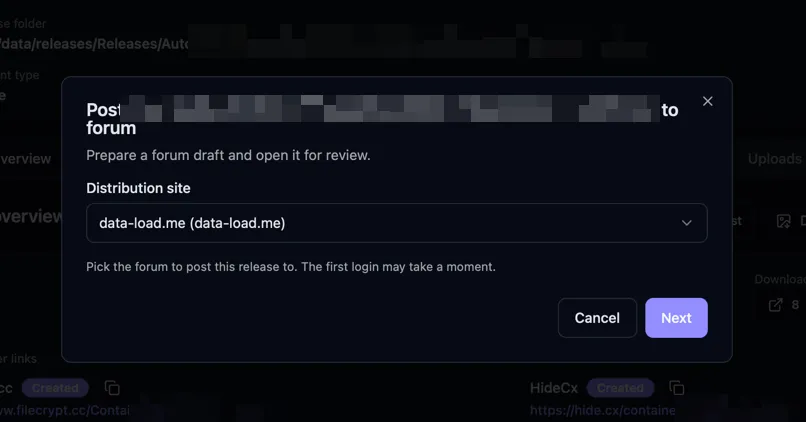
Pick the distribution site you want to post to.
-
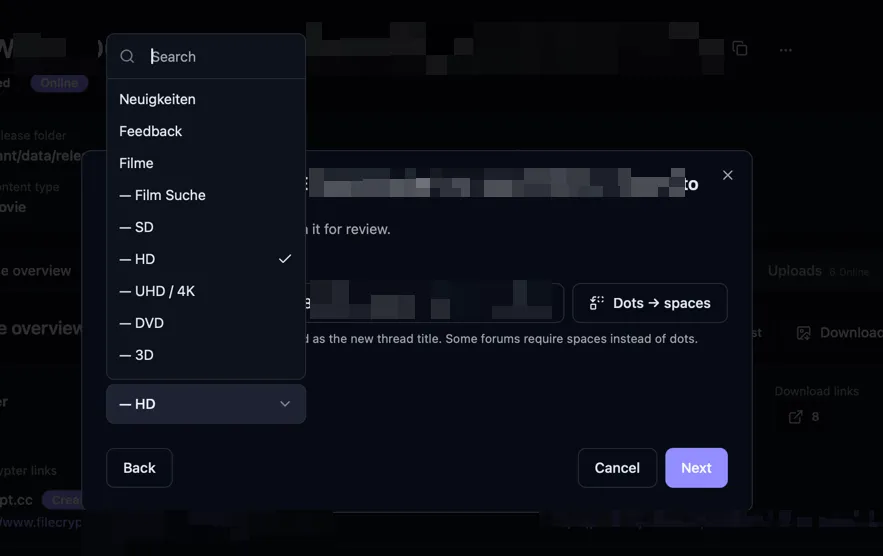
Search for and select a subforum. You can also edit the release name, which Bearcat uses to search for existing threads and name new ones. Dots → spaces replaces dots with spaces and adds spaces around the final hyphen before the release group.
-
Bearcat searches the subforum for a thread that matches the name. If it finds one, Bearcat suggests a reply. Otherwise, it suggests a new thread.
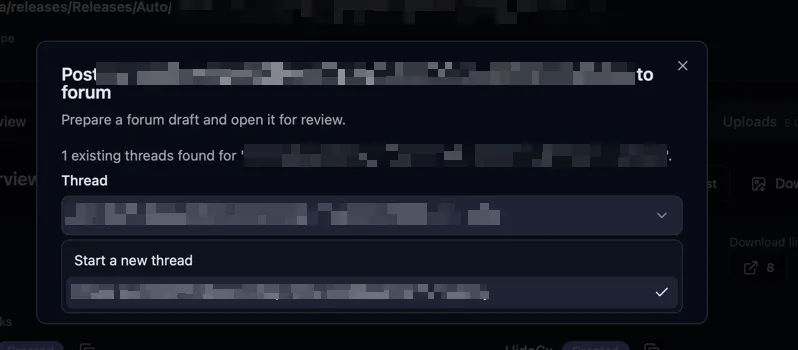
Existing thread found 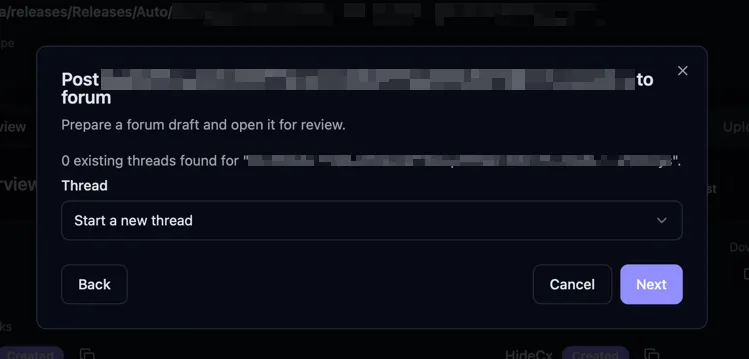
No existing thread found -
Pick a forum post template. Bearcat fills it with the release data; you can edit the result. For a new thread, also set the title and an optional prefix such as 1080p or x265.
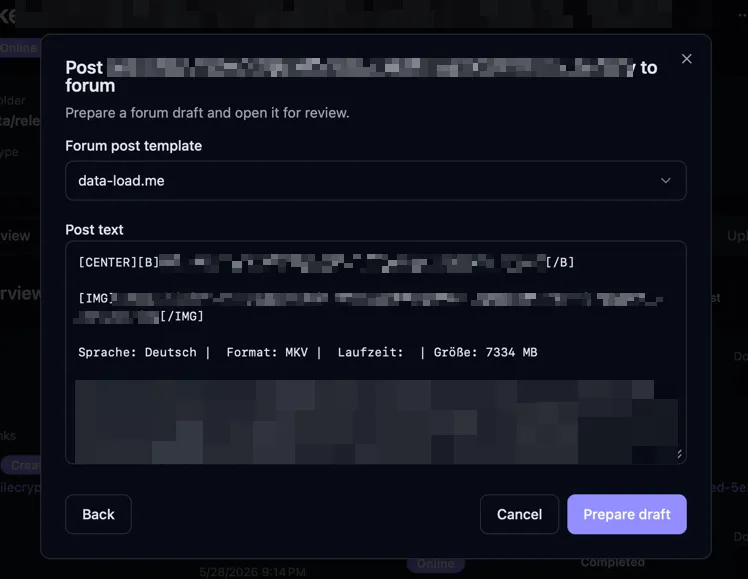
Prepare a reply to an existing thread 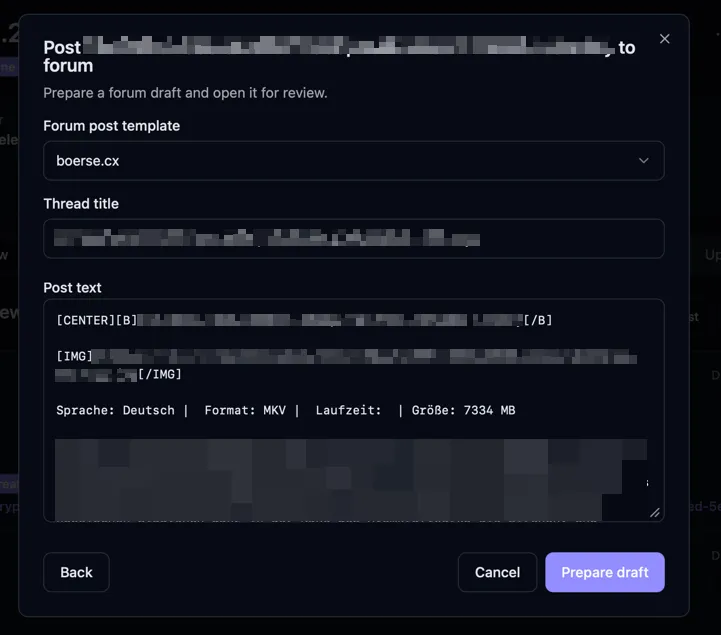
Prepare a new thread -
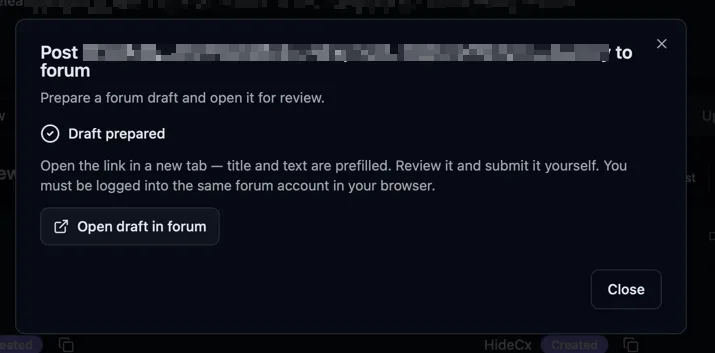
Click Prepare draft. Bearcat saves the draft in the forum and shows an Open draft in forum link.
Sending the post
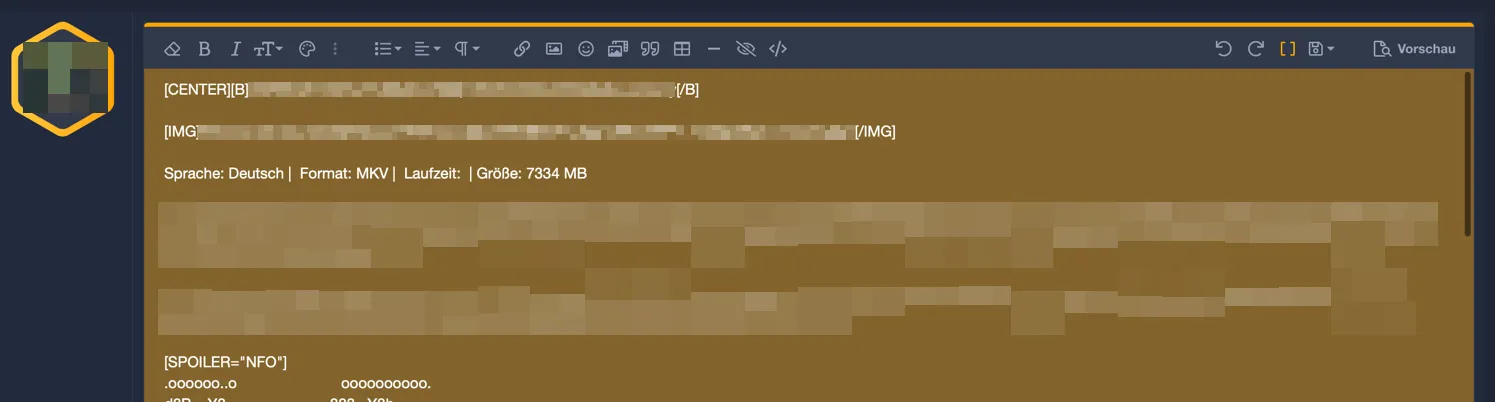
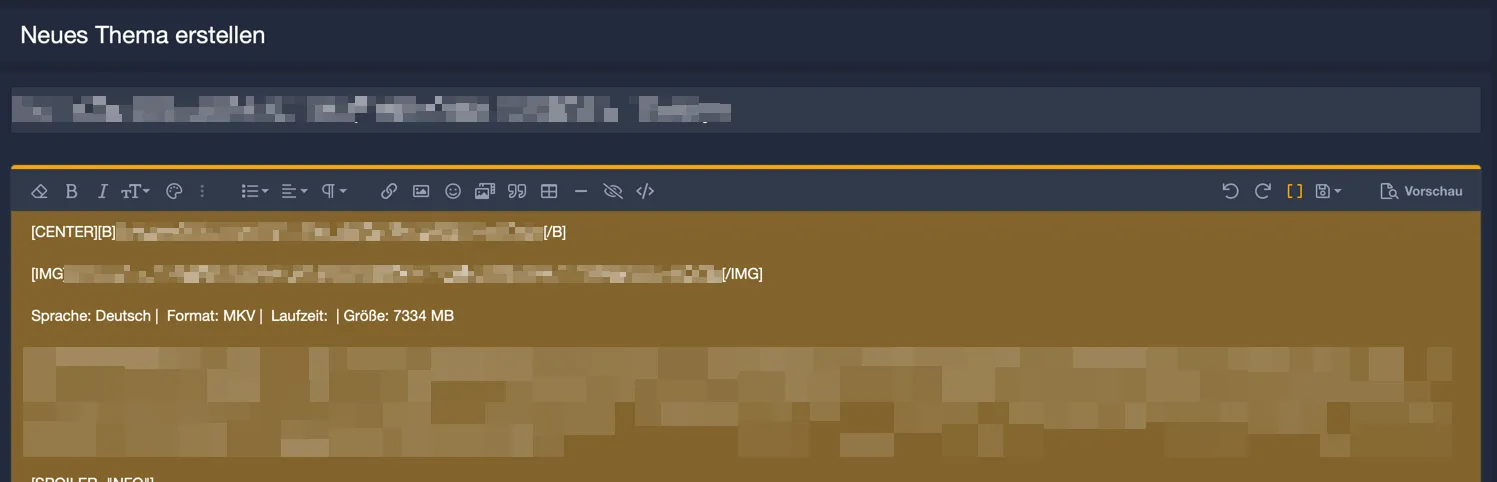
Section titled “Sending the post”- Click Open draft in forum in a browser logged into the same forum account. Otherwise, the editor will not show the draft.
- Review the title and body, use the forum’s preview if needed, and submit the post.
- Back in Bearcat, click I have posted to save the post URL under Posted locations. If Bearcat cannot find the post yet, paste its URL. The forum search may take a few seconds to catch up.
I have posted saves the URL but does not remove the release from the post queue. Use Mark as posted there when you have finished posting.
Posted locations
Section titled “Posted locations”Posted locations lists the URLs where a release or collection has been published, such as forum threads or WordPress pages. Confirming a forum post adds its URL here. You can also add or remove links by hand.