
Release Templates and Folder Automations
Save your first upload settings as a template. Use it to create more releases manually or automatically from new folders.
Setting up release templates
Section titled “Setting up release templates”A release template contains the release group and settings for archives, uploads, images, and link crypters.
- Open Release templates, click New release template, and add the configurations.
- Open a configured release and choose Save as template from its action menu.
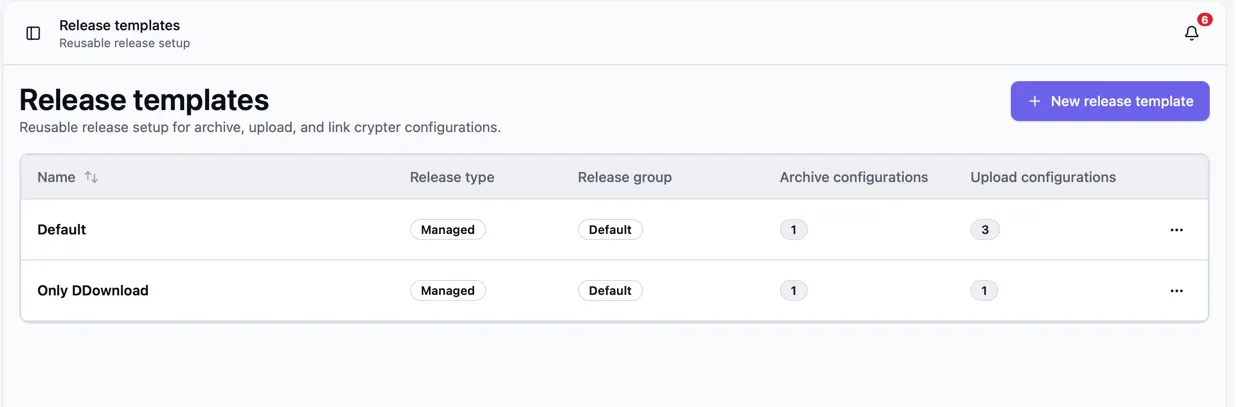
On Releases, choose New from template. The new release normally takes the folder name, as do archive configurations set to use the release name.
Enable Collection detection in the template to group related releases, such as episodes of a TV season. See Release Collections.
Setting up folder automations
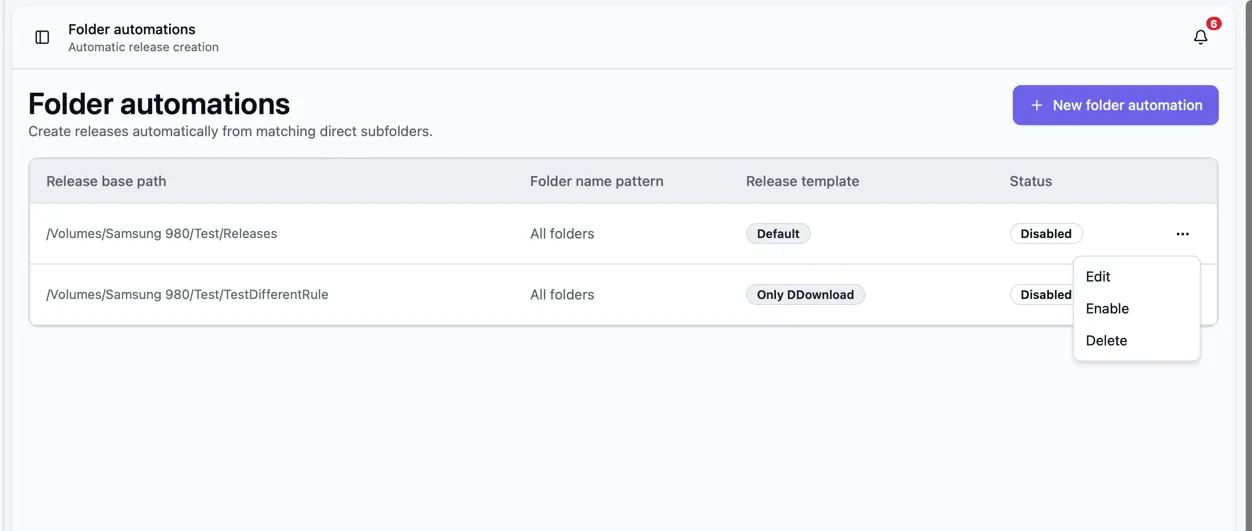
Section titled “Setting up folder automations”- Create a release template, then open Folder automations and click New folder automation.
- Set Release base path to the folder Bearcat should scan. Only direct subfolders are checked.
- Optionally set a Folder name pattern, such as
*1080p*or*.GERMAN.*. Matching ignores case and supports wildcards, but not regular expressions. Leave it empty to include all direct subfolders. - Leave Ignore existing folders on to process only new folders. Turn it off to import existing folders. See Existing folders.
- Select the template and optionally a primary language for translated metadata. An empty language uses the metadata provider’s default.
- Save with Enabled checked. You can disable or re-enable the automation from its action menu.
For this base folder:
The pattern *1080p* selects only Movie.One.2026.1080p. An empty pattern includes all three folders.
Bearcat scans about every two minutes and skips folders that already have a release. Once a folder meets the stability and minimum size requirements, Bearcat creates the release, looks up its metadata, and packs and uploads it using the template.
Existing folders
Section titled “Existing folders”Ignore existing folders is on by default. On its first scan, Bearcat records all matching folders and permanently ignores them for this automation. Only new folders become releases. Turn the option off to also import existing folders that do not have a release yet.
If you change Release base path or Folder name pattern, this setting applies again to the folders Bearcat finds with the new settings.
The Folder preview lists folders that match the base path and pattern. Folders with a release and archive output folders are marked Already in use.
When you create an automation or change its base path or pattern, the preview also shows what will happen to the remaining folders: Bearcat ignores them or shows a warning with the number of folders that will be imported and uploaded. Use the refresh button to reload the preview.
Extract archives before release creation
Section titled “Extract archives before release creation”For managed templates, turn on Extract archives before release creation in the folder automation if the folders contain RAR or 7z archives and you want Bearcat to pack the release itself. The option is off by default and does not apply to unmanaged templates.
Before the release is created, Bearcat checks the folder against its .sfv files, if there are any,
and extracts every RAR and 7z archive in the folder and its subfolders. After a successful extraction,
it deletes the archive volumes and .sfv files that only list those volumes. The extraction rules are
the same as for remote downloads.
Running checks and extractions appear on the Activity page under Folder automations.
If verification or extraction fails, Bearcat keeps the files and creates no release. Find the error under Failed extractions on Folder automations. Fix the cause, then click Retry to process the folder on the next scan. Bearcat also retries when the folder’s files change.
Download releases from FTP or FTPS
Section titled “Download releases from FTP or FTPS”Use Remote sources and Remote automations to download new folders from a server and create releases from a template. See FTP / FTPS Downloads for setup and examples.