
Use Hosters as Long-Term Storage
Enable a hoster as a mirror so Bearcat can restore archive files when a reupload needs them. You can then delete local archives to free disk space, as long as a mirror still has the required files online.
This works for both managed and unmanaged releases.
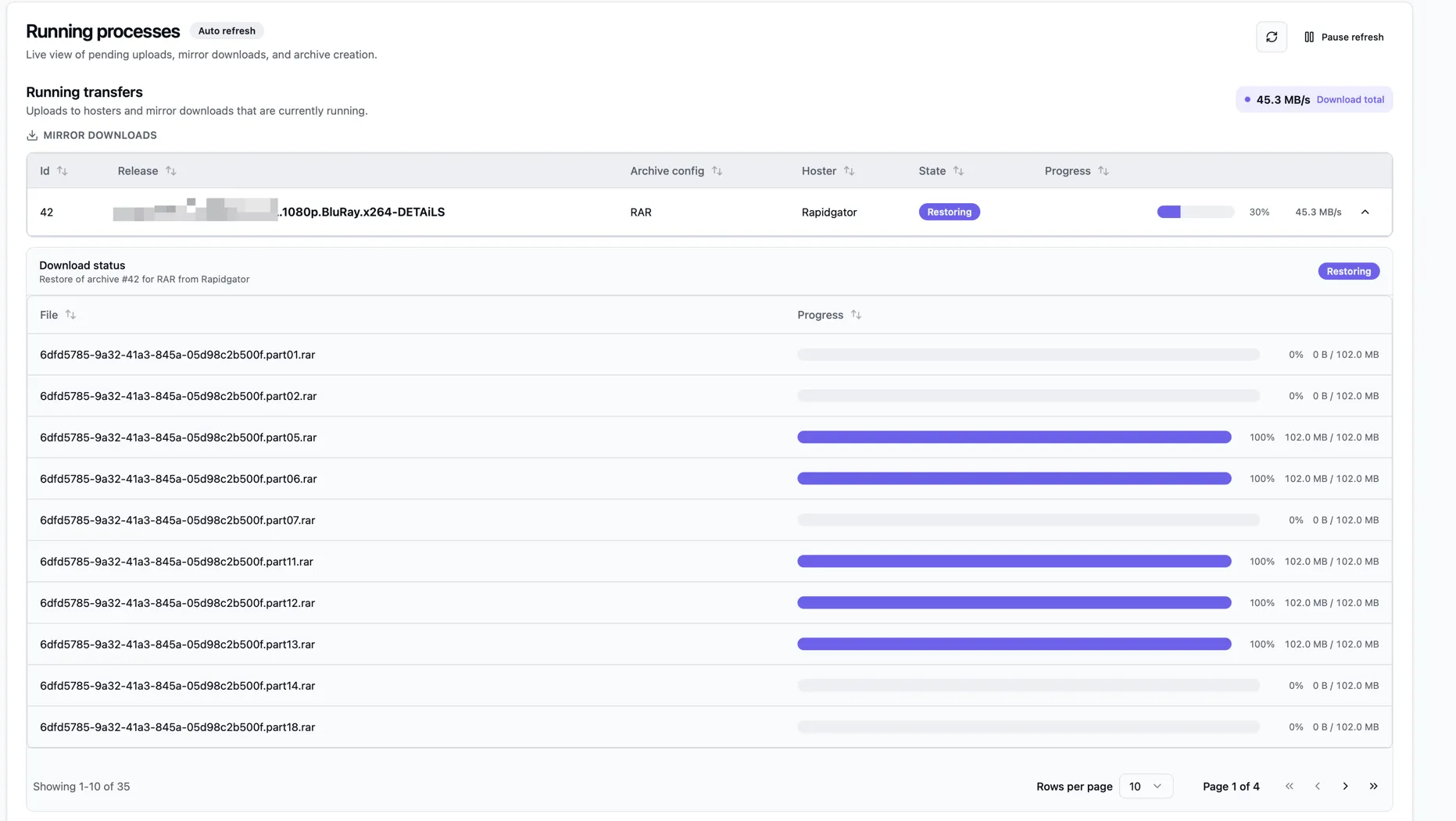
When Bearcat downloads from a mirror
Section titled “When Bearcat downloads from a mirror”When an upload needs an existing archive, Bearcat first uses the files on disk. It downloads missing files from active mirror hosters. The required parts can come from several mirrors.
Bearcat keeps links still online from the previous upload to the same hoster. It only downloads files needed for the reupload.
If no suitable mirror is available, Bearcat can repack managed releases from the release folder. For unmanaged releases, you need to provide the missing archive files yourself. See Unmanaged Releases.
7-Zip archives need repacking for new hashes even when the files are available. See Archive reuse for the format differences.
Enable a hoster as a mirror
Section titled “Enable a hoster as a mirror”Open the hoster registration and turn on Use for mirror downloads.
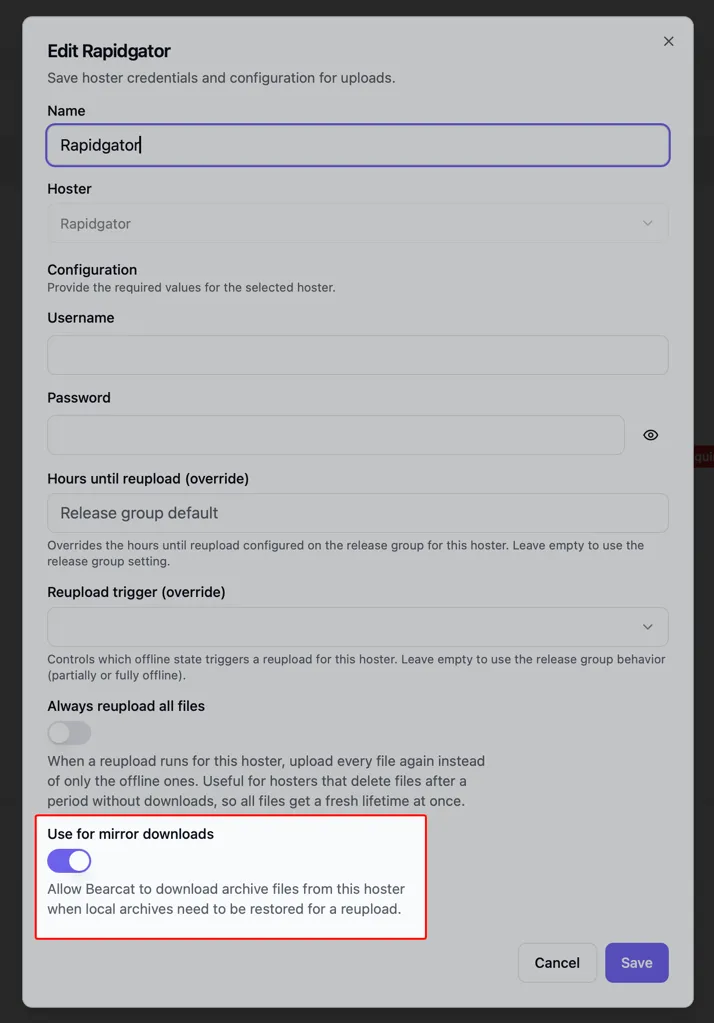
Use a proxy for downloads
Section titled “Use a proxy for downloads”Set Proxy for mirror downloads in the hoster registration to use a proxy for archive restores. It is separate from the proxy used for uploads and account requests. Leave it on Category default to follow the global Hoster mirror downloads setting. See Proxy Servers.
Mirror priority
Section titled “Mirror priority”Mirror priority appears when you enable mirror downloads. Default: 100.
Lower numbers take priority, such as 10 before 100.
Bearcat chooses a mirror for each file. Only active hoster registrations with that file marked online are considered. At the same priority, the most recent file check wins. If a download still fails after retries, Bearcat tries the next available mirror.
Hosters that support mirror downloads
Section titled “Hosters that support mirror downloads”Use for mirror downloads is available for these hosters:
| Hoster | Premium account needed |
|---|---|
| Rapidgator | Yes |
| 1fichier | Yes |
| Alfafile | Yes |
| HxFile.co | Yes |
| Keep2Share | Yes |
| Fast2Share.com | Yes |
| mega4upload.net | Yes |
| DDownload | No |
| datavaults.co | No |
| file-upload.org | No |
| Uploady.io | No |
Bearcat shows a hint beside the switch when a premium account is needed. Free accounts can still upload to these hosters.
For mega4upload.net, your API key also needs the download scope.
Ask support to enable it.
Cancel a running download
Section titled “Cancel a running download”Follow or cancel mirror downloads under Activity > Downloads. It shows progress, speed, remaining time, and file details.
Canceling deletes the incomplete downloads and cancels the waiting uploads so they do not restart on the next run. The archive state is reset; files on the hoster are kept. Create a manual reupload when you want to try again.
Verification and failures
Section titled “Verification and failures”Bearcat compares downloaded files with the MD5 hash recorded during upload, if available. A hash mismatch or download error causes a retry or a switch to another mirror.
If any file cannot be restored, Bearcat discards the download and reports Archive restore failed. The archive keeps its previous state; the waiting uploads fail. Fix the cause, then create a manual reupload.
Parallel downloads
Section titled “Parallel downloads”Under Configurations > Mirror downloads, set Max parallel downloads to limit how many
archive files are downloaded at once. Default: 2.
Raise it if your line is fast and your hoster account allows several connections. Lower it to 1 if
the hoster throttles or rejects parallel downloads.
Speed limits
Section titled “Speed limits”- Maximum download speed (MB/s) under Configurations > Mirror downloads caps the combined speed of all running mirror downloads.
- Maximum mirror download speed (MB/s) in the hoster registration caps the combined speed of all mirror downloads from that hoster registration.
Both are empty by default, which means no limit. Decimal values such as 0.5 or 0,5 are allowed.
Both limits apply at the same time.
Delete local archives yourself
Section titled “Delete local archives yourself”Choose Delete local archives in the release detail page’s action menu to free disk space. Bearcat deletes the release’s archive files.
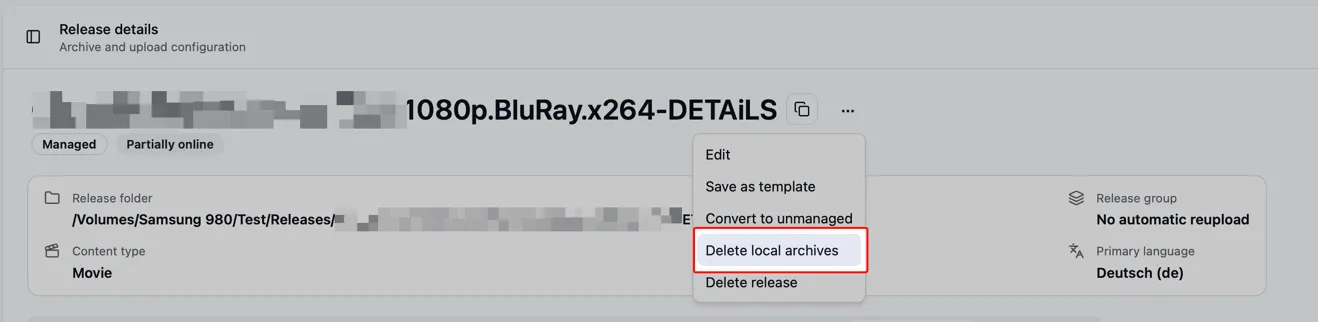
Bearcat only offers this when the release stays recoverable:
- No upload of the release is running.
- Every archive configuration has a fully online upload on a hoster that is enabled for mirror downloads, or the release is managed and still has its release folder for repacking.
Bearcat deletes the archive files and removes the folder only if it is then empty. Other files are kept. Archives in a storage folder are not deleted. If all archives of the release are in storage folders, Bearcat has nothing to delete and says so.
Automatic cleanup
Section titled “Automatic cleanup”Under Auto cleanup, set Local archives after retention to Delete. Bearcat removes them after the configured period and restores them when a reupload needs them.